
If you run Internet Connections Troubleshooter, and you see an error message saying A network cable is not properly plugged in or may be broken, then this post will help you fix the issue on your Windows computer.
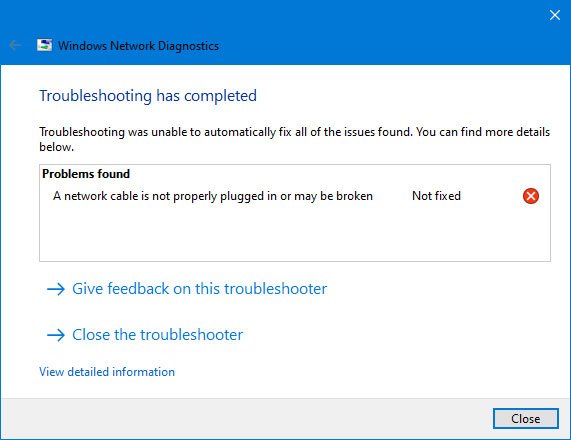
Windows users often run various in-built troubleshooters to fix common issues like no internet connection. If you do not get a working internet connection, you can utilize the ‘Internet Connections’ troubleshooter, as it can help you fix the problem. However, if it is showing the error message, as mentioned earlier, you need to perform something else other than using the troubleshooter.
A network cable is not properly plugged in or may be broken
If the Internet Connections Troubleshooter throws up an error message A network cable is not properly plugged in or may be broken, these suggestions will help you fix the issue:
- Check the power supply of the WiFi router
- Replace Ethernet cable
- Run Network Adapter Troubleshooter.
A detailed guide is mentioned below, and you can follow these steps.
1] Check the power supply of the WiFi router
This problem mainly occurs when using a Wi-Fi router for an internet connection. Regardless of the router you are using, your device requires a constant power supply. If there is an issue with the router’s power supply, there is a high chance of facing this problem. Generally, all routers have some common indicators, such as incoming and outgoing connections, WiFi broadcasting, and power supply. If the power supply or all other lights are behaving abnormally, you need to contact the router manufacturer since there could be some issues with your WiFi router.
To ensure if the router is the culprit or not, you can use a different WiFi router or try to connect another computer to the same WiFi network via an Ethernet cable.
2] Replace Ethernet cable
If the solution mentioned above doesn’t work for you, you could try changing the Ethernet cable. A standard CAT6 cable contains five wires in the conduit, and a minimum dent or cut can cause such an issue. A 5 to 6 foot Ethernet cable doesn’t cost a lot. Hence, you can try replacing the existing cable to check if it is causing the problem.
3] Run Network Adapter Troubleshooter
Sometimes, the Ethernet port or the adapter can be the reason for this error. Open the Troubleshoot page in Windows Settings panel, and run the Network Adapter Troubleshooter.
If you are familiar with the process, you can also attempt to clean the adapter or Ethernet port manually.
That’s all!
