
Today, we will discuss a Windows freeware known as Monkeys Audio, a tool many computer users might find pleasing. It is worth noting that this software was specifically designed for the purpose of compressing digital content.
Over the years, we’ve come to realize that compressing digital music files can greatly affect quality, and that is something we would rather not have to deal with. We understand that with Monkeys Audio, this is not necessarily the case, and that’s splendid because no one wants terrible audio.
According to the creators, Monkeys Audio only makes perfect bit-for-bit versions of your music. We have tested this and can barely tell the difference, but then again, we are not audio experts; therefore, our takeaway could be wrong. The best option right now is to take it for a spin yourself to see if it lives up to the hype. To help with your decision, we will discuss how to use this thing, and from there, you can conclude whether or not this tool is worth your time and effort.
Monkeys Audio – Lossless audio compression software
Compressing music files is not difficult, but Monkeys Audio offers lossless compressions and is more streamlined than most similar freeware tools available to Windows 11/10 users today.
1] Add Files
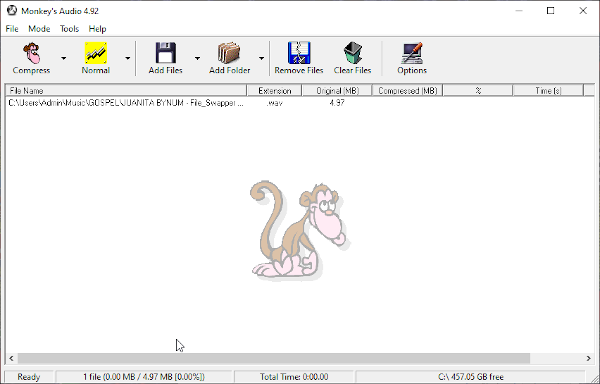
Okay, after downloading and installing the program, the first step is to add your first file or files for compression. We suggest clicking on the button that says Add Files, then locating the digital music files you want to compress and adding them.
If there are any you’d prefer to remove, select them and then click the’Remove Files’ button. Better yet, click on Clear Files to remove everything at once if you want a clean slate. It gets the job done in no time, so don’t be afraid to click on it.
2] Add an Entire Folder
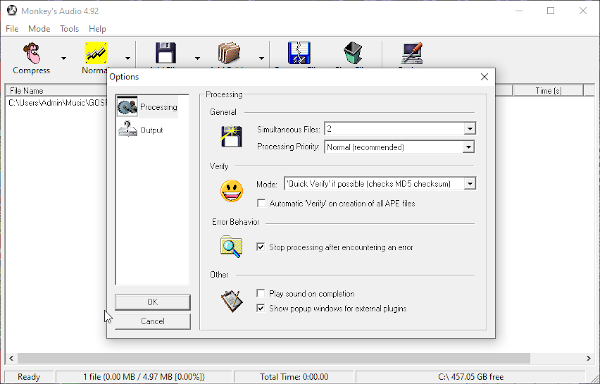
Chances are, you might want to compress an album or a folder filled with files. The best way to accomplish this is to add the folder containing the entire music collection. Be sure to click on the ‘Add Folder’ icon, and it’ll resolve the problem.
Bear in mind that this option can only add one folder at a time, so please do not forget this before proceeding.
3] Compress Your Files
OK, so when it comes down to compressing digital music files, you must first choose the quality. By default, it is set to High, but this can be easily changed. After making the changes, select the monkey-face icon that says Compress.
Sit back and wait for Monkeys Audio to do its thing, then after that, listen to your new audio files to see if they still sound the same.
Download Monkeys Audio from the official website when ready.
