
A few users have encountered an issue where Microsoft Translator stops translating after a few words. There are a few instances where the translator does not translate a single word. In this post, we are going to talk about this issue and see what you can do if Microsoft Translator is not working or translating.
Why is Microsoft Translator not working?
Microsoft Translator may fail to work due to a combination of service outages, connectivity problems, or local software glitches. An outage on Microsoft’s servers can temporarily disable the service for all users. On your end, a poor internet connection, corrupted browser cache, or an outdated app version can interrupt communication with these servers, preventing text or speech from being processed and returned correctly.
Fix Microsoft Translator not working or translating
If Microsoft Translator is not working or translating, you can follow the solutions mentioned below.
- Check Microsoft’s Service Status
- Verify your Internet Connection
- Clear the Browser’s cache and data
- Update or reinstall the app
- Flush DNS and Reset Network Stack
Let us talk about them in detail.
1] Check Microsoft’s Service Status
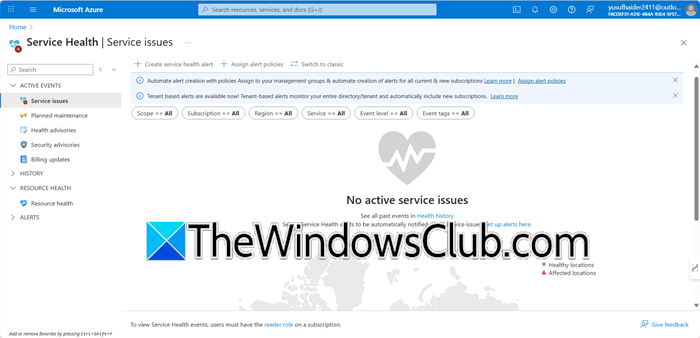
Microsoft Translator is a cloud-based service that relies on remote servers. If those servers are experiencing an outage or technical issue, the problem is universal and not specific to your device or connection. Checking the status page confirms whether the root cause is on Microsoft’s infrastructure, saving you from wasting time on unnecessary local troubleshooting. Since Microsoft Translator is a component of the Azure Cognitive Services platform, not a core Microsoft 365 app like Word or Excel, go to portal.azure.com and see if there are any outage updates.
2] Verify your Internet Connection
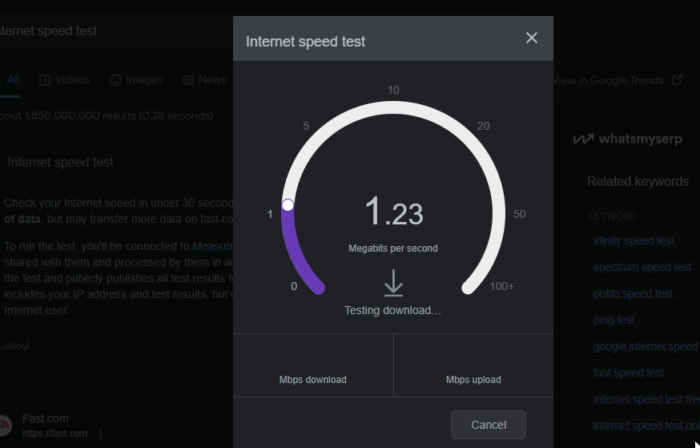
A weak or unstable connection can prevent this data exchange from completing successfully, causing the app or website to fail, time out, or produce an error. Verifying your connection isolates the problem to your local network, not the service itself. You can check an Internet Speed Test online service or website to see if there is an issue from your end.
You should also unplug your router and modem from power, wait for 30 seconds, and then plug them back in. Wait for all the lights to stabilize and check if the speed has been restored. If possible, switch to an alternative network. For example, if you are on Wi-Fi, disable it and use your mobile phone’s cellular data instead. Once you have a confirmed stable connection (or after switching networks), go back and try Microsoft Translator again.
3] Clear the Browser’s cache and data
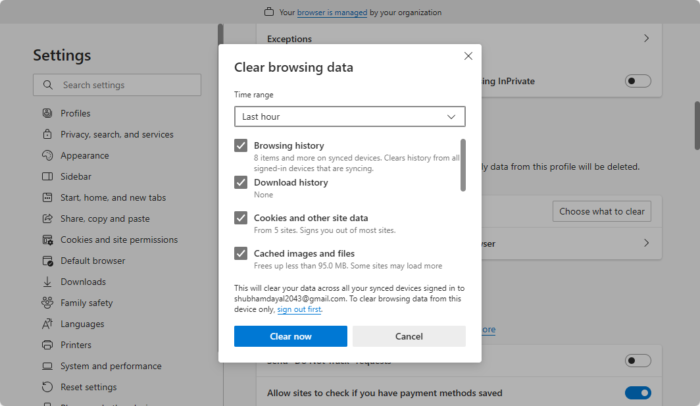
Your browser saves temporary files, like cache and cookies, to load websites faster. However, these files can become old or damaged. If a cache file gets corrupted, it can interfere with a website’s code, causing certain features, such as the translation tool, not to work properly. Clearing these files prompts the browser to download a new, working version of the website, fixing these issues. Go ahead and clear the cache and cookies on Microsoft Edge or Chrome. Once done, check if the issue is resolved.
Read: Enable or Disable website language translation in Microsoft Edge
4] Update or reinstall the app
An outdated app version may contain bugs that break core functions, and the app’s local data can become corrupted over time. Updating the app installs the latest bug fixes from developers. Uninstalling and reinstalling it gives you a completely fresh start by wiping all corrupted files and settings, restoring the app to its default working state. So, first of all, check the update on App Store (iPhones) or PlayStore (Android). If the latest version is already installed, uninstall the app, and install the latest version from their respective app store.
5] Flush DNS and Reset Network Stack
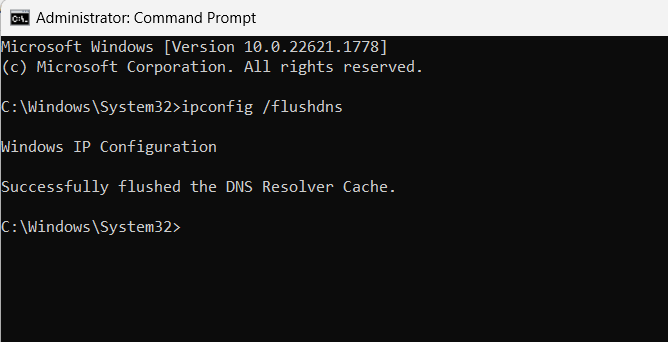
Your computer might be using outdated or corrupted DNS records, preventing it from correctly finding Microsoft’s translation servers. This advanced network reset clears these caches and resets critical network components. You need to open the Command Prompt as an administrator and then run the following commands.
ipconfig /flushdns

netsh int ip reset

netsh winsock reset
Finally, reboot your computer and check if the issue is resolved.
Read: Best free Language Translation websites
6] Check Regional/Firewall Restrictions
Corporate, school, or public Wi-Fi networks often firewall or restrict access to specific web services and APIs. If you can access the Translator page but it doesn’t translate, the specific API endpoint it calls may be blocked.
Try accessing Microsoft Translator on a different network (e.g., your mobile data hotspot). If it works, the issue is with your primary network’s restrictions. As a diagnostic workaround, a reputable VPN service can bypass network-level blocks by encrypting your traffic.
Hopefully, with the help of these solutions, your issue will be resolved.
How do I activate Microsoft Translator?
Microsoft Translator doesn’t require a traditional activation. It is a free service that you can start using immediately by accessing the Translator website (bing.com/translator), downloading the mobile app, or using its features integrated into other Microsoft products like Office or the Edge browser. Open the tool, select your languages, and begin typing or speaking to translate.
Also Read: Best free Translator apps for Windows PC.
