
Some users cannot use Microsoft Office due to the “No License Found” error. According to the reports, this error occurs when they sign into Office after installing it. Despite purchasing the genuine Office product key, some users encountered this error. If this happens to you, this article will help you resolve this problem.
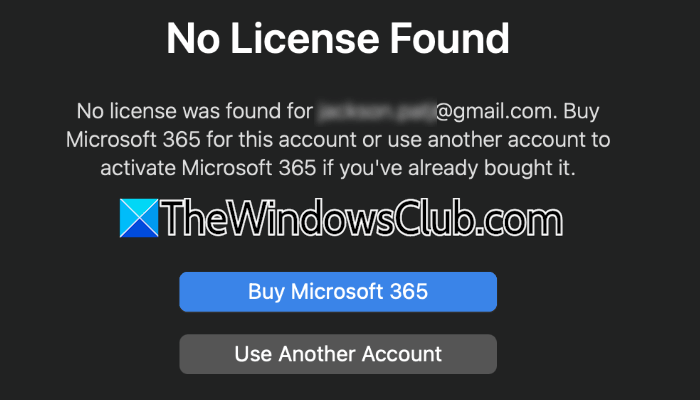
Fix No License Found Microsoft Office error
Use the following fixes for the “No License Found” error in Microsoft Office:
- Check Microsoft Office Service Health status
- Sign in with the correct Microsoft account
- Check your active device count and subscription limit
- Check date and time
- Uninstall the previous version of Office (if applicable)
- Use the Get Help app for troubleshooting
- Contact Microsoft Support
All these fixes are explained in detail below.
1] Check Microsoft Office Service Health status
If you have access to the Microsoft 365 admin center, you can check the Service Health status. The Service Health page in Microsoft 365 Admin Center shows the health of all Microsoft services.
Follow these steps to use the Service Status page to check for known issues that may prevent you from logging in to Microsoft Office.
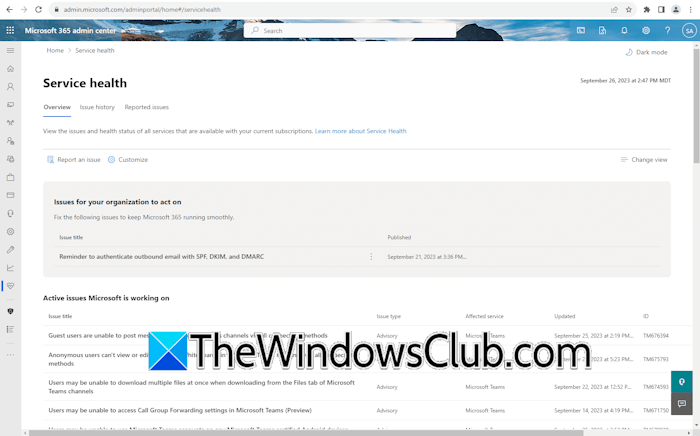
- Go to Microsoft 365 Admin Center and sign in with your admin account.
- Select Health from the left navigation pane of the admin center and then click Service health. Alternatively, you can also select the Service Health card on the Home dashboard.
- Once you are on the Service Health page, you can easily view the health state of each cloud service in a table format.
If there is an issue with Microsoft Office services, you should wait until Microsoft resolves it.
2] Sign in with the correct Microsoft account
Make sure you sign in with the correct Microsoft account. If you sign in to Office with the incorrect account, you may encounter this error. If you are using a school or work account, your administrator might not have assigned you the license. Contact your Microsoft 365 administrator.
3] Check your active device count and subscription limit
Microsoft 365 subscription offers various features and comes with certain limitations, depending on the plan you purchased. Each plan allows you to sign into a certain number of devices with the same account. For example, with the Microsoft 365 Personal license, you can sign in to 5 devices at once.
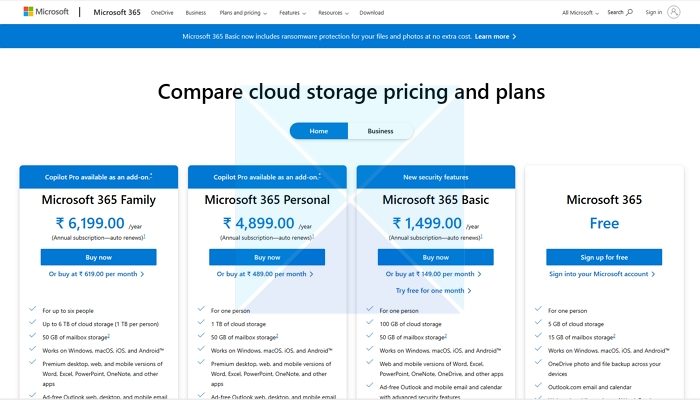
Check how many devices you are signed into. If you are already signed into 5 devices, you cannot use Microsoft 365 on another device until you sign out of Microsoft 365 from any one of the 5 devices. If this is the case for you, sign out of Microsoft 365 on any one device, then sign in to Microsoft 365 on the new device.
4] Check date and time
One possible cause of this problem is the incorrect date and time on your system. Check this in your system settings and correct the date and time (if required).
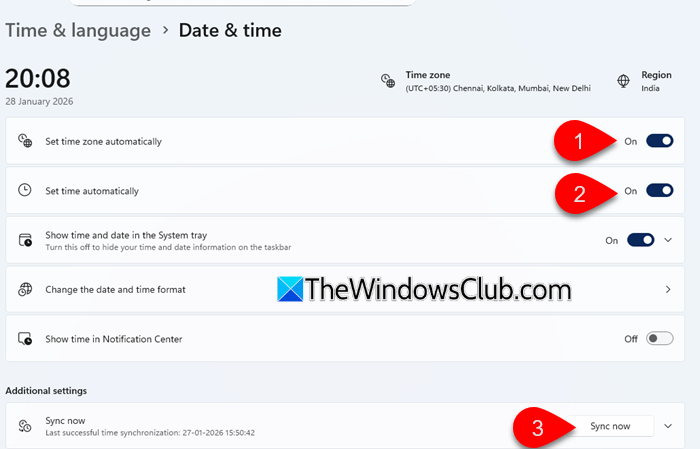
Follow these steps:
- Open Windows 11 Settings.
- Navigate to Time & Language > Date & Time.
- Turn on the Set time zone automatically and Set time automatically options.
5] Uninstall the previous version of Office (if applicable)
If any other version of Office is installed on your system, it might conflict with the new Microsoft Office license and show you the “No License Found” error. If this is the case for you, uninstall the previous Office version completely so that no residue is left. For complete uninstallation, you can use a third-party tool, such as Revo Uninstaller.
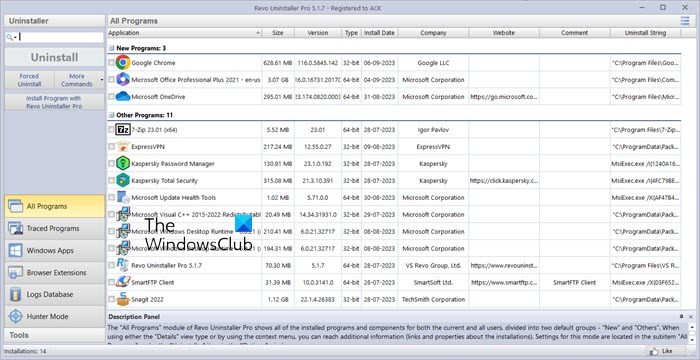
After uninstalling Office, restart your computer. Now, sign in to Office. If the issue still occurs, uninstall and reinstall Office.
6] Use the Get Help app for troubleshooting
You can also use the Get Help app to troubleshoot Office activation issues. Follow these steps:
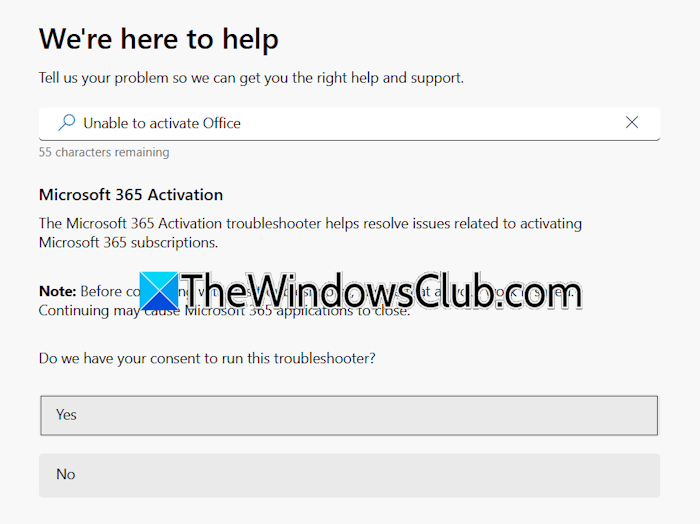
- Click Windows 11 Search and type Get Help.
- Select the Get Help app from the search results.
- When the Get Help app appears, type unable to activate Office and press Enter.
- Follow the steps in the Get Help app to troubleshoot the issue.
7] Contact Microsoft Support
If none of the fixes help, contact Microsoft Support for further assistance. You can contact Microsoft through Live Chat. The steps to get Microsoft Live Chat support are as follows:
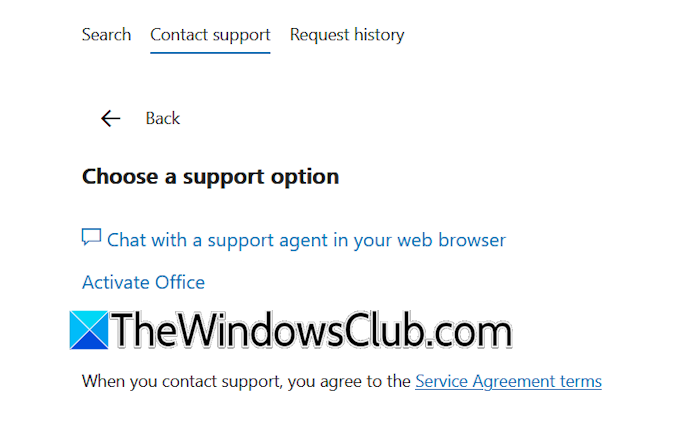
- Visit the Contact Microsoft Support page in your web browser.
- Now, type Can’t activate Office in the search box and press Enter.
- Scroll down and click Contact Support. If you are not signed in, sign in with the same Microsoft account.
- After that, select Microsoft 365 and Office from the Products and services drop-down.
- Now, select Activate my product from the Category drop-down.
- Click Confirm.
- Now, click Chat with a support agent in your web browser.
- Confirm your email address and follow the on-screen instructions.
That’s it. I hope this helps.
How to get a 25-digit product key?
In modern computers, the digital product key is embedded in BIOS or UEFI. Hence, you do not need to enter the product key during a clean installation of Windows, no matter how many times you perform it. You can find your product key in Command Prompt or Windows PowerShell.
Why is Microsoft saying I don’t have a license?
There can be many reasons why Microsoft is showing you the licensing error. Some possible causes include using an incorrect Microsoft account, the license not being assigned by your administrator (for a school or work account), and previous Office files conflicting with the new Office installation.
Read next: We’re having trouble activating Office.
