
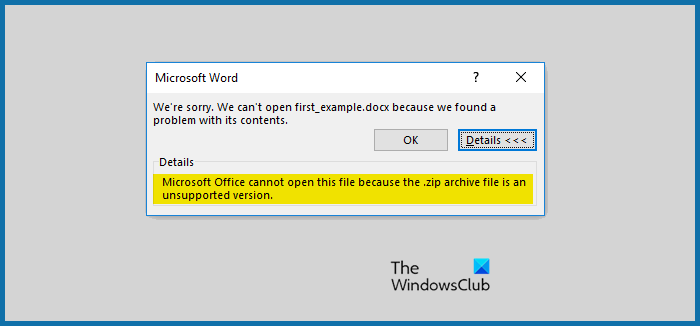
According to some users, when trying to open a certain file in any Microsoft Office program like say Word, an error message appears. This stops the user from opening or viewing the file. The following is the exact error message.
We’re sorry. We can’t open <file-name> because we found a problem with its content.
Detail
Microsoft Office cannot open this file because the .zip archive file is an unsupported version
In this article, we are going to see some solutions and workarounds so that you can view your important document.
Microsoft Office cannot open this file because the .zip archive file is an unsupported version
If you are seeing “Microsoft Office cannot open this file because the .zip archive file is an unsupported version”, then check the following solutions to resolve the issue.
- Update Office
- Change the extension to .doc
- Open the file using Google Docs and then redownload it
- Repair Office
Let us talk about them in detail.
1] Update Office
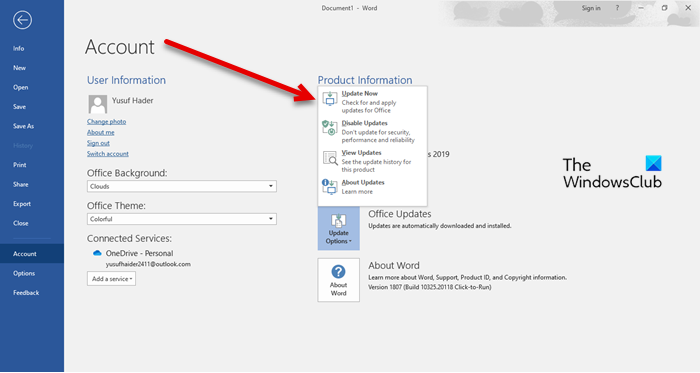
The issue may occur due to a bug. This bug can stop the Word app from opening your file. To fix it, we have to update the app suite and see if it helps. Open MS Word, and go to Account. Then click on Update Options > Update now. If an update is available, it will be downloaded and installed. Hopefully, this will do the trick for you.
2] Change the extension to .doc
Next up, we should try to change the extension of your document from .docx to .doc. Then open it normally and see if it works. To change the extension, open File Explorer, go to the file’s location, right-click it, and select Rename. Now, change the name to something and open the document. It should do the job for you.
3] Open the file using Google Docs and then redownload it
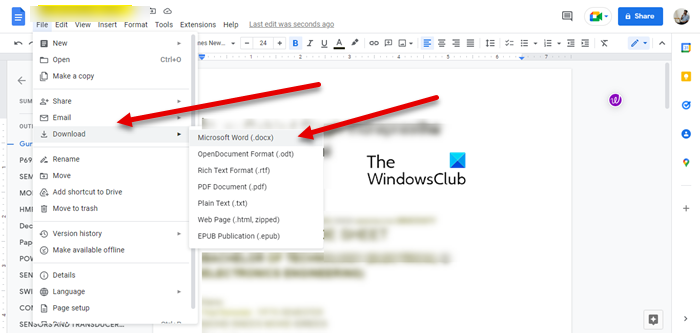
You can also try opening the file in Google Docs and then re-downloading it as a Word document. To do that, follow the prescribed steps.
- Go to docs.google.com and sign in.
- Click on the explorer icon called “Open file picker”.
- Go to Upload and click Select from your device.
- Now, navigate to the location where your file is stored and open it.
- Click on File > Download > Microsoft Word (.docx).
Once the file is downloaded, try opening it in MS Word to see if it opens.
4] Repair Office
You may also see the error code in question due to a corrupted Office installation. Well, we have the option to repair those files by following a few easy steps. These are the steps you need to follow.
- Open Settings on your system.
- Go to Apps > Apps & Features.
- Look for the latest version of Office from the list of apps present on your computer.
- For Windows 11: Click on three vertical dots and click Modify. For Windows 10: Select the app and click Modify.
- Select Quick Repair > Repair.
Follow the on-screen instructions to repair the files. Hopefully, it will do the job for you.
Related:
- Word cannot open this file because it is larger than 512 Megabytes
- Word cannot open the file because the file format does not match the file extension
- Microsoft Office cannot open this file because some parts are missing or invalid
- Microsoft Office cannot open this file because there are problems with the contents.
How do I open an unsupported Word document?
Usually, when you open a document in Word, it changes it to work with the app. All you have to do is just open the file, and it will be changed. So, click on File and select Open. Now, select the file you want to and just open it. If it’s still not opening, check its extension and make sure that it’s .doc or .docx. This will do the job for you.
How do you fix Microsoft Office Cannot open this file because some parts are missing?
If Word says some parts of the file are missing, it probably means the file is corrupted. To fix it, you have to repair the file. You can use the Word Repair Tool to do the same; here are the steps to use it.
- Go to File > Open.
- Select the corrupted file.
- Click Open > Open and Repair.
Follow the on-screen instructions to complete the process. This will do the job for you.
Also Read: Word experienced an error trying to open the file
