
The Microsoft 365 Developer Program dashboard sometimes gets stuck on the Loading your information screen. This can be frustrating due to the loss of access to the free E5 sandbox. If you are one such user who is stuck at the Loading your information window, then you are at the right place. In this article, we will explore the reasons behind this error and find solutions to fix it.
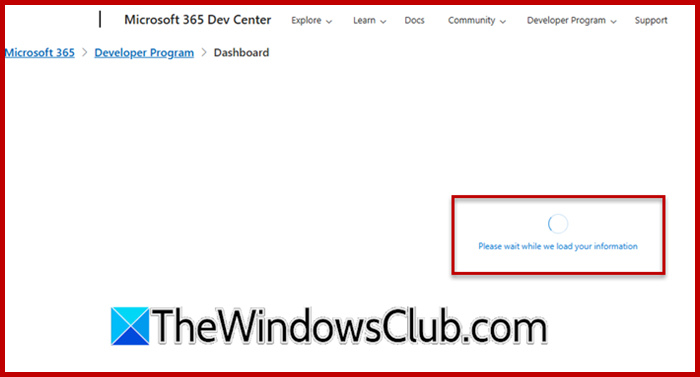
Why is my Microsoft 365 Developer Program dashboard stuck?
The dashboard can get stuck because Microsoft’s recent eligibility changes often flag personal accounts as unsupported during backend verification. Additionally, blocked third-party cookies, cached browser data, or incomplete profile creation are some other contributing factors that interrupt the authentication handshake.
Microsoft 365 Developer Program stuck at loading your information
If you are stuck on the “Loading your information” window in the Microsoft 365 Developer Program, try the solutions below.
- Switch to an InPrivate or Incognito mode
- Temporarily allow third-party cookies
- Add trusted sites
- Delete the existing developer profile
- Use a work or school account
- Contact MS support
Let’s get started with the troubleshooting guide.
1] Switch to an InPrivate or Incognito mode
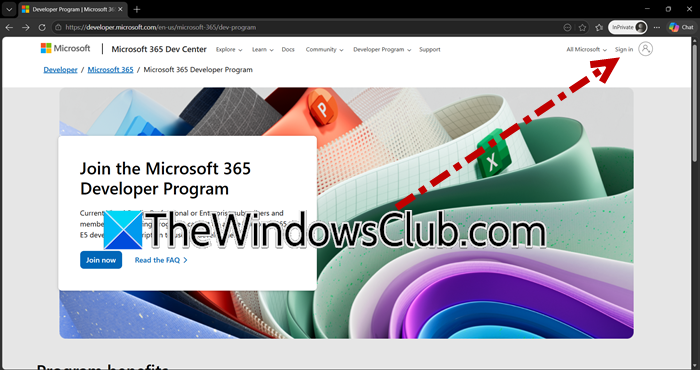
Before diving into technical troubleshooting steps, the first step should be to switch to InPrivate or Incognito mode. Browser extensions, cached credentials and stray cookies from earlier logins can interfere with the dashboard’s authentication flow. This would cause the “Loading your information” spinner to get stuck. When we open a fresh InPrivate or Incognito mode window, the browser starts a clean session with no information saved. This allows the Microsoft 365 Developer Program’s sign-in process to complete without interference.
- Close all existing browser windows, then press Ctrl+Shift+N to open a private window.
- Navigate to developer.microsoft.com.
- Now, sign in with the account and complete any multi-factor authentication prompts.
Check if the dashboard is still stuck on the Load your information window. If it is still stuck, proceed to the next solution.
2] Temporarily allow third-party cookies
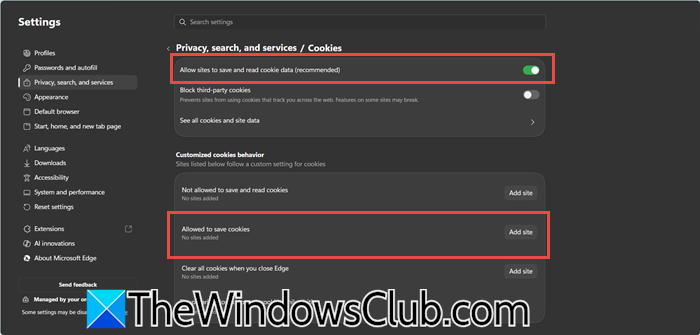
Microsoft 365 Developer Program relies on cross-domain authentication tokens from login.microsoftonline.com and account.live.com. However, browsers can flag them as third-party cookies by default. Due to blocked cookies, the dashboard never receives the confirmation that the identity has been verified. This keeps the dashboard stuck indefinitely. To fix this, we need to enable third-party cookies.
- In Edge, go to Settings, and click on Privacy, search and services tab.
- Turn on the Allow sites to save and read cookie data toggle key.
- In Chrome, go to Settings, and click on the Privacy and Security tab.
- Click on the Third-party cookies section, and set it to Allow third-party cookies. Once done, restart the browser and sign in to the Developer program dashboard again.
Move to the next solution if the page remains stuck.
3] Add trusted sites
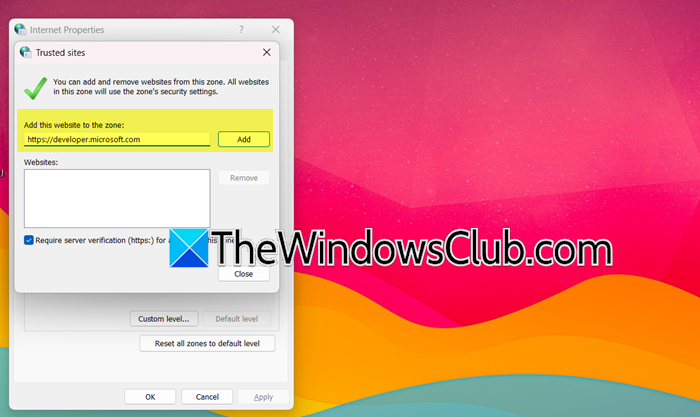
Microsoft’s security zone system can block certain script-driven redirects and token exchanges that its own authentication services rely on. The sign-in process does not fully complete. In such situations, users must add the necessary URLs to the Trusted Sites zone to relax those specific restrictions, allowing Windows to treat the Developer Program’s authentication as trusted. Once that happens, the request can pass through, and the information will load as expected.
- Click Win + R to open the Run dialogue box, type inetcpl.cpl, and press Enter to open Internet Options.
- Navigate to the Security tab, click on Trusted sites, and then click on the Sites button.
- In the Add this website to the zone field, type each URL given below, and click Add after each one.
https://developer.microsoft.com
https://login.microsoftonline.com
https://account.live.com - Tick the Require server verification (https:) for all sites in this zone box, and click the Close, Apply, and OK buttons.
Restart the browser, and try logging into the dashboard again. If the loading spinner persists, go to the next solution.
4] Delete the existing developer profile
Your account can get stuck in an in-between state if you started setting up the Developer Program but did not complete the process. Because of this, the dashboard keeps trying to load a sandbox that was never fully created, resulting in an endless loop. Deleting the developer profiles removes this incomplete setup, allowing users to start fresh so everything loads properly.
- Navigate directly to developer.microsoft.com.
- If that loads, look for a Delete Profile or Leave Program link or button, click it and confirm the deletion.
- Wait for 5 minutes for Microsoft’s systems to fully remove the old profiles, and then return to the main Developer Program page.
- Now, sign up again with the same Microsoft account, and complete the full registration process.
If the profile page is not accessible at all, or re-signing up still gets stuck, then the issue was not due to profile corruption. Slide to the next solution for further troubleshooting.
Read: Claude Code vs OpenAI Codex: Which AI Coding Assistant is better
5] Use a work or school account
Microsoft has recently tightened eligibility for the free M365 E5 developer sandbox. This has been flagging personal accounts as unsupported during the backend eligibility check and causing an infinite loading loop. Work or school accounts are automatically recognized as belonging to an organization and bypass this problematic filter. So it is recommended to switch to a work account.
- Sign out of any personal Microsoft account, and then go to developer.microsoft.com
- Next, click Sign in, enter your work or school email address, and complete the authentication.
- If one does not have a work account, they can create one on a free Microsoft Entra ID tenant via Aure and sign up for a free Azure account. They can use that tenant’s admin account as the work account for the Developer program.
Once signed in, the dashboard should load the information within seconds.
7] Contact MS support
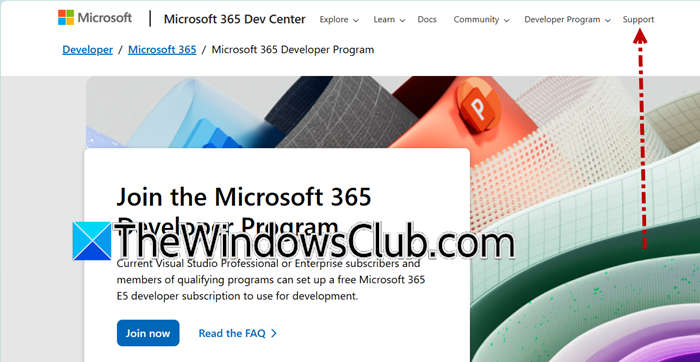
If browser, account, and system-level fixes fail, then the issue is most likely on Microsoft’s side. If that’s the case, opening a support ticket is the only way to get the account manually reviewed and unblocked. To do this, go to the Developer Program page (linked earlier) and click on Support. Next, select the Developer Program issue category and clearly state the issue in the description box. Provide all the details along with the screenshots, and then submit the request. Wait for Microsoft Support to respond, and hopefully, they will be able to fix it.
That’s it!
Read: How to disable or enable Developer Mode in Windows 11
Does Microsoft 365 have a Developer Sandbox?
Yes. Microsoft 385 offers a free renewable E5 developer sandbox through its Developer Program. It includes 25 user licenses and is pre-provisioned with sample data, Teams, SharePoint, and Outlook, allowing the users to build and test solutions in a safe environment.
Also Read: Install SQL Developer in Windows 11.
