
If you see the error message, MFReadWrite.dll was not found on your Windows 11 PC, read this post to learn how to fix it. MFReadWrite.dll is part of Microsoft’s Media Foundation stack, which provides the APIs required for reading and writing multimedia streams, including video playback, video capture, audio playback, and media file conversion. By default, it is not included in Windows N/KN editions.
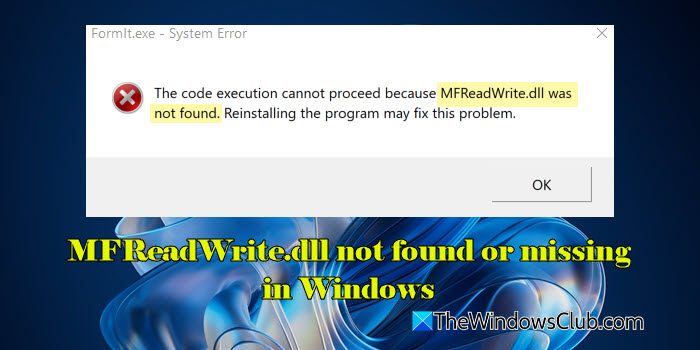
When users try to run programs that depend on it, the programs may crash and show the following error:
The code execution cannot proceed because MFReadWrite.dll was not found. Reinstalling the program may fix this problem.
Apart from Windows N/KN editions, this error may also occur on other editions if the required media-related files are missing, corrupted, or improperly registered. In some cases, third-party codec conflicts, misconfigured system settings, malware, or accidental deletion of DLL files may also trigger the issue.
MFReadWrite.dll not found or missing in Windows 11
To fix the MFReadWrite.dll not found or missing error on your Windows 11 PC, use these fixes:
- Install/repair Media Feature Pack
- Repair system files using DISM and SFC
- Reinstall the affected program
- Copy the DLL from another PC
Let us see this in detail.
1] Install/repair Media Feature Pack
If you are on Windows 11 N/KN editions, you need to download and install the pack for your version in order to restore missing media components. In most cases, installing or repairing the Media Feature Pack alone fixes the MFReadWrite.dll error.
Open Settings (Win + I) and navigate to System > Optional features. Click on View features next to Add an optional feature. Search for Media Feature Pack, select it, and click Next > Add. Restart your PC once the installation is complete.
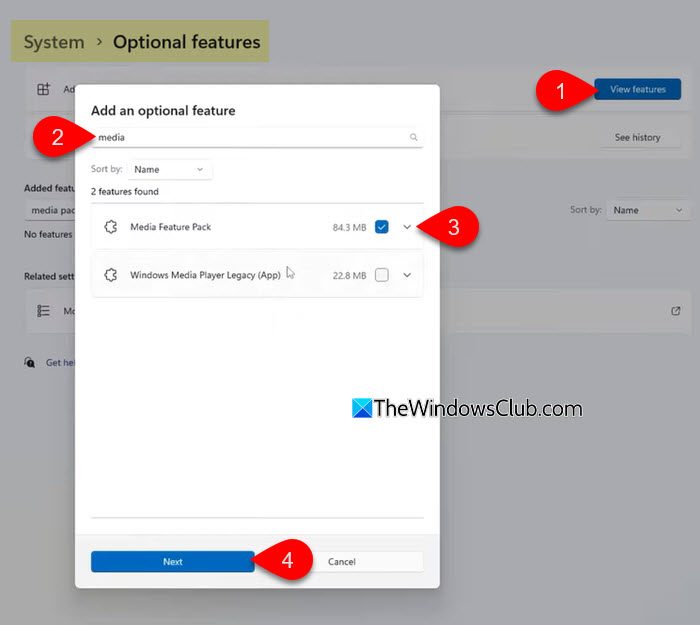
If the pack is already installed but the error persists, it may be corrupted or improperly registered. To fix this, go to Optional features, select Media Feature Pack, and click Remove. Restart your PC, then reinstall it.
If you prefer using the command line, you can install it via DISM. Open Command Prompt (Admin) and run the following command:
DISM /Online /Add-Capability /CapabilityName:Media.MediaFeaturePack~~~~0.0.1.0
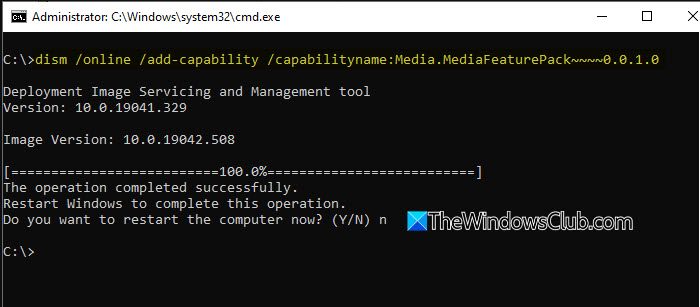
This will fetch and install the Media Feature Pack automatically. Restart your PC to apply changes.
Note:
- If you’re using third-party antivirus software, temporarily disable it during installation to avoid interference.
- If you are on Windows 10 N/KN editions, you can also use Microsoft’s direct download links (here) for the Media Feature Pack.
2] Repair system files using DISM and SFC
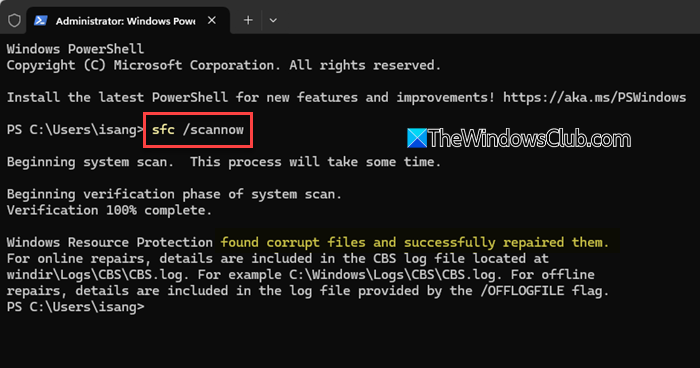
This fix is useful in case the error occurs due to corruption or damage in Windows system files that support MFReadWrite.dll. Both DISM and SFC are built-in tools that can scan, repair, and restore such files.
Press Win + S, type cmd, and select Run as administrator next to Command Prompt. Run the following commands:
DISM /Online /Cleanup-Image /CheckHealth
DISM /Online /Cleanup-Image /ScanHealth
DISM /Online /Cleanup-Image /RestoreHealth
These commands check and repair the Windows image that SFC relies on.
Next, run the SFC scan:
sfc /scannow
This will scan protected system files and replace any missing or corrupted ones automatically.
Reboot once the scans are complete to apply repairs.
3] Reinstall the affected program
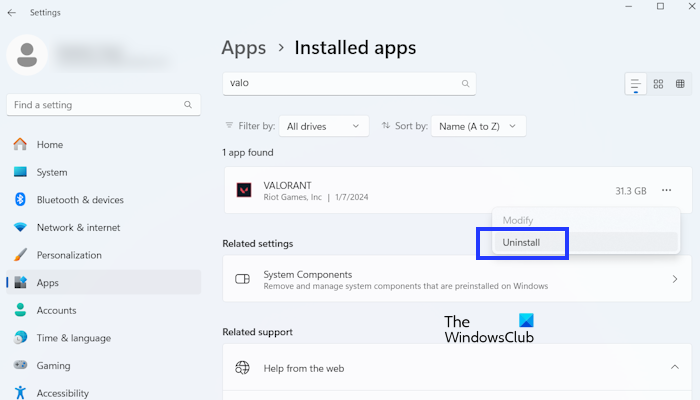
Sometimes the app fails to register required DLLs properly during setup, or its files may get damaged after an update. Reinstalling it ensures all dependencies, including MFReadWrite.dll, are restored.
Note: Before reinstalling the affected app or game, check whether it specifically requires the Media Feature Pack. If you are on Windows 11 N/KN editions, you must install the pack first; otherwise, reinstalling alone won’t resolve the error.
Press Win + I to open Settings and go to Apps > Installed apps. Find the app that’s showing the error. Click the three dots menu (…) next to it and select Uninstall.
Once removed, restart your PC. Download the latest version of the app from the official website and install it again.
4] Copy the DLL from another PC
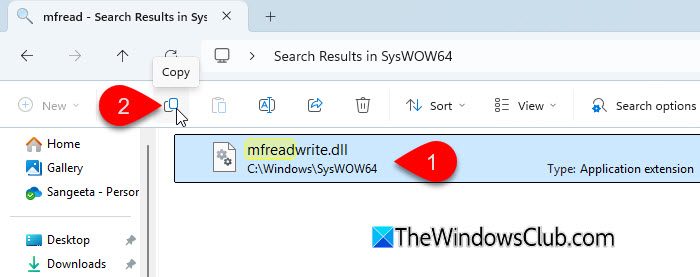
A few users have successfully resolved the issue by copying the missing MFReadWrite.dll file from a working Windows PC and placing it in the same location on the PC experiencing the error message.
On a working Windows 11 PC with the same edition and architecture (64-bit or 32-bit), navigate to C:\Windows\System32. Copy the MFReadWrite.dll file to a USB drive or external storage.
On the affected PC, paste the file into the C:\Windows\System32 folder. If you are on 64-bit Windows 11, also paste it into C:\Windows\SysWOW64.
Restart your PC and check if the error is resolved.
Note:
- Perform the above steps with caution, since mismatched versions of the DLL may cause compatibility problems.
- Avoid downloading DLLs from third-party websites, as they may contain malware or incompatible versions. Always copy the file from a trusted Windows installation.
I hope this helps.
Read: Popular free Media Codec Packs for Windows.
How to fix dll not found?
If DLL files are missing on your Windows PC, it means the required file is either corrupted or not properly registered. You can resolve this issue by repairing system files, reinstalling the affected program, or copying the DLL from a trusted Windows installation. If it is an OS DLL file that is causing errors, you can download the corresponding Windows OS files from Microsoft.
How do I manually add a dll?
To manually add a DLL, copy the file into the correct system directory C:\Windows\System32 or C:\Windows\SysWOW64 (for 64-bit systems). Then, open Command Prompt (Admin) and register it using regsvr32 filename.dll. Restart your PC for the changes to take effect.
Read Next: Can’t install Windows Media Feature Pack on Windows.
