
Running an AI gateway in the background on Windows is not always as simple as starting a command in PowerShell and leaving it there. The process can stop when the terminal closes, the user logs out, or the WSL2 environment shuts down. A headless setup needs a reliable way to start the gateway automatically and keep it running without an open terminal. In this post, we’ll look at how to manage headless AI Gateways on Windows using Scheduled Tasks, hidden launchers, WSL2, and systemd.
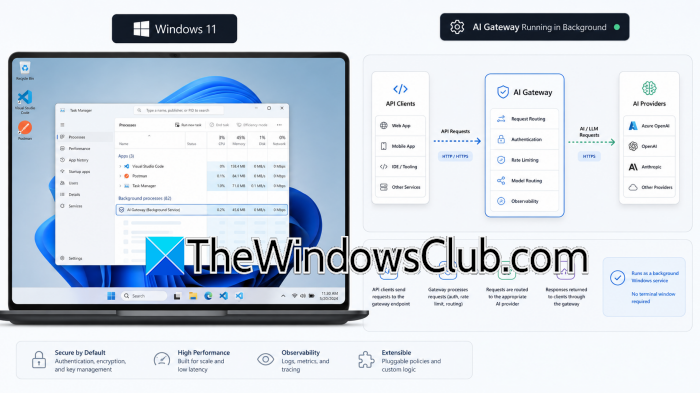
Manage headless AI Gateways with Scheduled Tasks & Systemd on Windows
To manage headless AI gateways on Windows, we can use Windows Task Scheduler and schedule a task without keeping a Command Prompt open. In WSL2 environments, systemd and user lingering allow Linux-based AI services to run even when there’s no active shell session.
Use Windows Scheduled Tasks
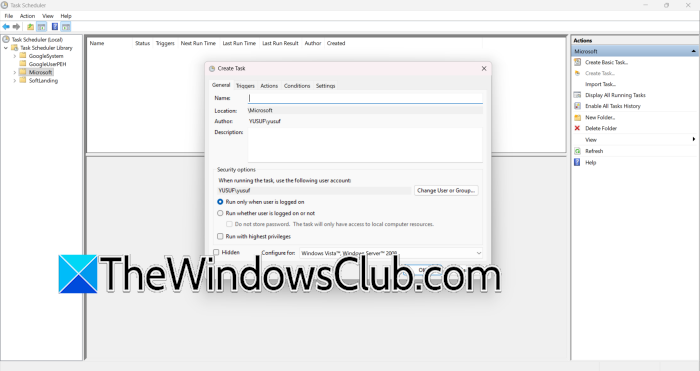
Windows Task Scheduler helps start an AI gateway automatically when a user logs in. This means you don’t have to run the gateway manually each time. Instead, a scheduled task can launch it in the background. This method avoids the need for unnecessary administrator privileges. The task runs under the user’s Windows account, which is helpful for applications that rely on the user’s settings, configuration files, passwords, or local folders. OpenClaw uses this method for its Windows gateway setup, and its documentation explains how to create a per-user Scheduled Task that starts the gateway at login. Hermes Agent uses a similar method for its native Windows installation.
Run without a visible console
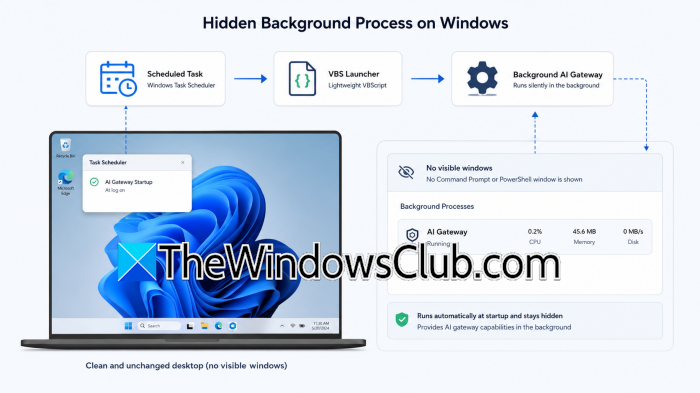
A background process should not leave a command window sitting on the desktop. It can also create problems if the gateway is tied directly to a console session. One solution is to use a small VBScript launcher. The script can start the gateway process through Windows Script Host, allowing it to run without displaying a normal command prompt window. OpenClaw uses a generated gateway.vbs launcher for this purpose. Another option is to use a windowless executable where available. Hermes Agent uses pythonw.exe for its Windows gateway instead of the standard python.exe. This prevents a console window from being attached to the gateway process.
Run the Gateway inside WSL2
WSL2 is useful when the AI gateway or its supporting tools work better in a Linux environment. Instead of running the gateway directly on Windows, WSL2 provides a Linux userspace where Linux-based tools and services can run alongside the Windows host. This is particularly useful for gateways that depend on Linux utilities, shell commands, or service management features that are not available in the same way on native Windows. The main difference is that WSL2 has its own environment and lifecycle. Starting a gateway inside a WSL2 terminal does not necessarily mean it will continue running after that session ends. For a headless setup, the gateway needs to be managed as a service rather than being tied to an interactive shell.
Use Systemd to Manage the Gateway
systemd is the service manager used by most modern Linux distributions. When you set up the gateway as a systemd user service, you can start, stop, restart, and monitor it without depending on the terminal. This makes the gateway start more predictably. Instead of having to run the application each time WSL2 starts, systemd can handle it as part of the Linux system. You can use commands like systemctl –user status to check if the service is running and to find out if there are any startup issues.
Keep Services Running with User Lingering
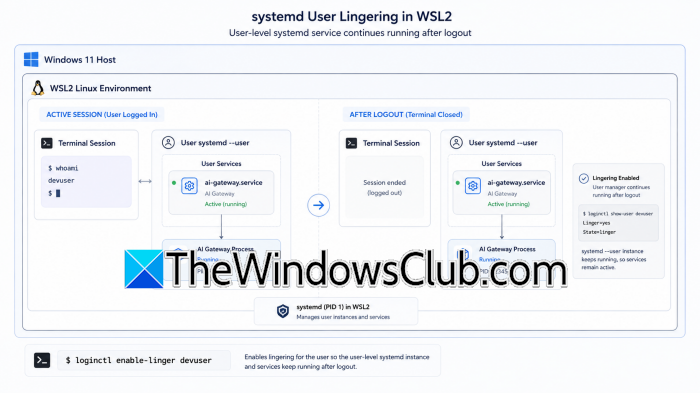
A user service can rely on an active login session unless user lingering is turned on. To keep systemd user services running after the user logs out, use the command loginctl enable-linger. This feature is essential for a headless AI gateway because it allows the service to stay available without needing an open terminal or an active session. With lingering enabled, the gateway can keep operating under the user’s systemd setup instead of stopping when the shell session ends.
Start WSL2 with Windows Scheduled Tasks
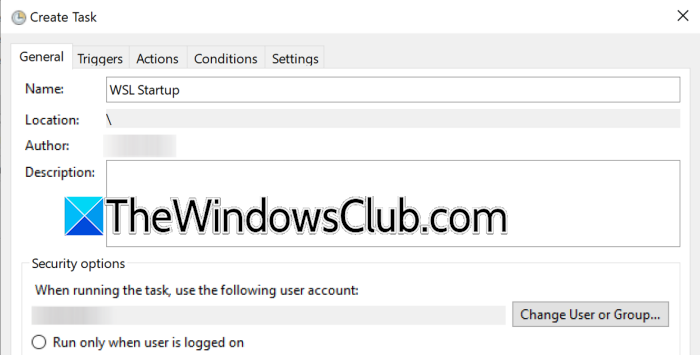
When the gateway runs inside WSL2, Windows Task Scheduler can handle the Windows-side startup while systemd manages the service inside Linux. This gives each component a separate responsibility. Windows starts the WSL2 environment, systemd starts and manages the gateway, and user lingering allows the systemd service to continue running without an active terminal session.
The resulting setup looks like this: Windows Scheduled Task > WSL2 > systemd > AI Gateway. For a native Windows gateway, the setup is simpler; it would look something like: Scheduled Task > hidden launcher > AI Gateway. Choosing between the two depends on whether the gateway requires a Linux environment or can run directly on Windows.
That’s it!
Read: Best Free Artificial Intelligence software for Windows 11
How can Windows run AI gateways in background?
Windows can run an AI gateway in the background using a per-user Scheduled Task. The task can be configured to start the gateway when the user logs in, removing the need to open PowerShell or Command Prompt manually. A hidden VBScript launcher or a windowless executable such as pythonw.exe can prevent a console window from appearing. This setup also allows the gateway to run under the user account, giving it access to the required configuration files, credentials, and local resources without unnecessary administrator privileges.
Read: Microsoft VibeVoice AI TTS can generate human-like speech
How does systemd keep AI gateways running?
systemd can manage an AI gateway as a user service inside WSL2. It provides commands to start, stop, restart, and check the gateway without depending on an open terminal. User lingering can be enabled with loginctl enable-linger, allowing the systemd user service to continue running after the user logs out. In a headless setup, Windows Task Scheduler can start WSL2, while systemd manages the gateway inside Linux. This separates Windows startup from application management and keeps the gateway available in the background.
Also Read: Run RHEL/Fedora on Windows Subsystem for Linux (WSL).
