
Having a place to save frequently visited websites and links is a feature present across browsers on all Operating Systems. This functionality may be named differently, but it works in a similar capacity most of the time: you find a link useful and you ‘save’ it for future use. While Google Chrome, the most widely used browser, calls these links bookmarks, they’re called Favorites in Microsoft Edge.
Today, I will be sharing with you how you can add, delete, save, back up, recover, import, export and organize your Favorites in Microsoft Edge to make your browsing experience more seamless and convenient.
How to organize Favorites in Microsoft Edge on Windows 11
How to add Favorites in Edge
We are going to start off with the most basic task, adding a favorite. This is as simple as it gets, all you have to do is follow the steps below:
- Open the link that you wish to add to the list of your Favorites.
- On the top right corner of the screen, you will see a star-shaped icon on the address bar.
- Clicking on it will make this link a favorite.
- You can, alternatively, use the Ctrl+D key combination to do so.
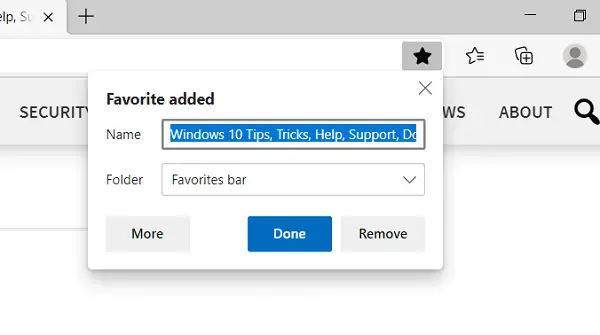
- After saving a link as Favorite, you get an option to give it a shorter, more convenient name that you can remember for future references and also choose the location where you want to save this link from the Folder dropdown.
There are a couple more settings that allow you to add links to your Favorites folder.
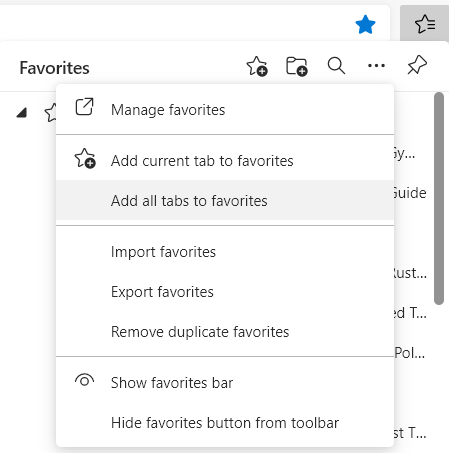
You can click on the three-dotted button in the Favorites flyout and click on Add Current Tab or Add All Tabs (the latter if you want to add multiple tabs to your Favorites at the same time).
How to delete Favorites in Edge
To delete Favorites in Microsoft Edge, open Edge and press Ctrl+Shift+B if it’s hidden. Right‑click a favorite on the bar, select Delete from the context menu.
Alternatively, click the star icon with three lines, find the favorite you want to remove, right‑click it in the list and select Delete to remove it.
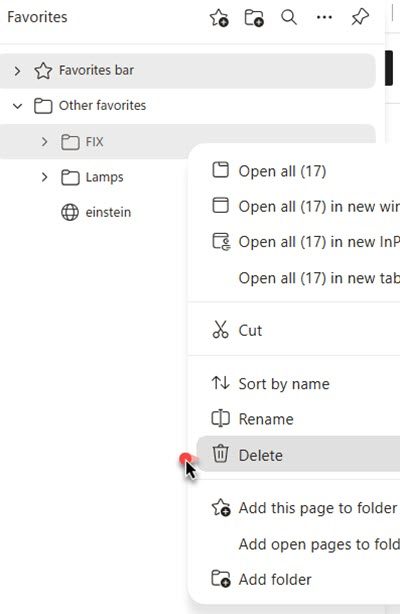
You can also press Ctrl + Shift + O to open the Favorites Manager, select one or more entries and select Delete.
To clear everything at once, press Ctrl + A in the Favorites manager, then hit Delete.
Read: How to show Favorites Bar in Microsoft Edge.
Access favorites on Microsoft Edge
In order to customize when and where you want to have access to your Favorites on Edge’s address bar, you have to follow the steps below:
- Upon opening Microsoft Edge, click the three-dot button to open the options page, then click Settings.
- Click on Appearance.
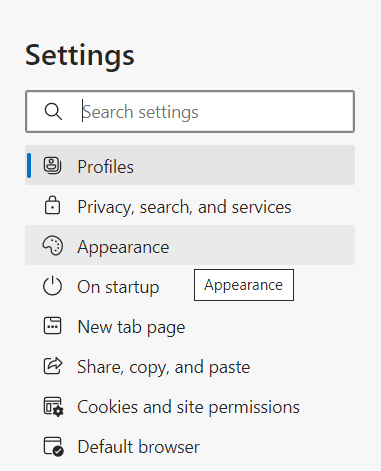
- Scroll down a bit to find a setting named ‘Show favorites bar,’ next to which is a dropdown where you have the following three options:
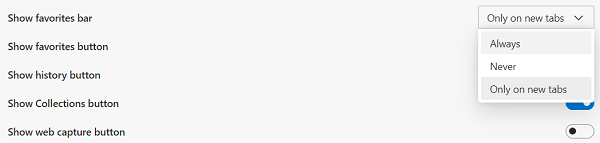
- Always
- Never
- Only on New tabs
- Choose your preferred setting and exit the page.
If your Favorites button is missing from the top-right menu of the browser, follow the steps mentioned above to Appearance, and under the ‘Customize toolbar’ section, you will find an option labeled ‘Show favorites button’. Turn it on and exit the page.
How to import Favorites in Edge
The settings I have talked about up to this point are pretty mainstream, the ones most commonly used by users. But there are a couple more avenues people can explore in Microsoft Edge’s Favorites. First in the list is importing favorite links from a file into your browser. In order to do so, follow the steps below:
- Click on Settings and More (the three-dotted button on the top-right).
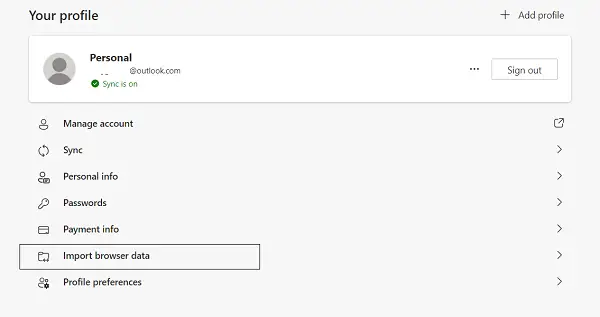
- Click on Settings and select ‘Profiles’ from the list of options on the left side of the page.
- Then click Import browsing data, which opens a dialog box.
- From the ‘Import From’ dropdown, select the ‘Favorites or bookmarks HTML file’ option.
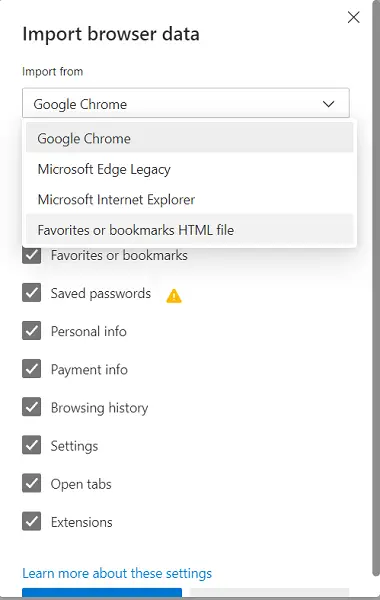
You can choose to import other browser information like extensions, payment information, browsing history, etc., and not just from Google Chrome but other browsers like Firefox too.
After selecting the settings, select Import. All that you wanted to migrate will move along in the background.
How to export Favorites in Edge
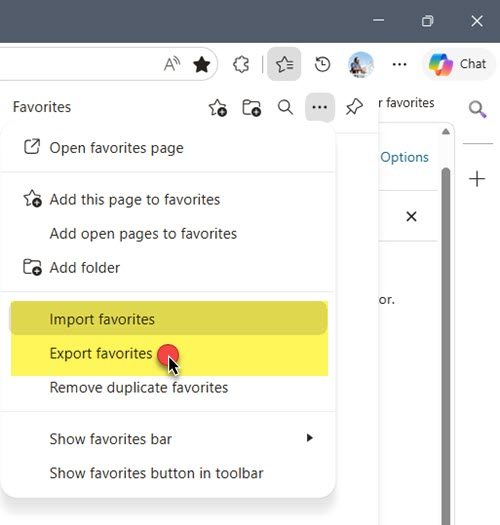
To export Favorites in Microsoft Edge, open Edge, click the three‑dot menu (top‑right corner), select Favorites and choose Manage favorites.
In the Favorites manager, click the three‑dot menu at the top and select Export favorites.
A Save As dialog will appear. Pick a location, name the file and click Save. It will be saved as an HTML file that can be exported and can be imported into other browsers.
Read: How to backup Edge Bookmarks, Passwords, Extensions, Settings, History
How to sync Favorites on Edge
You can also link your browser to your Microsoft account to sync all your favorites in the cloud. This would allow you to access your favorites from any device at any place. In order to enable or disable sync, you have to follow the steps below:
- Open Edge settings and select ‘Profiles’.
- Click on ‘Sync’ in the Your Profiles section.
- Here, click on the ‘Turn on Sync’ button, if it is turned off.
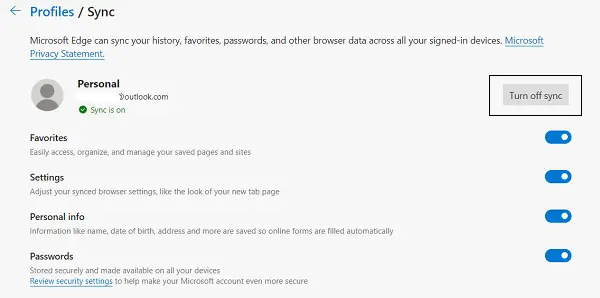
Confirm these settings to have your favorites sync on your cloud to have convenient access to them at all places.
How to unsync Favorites on Edge
To unsync Favorites on Edge:
- Open Edge settings and select ‘Profiles’.
- Click on ‘Sync’ in the Your Profiles section.
- Here, click on the ‘Turn off Sync’ button.
Read: How to save all Tabs as Bookmarks in Edge.
How to recover Favorites on Edge
To manually recover Favorites on Edge, you may have to first enable Show File name extensions.
Open File Explorer and navigate to this location:
C:\Users\<UserName>\AppData\Local\Microsoft\Edge\User Data\Default
Locate the file named Bookmarks with no extension. You will also see Bookmarks.bak, which is the backup copy.
Now rename Bookmarks.bak to Bookmarks. This will replace the corrupted Bookmarks file.
Restart Edge and your Favorites should reappear.
Read: Where are Favorites stored in Edge browser.
Organize Favorites links on Microsoft Edge
Lastly, I will be discussing how do you manage your favorites on the Edge browser to better organize the links that you work on and with most frequently. Here, you can create new favorites, remove duplicate bookmarks, delete favorites and folders manually, etc.
Create folders for your favorites
- On the top-right corner, you will see a Favorites settings icon, which can be alternatively accessed using the Ctrl+Shift+O combination key.
- Here, click on ‘More options,’ which is represented by three dots. Here, click on ‘Manage favorites’ which will take you to a separate window.
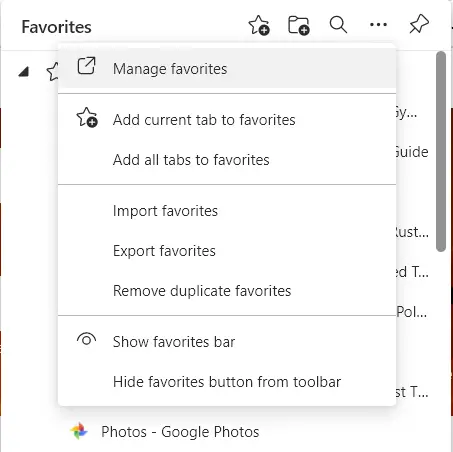
- In the header of this window are a couple of options; adding favorites, folders, or showing your favorites as a bar below the address bar.
- Here, you can name a new folder and save your progress.
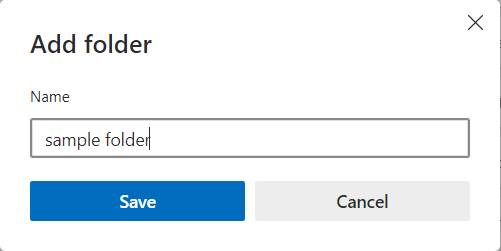
There are a couple more settings in the ‘More Options’ like removing duplicate bookmarks, toggle the bookmarks from the address bar or adding several links as bookmarks in one go, all of which have been discussed above too.
These are some of the primary ways in which your Edge favorites can be managed and organized according to your convenience.
Related: Restore & get back Edge Favorites after Resetting Windows.
