
Are you receiving a low VRAM notification message every now and then in Far Cry 6? Here is a comprehensive guide to eliminating the low VRAM notification message in Far Cry 6. Far Cry 6 has recently been released and gaming enthusiasts are already loving it. It is a great addition to the Far Cry series. However, some users have reported receiving a notification message stating that they have a low amount of VRAM. The full notification message is as below:
Low amount of available VRAM. This may affect gaming performance and stability. You could try to lower the quality settings of the game.
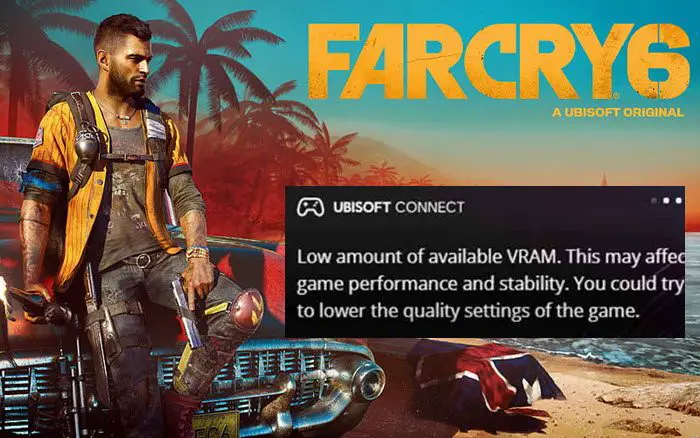
It is not an error but a warning prompt that keeps on flashing on your screen amidst the game. While the message clearly states that it is triggered due to low VRAM, some users have experienced it when they have enough amount of VRAM available. Now, you want to fix this annoying notification, this guide will help you. Here, we are going to list down several fixes that will enable you to fix the problem.
What happens if VRAM is too low?
With low VRAM, you might experience issues with your game. It may slow down your game, and you might not be able to use higher graphics settings, etc. It can even make your game completely unplayable.
How do I turn off Ubisoft low VRAM notification?
You can disable the low VRAM notification in Far Cry 6 by applying several fixes. You can disable the in-game notifications, turn off the overlay, and reduce your in-game graphics settings. There are some other methods to fix the notification. You can check out these solutions in detail below.
Low amount of available VRAM notification in Far Cry 6
Here are the methods to fix the low VRAM notification message in Far Cry 6:
- Lower your Graphics Settings.
- Disable DXR Shadows.
- Remove HD Texture Pack.
- Disable Notifications.
- Turn off In-game Overlay.
Let us discuss these methods in detail now!
1] Lower your Graphics Settings
Your graphics settings can be one of the reasons that trigger the low VRAM notification prompt. In scenarios where you have high or ultra graphics settings and your graphics card cannot handle the load, this notification is likely to occur. To counter this issue, you can try lowering your graphics settings. Open the settings in Far Cry 6 and then go to its graphics settings section. After that, reduce the graphics settings for each parameter. Once done, you can proceed with playing the game and check if the low VRAM notification message has been resolved.
If you are using a high-end computer and have a sufficient amount of VRAM, then there may be other issues that trigger the problem. So, you can move on to the next potential fix to resolve it.
See: Fix Far Cry 6 Black Screen issues on Windows PC.
2] Disable DXR Shadows
DirectX Ray Tracing, or DXR, is a new technology that enables the rendering of magnificent lighting, reflection effects, and shadowing in real-time. It is a nice feature implemented in DirectX 12, allowing gaming systems to utilize advanced ray-tracing techniques to render shadows with higher-quality graphics. However, having this feature enabled can cause the issue at hand. This is assumed, as some affected users were able to fix the problem simply by turning off the DXR Shadows feature in their game settings.
If you have an RTX series graphics card on your PC and have enabled this feature, try disabling it to see if the problem is resolved. You can locate his feature under Extended Features in the Quality settings. According to user reports, disabling this feature also yields a 10% performance boost.
If this method doesn’t resolve the issue for you and you continue to receive the low VRAM notification, proceed to the next potential solution.
3] Remove HD Texture Pack
In case the above solutions didn’t work for you, you might be receiving the notification because of HD Texture Pack. This HD Texture Pack is an optional download for Far Cry 6, further enhancing the game’s graphics. This feature can be used on high-end computers as they can handle graphics boosts. But, it also requires a VRAM of more than 11 GBs in case you have installed it on your system. If your GPU doesn’t meet the requirements, you may encounter issues such as the low VRAM notification error. So, removing HD Texture Pack is what you can do to resolve the problem.
To uninstall HD Texture Pack, you can follow the steps below:
- Firstly, launch the Ubisoft Connect application and go to the Far Cry 6 game in the Games tab.
- Now, on the Far Cry 6 game page, locate the Owned DLC section inside the Overview tab and you will find an option called HD Texture Pack, if you have previously installed it.
- Next, there will be an Uninstall button associated with the HD Texture Pack. Simply tap on it and remove the feature.
- Finally, try playing the game as usual and see if the issue is now resolved.
Read: Far Cry Not launching, Working or Responding.
4] Disable Notifications
If the same notification continues to annoy you, you can try disabling notifications in the game to eliminate it. However, please note that after doing so, you will no longer receive regular notifications, including game invitations, chat messages, and more. If you are sure you want to disable the in-game notifications to get away with low VRAM notifications, you can use the below steps:
- First, open the game, and while you are in the game, press the Shift + F2 shortcut key on your keyboard to open the overlay.
- Now, click on the gear icon from the left panel to open up the Settings.
- Next, locate the Notifications section.
- Then, turn off the in-game notifications simply by tapping on the Enable in-game notifications slider towards the left.
- When done, go to your game and you won’t receive any notification from now onwards.
Read: Fix Far Cry 6 Stuttering issue on Windows PC.
5] Turn off In-game Overlay
Along with disabling the in-game notifications, you can also disable the in-game overlay completely if you want. Doing so might give a performance boost to your game. So, if that is what you like and want, go ahead and turn off the in-game overlay. Here is how you can do that:
- Firstly, close the Far Cry 6 game completely.
- Now, launch the Ubisoft Connect application.
- Next, press the icon present on the left of the News menu at the top left corner.
- After that, from the appeared menu, click on the Settings option.
- Then, go to the General tab and uncheck the Enable in-game overlay for supported games option.
You will no longer receive the low VRAM notification.
That’s it! We hope this guide helps you find a suitable solution to eliminate the low VRAM notification in Far Cry 6.
Read: How to Turn Off Game Mode Notifications in Windows.
Can you play games with low VRAM?
This totally depends on the game and the settings you use. Many graphics settings utilize a large amount of VRAM, while some might use none. If you have a low VRAM, you can try lowering your graphics settings and then play the game without hiccups.
How much VRAM is required for Far Cry 6?
In order to run Far Cry 6 on your computer, you must have at least 12GB of VRAM. However, that is only for HD configuration. In case you want to play this game in 4K, you must have at least 16GB of VRAM. Otherwise, you may encounter lag and frame drop issues while playing this game on your computer.
Now read: Far Cry 6 not launching on Windows PC.
