
LGPO.exe is a command-line tool for managing Local Group Policy on Windows systems that are not part of a domain. However, users often encounter errors with the /g switch during import or export operations, which can disrupt automation scripts and hinder the application of security baselines. In this post, we are going to see what you can do if the LGPO.exe /g is not working during the Export or Import operation.
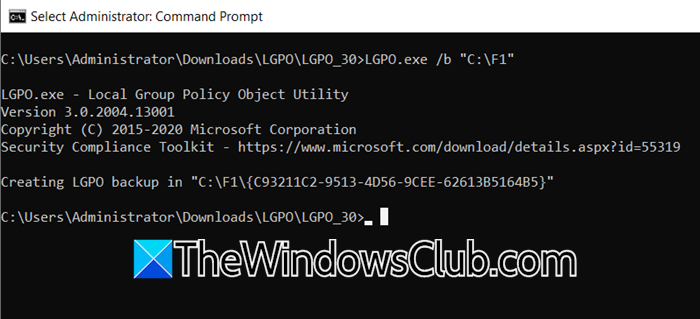
Fix LGPO.exe /g not working during Export or Import operation
The /g operation often fails due to issues related to the command’s syntax or the integrity of the policy backup files it utilises. The command is particularly sensitive to path errors, such as spaces that are not enclosed in quotes or an incorrect path structure that does not lead to the root of a valid backup. Additionally, the backup may include policy settings that are incompatible with the target system, such as User Rights Assignments referencing domain-based groups (e.g., “Domain Admins”) on a computer that is not joined to the domain. Problems with file formats, such as using Unicode encoding in .inf or .txt files instead of the required ANSI format, can also cause the import process to terminate with an error.
If LGPO.exe /g is not working during the Export or Import operation, follow the solutions mentioned below.
- Quote Paths with Spaces
- Correct User Rights Assignment Errors
- Use Secedit for Security Policies
- Ensure File Encoding is ANSI
Let us talk about them in detail.
1] Quote Paths with Spaces
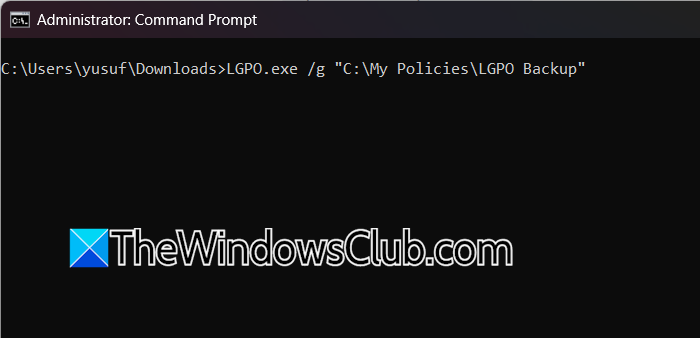
Command-line interpreters, like Command Prompt and PowerShell, use spaces to separate different arguments in a command. When a path contains spaces, the interpreter mistakenly sees “C:\My” as the first argument and “Policies\Backup” as the second, rather than recognising the entire path as one unit. Enclosing the path in quotes forces the interpreter to treat everything inside the quotes as a single argument, ensuring LGPO.exe receives the complete, correct file path.
The correct syntax would be something like – LGPO.exe /g "C:\My Policies\LGPO Backup".
Run the complete command in an elevated Command Prompt (Run as Administrator). The quotes ensure that LGPO.exe correctly interprets C:\My Policies\LGPO Backup as one single path instead of three separate arguments.
If your system doesn’t have any issues, fixing the syntax should resolve the problem for you.
2] Correct User Rights Assignment Errors
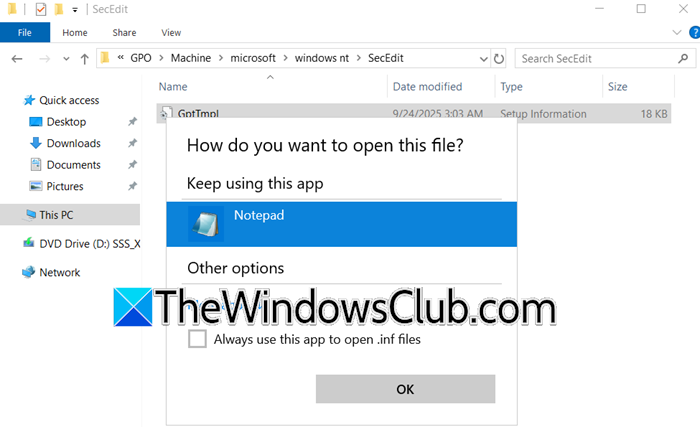
LGPO.exe fails on domain-specific User Rights Assignments because security groups like “Domain Admins” do not exist on local computers, making it impossible to resolve the group name to a valid Security Identifier (SID). To fix this, edit the GptTmpl.inf file and replace domain groups with local groups, such as “Administrators.” This ensures a valid SID exists on all Windows machines, allowing the local security subsystem to apply the policy without errors. Please follow the steps below to resolve this issue.
- Open File Explorer, navigate to your LGPO backup folder. The critical file is located at: [YourBackupFolder]\DomainSysvol\GPO\Machine\Microsoft\Windows NT\SecEdit\GptTmpl.inf
- Right-click the GptTmpl.inf file and open it with a text editor like Notepad. It is highly recommended to create a backup copy of this file before making changes.
- Look for lines in the Privilege Rights section that reference domain groups. They will look like this:
SeRemoteInteractiveLogonRight = *S-1-5-21-123456789-1234567890-123456789-512,Domain Admins
SeBackupPrivilege = *S-1-5-32-544,BUILTIN\Administrators,*S-1-5-21-123456789-1234567890-123456789-512,Domain Admins
- For each domain group (e.g., Domain Admins), you have two options: remove the domain group entirely if you only want the local group to have the right, or replace it with a local group that serves a similar purpose (e.g., Administrators).
- Save the changes to the GptTmpl.inf file. Ensure the file encoding remains as ANSI to avoid new errors.
Execute your LGPO import command again. The command should now complete successfully as it will no longer attempt to assign rights to non-existent domain groups.
3] Use Secedit for Security Policies
The /g switch in LGPO.exe has limitations with certain advanced security settings that are managed by a different subsystem. The secedit tool is specifically designed to work with the Security Configuration Editor database, which handles these policies natively. By using secedit to export to an .inf file, you create a compatible security template that LGPO.exe can then properly apply using its /m (merge) switch, bypassing the limitations of the standard import process.
On the source system, run secedit /export /cfg C:\temp\security_policies.inf /areas SECURITYPOLICY.
On the target system, apply the template using LGPO.exe /m C:\temp\security_policies.inf.
Finally, check if the issue persists.
4] Ensure File Encoding is ANSI
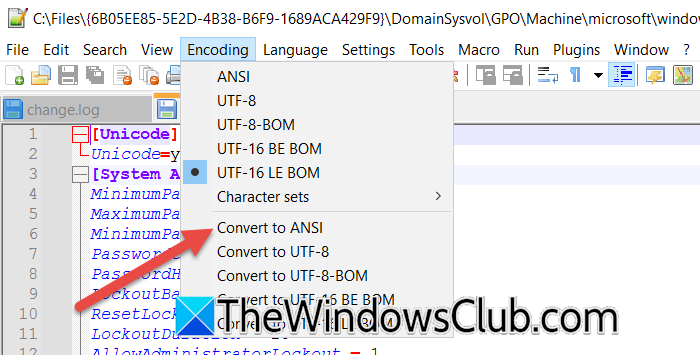
LGPO.exe’s parser needs policy template files in ANSI or ASCII text format. If you save files in UTF-8 with a Byte Order Mark (BOM), the parser will encounter invisible characters at the start of the file that it can’t understand. This issue causes the parser to fail right away on the first line. To avoid this, save the file in ANSI encoding. This will eliminate the incompatible characters and let the parser read the file correctly from the very first character.
- First, go to [YourBackupFolder]\DomainSysvol\GPO\Machine\Microsoft\Windows NT\SecEdit\GptTmpl.inf.
- Right-click on the .inf file and open it with Notepad++ or any other modern text editor that shows encoding.
- Click on Encoding > Convert to ANSI.
- Finally, save the file.
This should do the trick for you.
That’s it!
Read: Best Free Imaging, Recovery and Backup Software for Windows 11
How to export and import LGPO?
To export the current Local Group Policy configuration, open an elevated command prompt and run LGPO.exe /g <PathToBackupFolder>, where the specified folder will contain the complete policy structure, including DomainSysvol and Local subdirectories with all policy settings preserved.
To import a previously exported policy backup, use the command LGPO.exe /g <PathToBackupFolder> with administrator privileges, ensuring the path points to the root folder containing the backup’s DomainSysvol directory, which will apply all settings from the backup to the local system.
Read: How to Delete System Images and Backups in Windows 11
What causes Group Policy to fail?
Group Policy can fail due to connectivity issues, such as network problems or authentication failures that prevent the client from accessing policy definitions on the domain controller. It can also fail due to insufficient permissions, corrupted local policy cache, or conflicts between multiple applied policies that prevent settings from being processed correctly.
Also Read: Backup or Restore default Power Plans in Windows 11.
