
If your keyboard keeps typing in caps even when Caps Lock is off, the solutions in this article will help. Common causes of this issue include a corrupt keyboard driver or a faulty keyboard. If this issue occurs with a particular program, check its settings.

Keyboard keeps typing in caps even when Caps Lock is off
Use the following fixes if your keyboard keeps typing in caps even when the Caps Lock is off on your Windows computer:
- Try another keyboard
- Check the formatting settings (if applicable)
- Reinstall the keyboard driver
- Check Advanced keyboard settings
- Reset your keyboard
- Create a new user profile or reset your PC
All these fixes are explained in detail below.
1] Try another keyboard
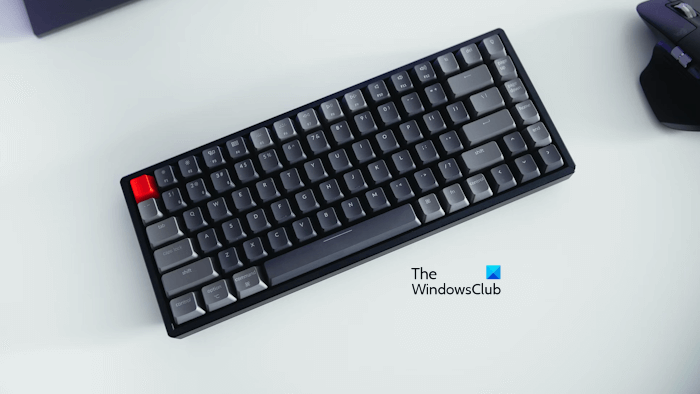
The problem might be with your keyboard. To verify this, connect another keyboard and observe the results. If the problem disappears, it might mean your keyboard is faulty or that its Caps Lock key has malfunctioned. Also, check whether the Shift key is stuck. Clean your keyboard if you haven’t cleaned it in a while.
2] Check the formatting settings (if applicable)
If this problem is associated with a specific program, such as Microsoft Word or PowerPoint, check the formatting settings. Select the text in Word or another affected Office application, and open Font settings. In Word, you can open it by clicking on the small arrow icon in the Font group under the Home tab. Uncheck the All Caps checkbox and click Apply.
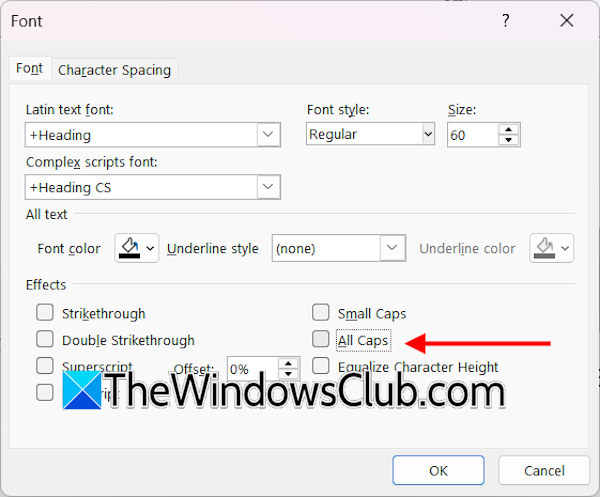
Some fonts are designed to be typed in capital letters, regardless of whether Caps Lock is on or off. Check your Font style to confirm this.
3] Reinstall the keyboard driver
A corrupt keyboard driver can also cause this problem. To fix this, you can reinstall the keyboard driver. Follow these steps:
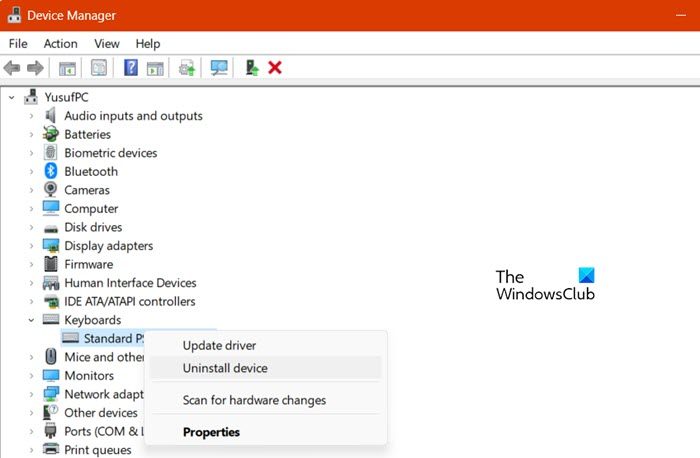
- Open the Device Manager.
- Expand the Keyboards branch.
- Right-click on your keyboard driver and select Uninstall device.
- Restart your computer or scan for hardware changes.
Check if the issue is fixed.
4] Check Advanced keyboard settings
You can choose whether to turn off Caps Lock with the same key or the Shift key. This can be done in the Advanced keyboard settings. If the Shift key is selected, you can turn off the Caps Lock only with the Shift key.
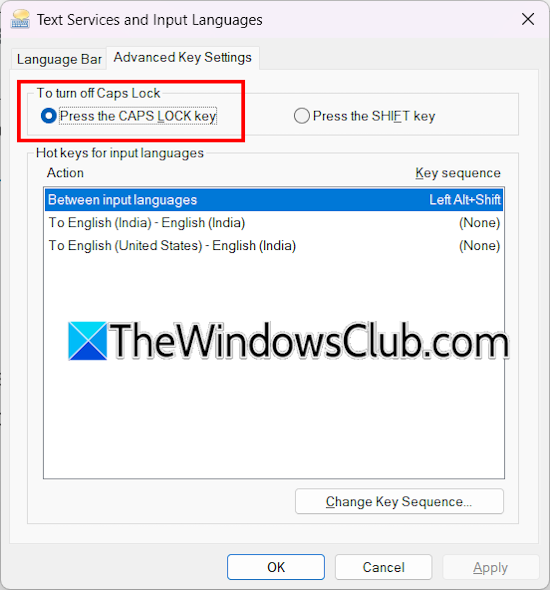
To check this, follow these steps:
- Open Windows 11 Settings.
- Go to Time & Language > Typing.
- Click Advanced keyboard settings.
- Now, click Input language hot keys.
- Under the Advanced Key Settings tab, select the Press the CAPS LOCK key radio button.
- Click Apply and then click OK.
5] Reset your keyboard
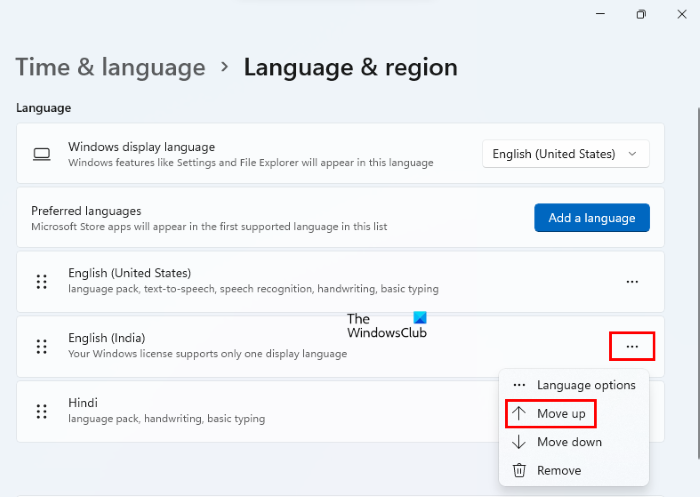
If your keyboard is not working properly, you can reset it to the factory default settings. Reset your keyboard settings and see if it helps.
6] Create a new user profile or reset your PC
The issue might be with your user profile. Log in to another user profile and check if the issue appears there. If another user profile does not exist, you can create a new one.
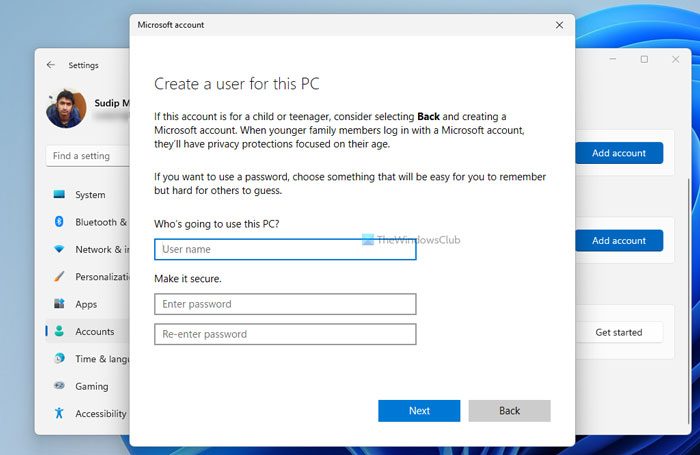
If the problem does not occur in the new user profile, your previous user profile might have been corrupted. You can repair your system image files using the System File Checker. If this does not help, you can transfer all your data from the previous profile to the new user profile using a third-party tool, such as Transwiz.
You can also reset your PC to the factory default settings. Selecting the Keep my files option during the factory reset does not erase your data but removes all the programs installed on your system. Alternatively, you can also try to restore your system to the previous working state.
That’s it. I hope this helps.
Why is my computer in all-caps when the caps lock is off?
The Shift key works opposite to the Caps Lock key. Pressing and holding the Shift key types in uppercase when the Caps Lock is off, and in lowercase when the Caps Lock is on. In your case, the Shift key might be stuck. Check this by connecting another keyboard.
How to stop keyboard typing in capitals?
To stop keyboard typing all in capitals, press the Caps Lock key again. If the Caps Lock key is not working, the Shift key might be set to turn off the Caps Lock instead of the Caps Lock key. Check this in Advanced Keyboard settings. Also, check if the Shift key is stuck.
Read next: Mouse or Keyboard keep disconnecting and reconnecting.
