
iTunes, an Apple service, is very popular amidst the multitude of music streaming apps for Windows 11/10. However, recently, many users reported that while launching iTunes, they see the following error message.
iTunes has detected a problem with your audio configuration. Audio/Video playback may not operate properly.
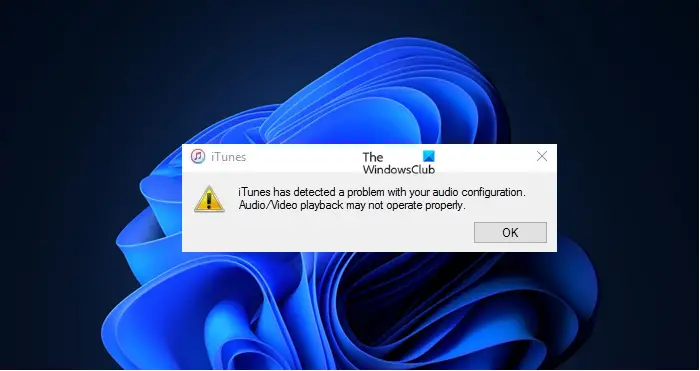
In this article, we will explore how to resolve this issue with the help of some simple solutions.
Fix iTunes has detected a problem with your audio configuration
If you are seeing “iTunes has detected a problem with your audio configuration” in iTunes, then first of all update your computer. Sometimes, the issue can occur because of an outdated Operating System. So, check for updates and install the latest version on your computer.
After updating, if the issue persists, these are the steps you need to take to resolve the error message.
- Use Direct Sound
- Fill the Jack
- Rollback, Update or reinstall your Audio Driver
- Restart Audio Service
Let’s discuss them in detail.
1] Use Direct Sound
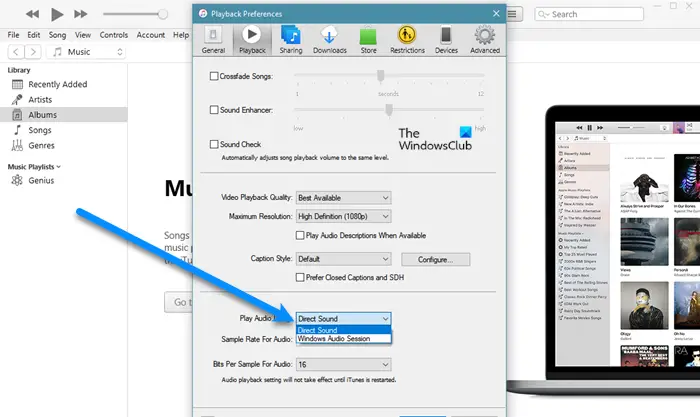
The first solution that can fix the issue is to change the Playback Audio settings. Follow the steps below to complete the same task.
- Open iTunes.
- Click on Edit > Preferences. Alternatively, you can use the keyboard shortcut Ctrl + ,.
- Now, go to the Playback tab and change the ‘Play Audio using’ option to Direct Sound.
If Direct Sound is already selected, try switching to Windows Audio Session instead.
Read: Fix iTunes Error Code 5105, Your request cannot be processed.
2] Fill the jack
This may sound a bit weird but many users were able to solve the issue by plugging a speaker or a mic into their audio jack. After doing that, iTunes worked just fine, and from the next time, they didn’t have to plug anything. So, you can follow in their footsteps and do the same, and hopefully, it will work for you as well.
Read: iTunes not working on Windows PC.
3] Rollback, Update, or reinstall your Audio Drivers
The issue can be because of buggy, outdated, or corrupted Audio Driver, so, to fix them, you have to rollback, update or reinstall your Audio Drivers, respectively. Hopefully, then your issue will be resolved.
4] Restart Audio Services
Windows has Audio Services, a glitch in it can cause this issue. So, you can restart Audio Services as that will fix the iTunes issue. So, follow the given steps to restart Audio Services.
- Open Services from the Start Menu.
- Look for Windows Audio, right-click on it, and select Restart.
- Now, reopen iTunes.
Hopefully, this will fix the issue.
Why is my iTunes audio not working?
There are many reasons for the issue that you are experiencing. If you are unable to hear sound from iTunes, first check your Audio settings in the taskbar to ensure they are not muted. After that, you should check if this issue is exhaustive to iTunes. If it is, then you should reinstall iTunes. If this is your computer’s issue, then you should troubleshoot the audio issue.
How to change Audio Quality in iTunes?
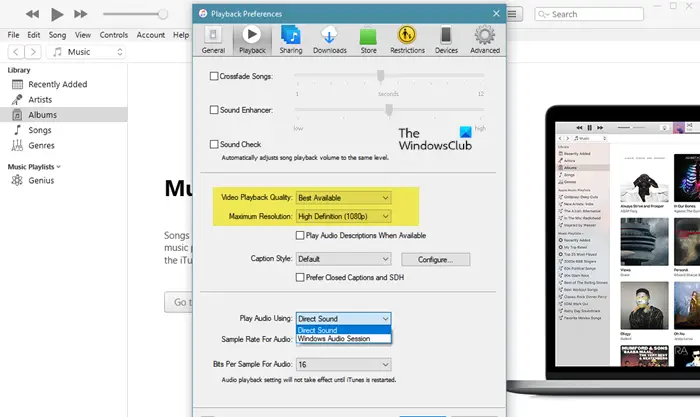
To change Audio Quality in iTunes, follow the given steps.
- Open iTunes.
- Click Edit > Preferences.
- Go to the Playback tab.
- Change Videoplayback Quality and Maximum Resolution from the drop-down menu.
From the drop-down menu, you can select how you want your audio to be, whether you want to save your data, or if you have a slow Internet Connection, dial back the resolution and quality.
Why won’t iTunes play on my computer speakers?
The main reason why you are getting this problem is because you have some issued with the audio driver. In that case, you need to remove the audio drive and reinstall it. No matter whether you use iTunes on Windows 11, Windows 10, or any other version, you can use the same solutions.
Read Next: Fix iTunes has an invalid signature error on Windows PC.
