
Most desktop users might be wondering how to use iOS apps on Windows devices; some might be iOS app developers looking for the best iOS emulator that works perfectly on Windows. In this post, we’ll explain what an emulator is and provide a list of the best emulators for Windows to help you use iOS apps. These emulators also help you develop and test your iOS apps on Windows.
The Emulator is software or hardware that lets you use your favorite operating system on your current OS without installing it on your device. In other words, an emulator allows your computer to behave like some other computer running on a different operating system. It also allows you to use the software or apps on your device specifically designed for some other machine.
Unlike emulators, the Simulator works by recreating only the software aspect of the environment. Simulators are great if you want to have fun along the side and play some games. However, the simulators fall short when it comes to developers’ requirements.
iOS Simulators & Emulators for Windows PC
Here is the list of the best iOS Emulators and Simulators for Windows computers.
1] Appetize.io
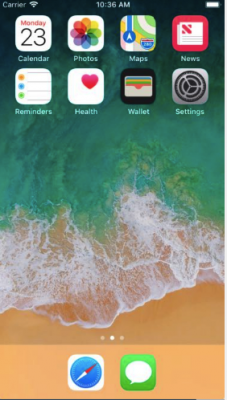
This emulator is considered one of the best iOS emulators for Linux and Windows. Appetize.io gives you simple access to download and run iOS and Android apps on your device. You can quickly develop and test your iOS or Android apps using this emulator. It also works well for running apps flawlessly. You can use this software for free for the first 100 minutes; later, you must pay $ 0.05$ per minute to access Appetize.io.
2] Xamarin Test flight
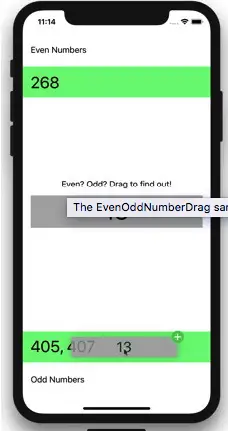
It is another of the best choices for using your favorite iOS apps on Windows devices or a computer loaded with a Windows operating system. This emulator is a user-friendly emulator that provides extended advanced support. Installing the emulator on your Windows is easy. Remember that Xamarin Test flight is paid, and there’s no such thing as ‘Free’ in the dictionary of its developers. You can download Xamarin Test Flight from its homepage.
3] IMAME emulator
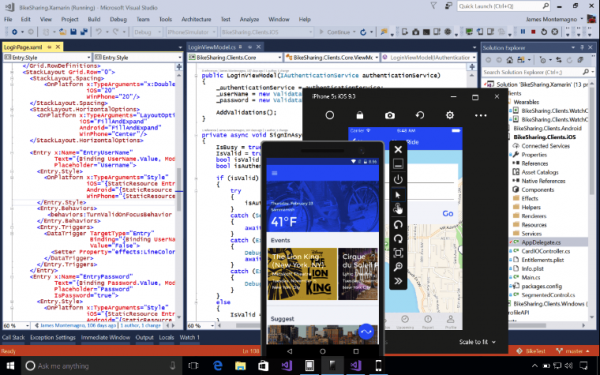
iMAME emulator is available in the App Store for free right now. The innovative emulator lets you run thousands of classic arcade titles using original ROMs. The iMAME emulator includes popular arcade games. Are you fond of playing old arcade games? If you want to play those classic old games on your device, perhaps using an iMAME emulator is best.
The emulator will be handy for playing all the legitimate ROMs you have copied yourself from other devices. That being said, the iMame Emulator was yanked from the app store and can only be sideloaded. You can learn more about IMAME here.
4] iPadian
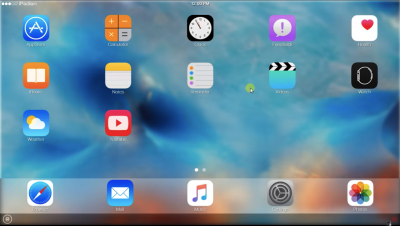
You won’t find any difficulty using this emulator if you have ever used iPads. As its UI is the same as an iPad’s, it is easy to find it user-friendly and easy to use as an emulator. Messages and other favorite apps can be easily accessed. You can also directly enjoy them on your Windows device if you have already installed the apps on your iPad.
The device would be one of the best iOS emulators, thanks to its excellent user interface and innovative features. iPadian is available in both free and paid versions.
NOTE: Please read the comments below before downloading it.
5] Ripple Emulator
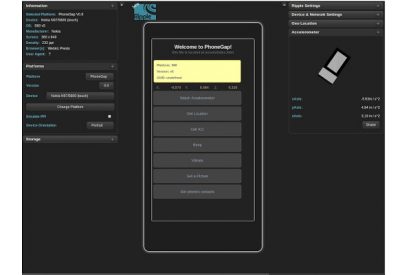
It is a multi-platform mobile environment emulator. Ripple Emulator has been designed for mobile HTML5 application development and testing. It is an extension of the Google Chrome browser that lets you quickly see how your application looks and functions on multiple mobiles. Overall, it lets you look under the hood of your mobile application. The Ripple Emulator can be downloaded from the Google Chrome Store.
Let us know if we missed any!
Go here if you are looking for Android Emulators for Windows
Can BlueStacks run iOS?
Despite conflicting information, BlueStacks does not offer any assistance for iOS. iOS emulation involves an entirely separate procedure from open-source Android emulation. Therefore, BlueStacks focuses solely on emulating Android devices.
How accurate is iOS Simulator?
An iPhone simulator lets you test your app’s functionality on your operating system. The simulator emulates the settings and actions of an actual device, but it does not accurately reflect the app’s performance due to differences in hardware capabilities.
