
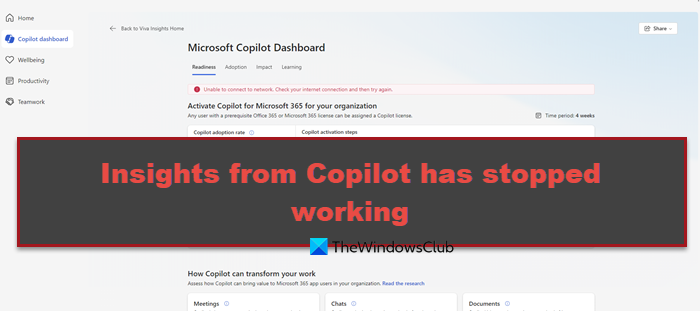
We have noticed that some users encounter a consistent failure when trying to generate or refresh insights from Copilot. The process typically begins normally, with a message stating that “Copilot is analyzing the data,” but after a short processing period (often around 30 seconds), it ends with an error. In this post, we are going to see what you can do if the Insight from Copilot has stopped working.
Why has my Copilot stopped working?
Your Copilot may have stopped working due to several common issues, including an unstable internet connection, temporary service outages on Microsoft’s side, or problems with your specific account or application. Other potential causes include an outdated application version, conflicting browser extensions or cache data, or attempting to generate content that triggers a safety restriction
Fix Insights from Copilot have stopped working
The problem usually comes from one of three specific technical hiccups. First, there might be a sign-in glitch, where Copilot can’t confirm your login details because of saved but outdated information. Second, the issue could be on Microsoft’s side, such as a temporary overload or outage of the AI service itself. Finally, the app you’re using (such as Teams or VS Code) may have temporary files blocking its connection to Copilot.
If Insights from Copilot has stopped working, follow the solutions mentioned below.
- Resolve Authentication Conflicts
- Hard Reset the Application State
- Check for account-specific service issues
- Check for outages
Let us talk about them in detail.
1] Resolve Authentication Conflicts
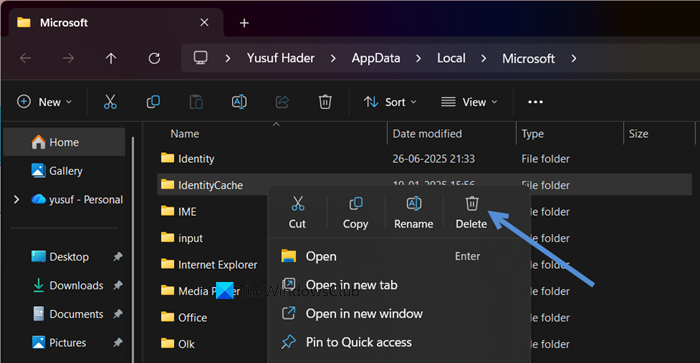
In this solution, we will force Copilot to establish a fresh connection by removing outdated or corrupted sign-in data (cached credentials and tokens) that can cause authentication errors and prevent the service from verifying your account properly. You can follow the stpes mentioned below to do the same.
- Log out of your Microsoft account (Office 365/Copilot) in all web browsers and any installed Office applications (like Teams, Outlook, or Word).
- Open Run by Win + R.
- Type %localappdata%\Microsoft\and hit Enter.
- Look for and delete the IdentityCache and OneAuth folders.
- Restart your computer, open your application again, and sign back into your Microsoft account.
Finally, check if your issue is resolved.
2] Hard Reset the Application State
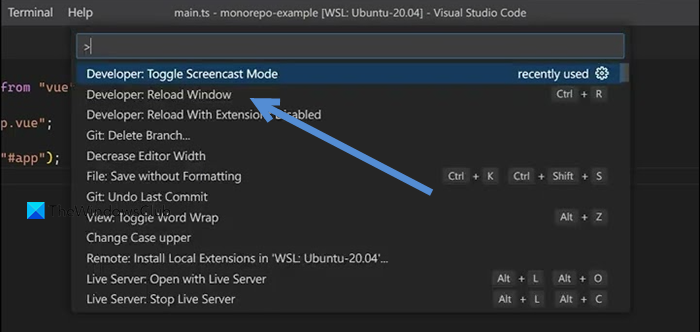
We need to remove corrupted temporary files, cached data, or incorrect settings stored locally by the specific application (like Teams or VS Code), which forces the app to download fresh, clean data and rebuild its connection to Copilot when it restarts. You can follow the solutions mentioned below to do the same.
MS Teams
- Terminate all MS Teams instances in Task Manager.
- Hit Win + R, type %appdata%\Microsoft\Teams\, and press Enter to open the folder.
- Select all files and folders inside (like Cache, blob_storage, databases, etc.) and delete them.
- Restart your computer.
Visual Studio
- Sign out of any GitHub or Microsoft accounts within VS Code.
- Open the Command Palette (Ctrl+Shift+P or Cmd+Shift+P on Mac).
- Type and select Developer: Reload Window to fully restart the VS Code environment.
This fix is most effective when Copilot’s Insights work in your web browser but fail in a specific desktop application.
3] Check for account-specific service issues
If Insights work in a clean browser or under a different account, it proves the issue is tied to your specific user profile, browser data, or account license, rather than a device-wide or universal service failure.
Open your browser in Incognito or InPrivate Mode. Sign in to Copilot there and try the Insights feature. If it works, the problem is with your main browser’s cache or extensions.
On the same device and your regular browser, sign out of your account. Have a colleague sign in with their licensed Microsoft account and try to generate insights. If it works for them, the issue is specific to your account or license.
