
In this tutorial, we will show you how to include the Microphone and System Audio when recording in Snipping Tool on a Windows 11/10 PC. That means the system audio and microphone will be enabled and added by default when you start a screen or desktop recording. Thus, you will be able to record audio on your PC from both the system and microphone (for voice-overs) together without using any third-party apps. Additionally, if you have multiple recording devices (say, microphones from different sources), you can select the preferred device before starting the screen recording.
How to include Microphone and System Audio when recording in Snipping Tool
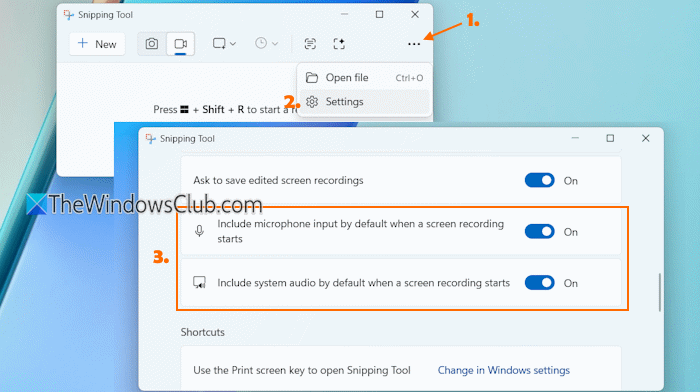
Update the Snipping Tool app if you haven’t already. Once done, you can include Microphone and System Audio when recording in Snipping Tool on a Windows 11/10 PC using the following steps:
- Open Snipping Tool in Windows PC using the Search box or another way you prefer
- Click on the See more icon (three horizontal dots) in the top right corner of its interface
- Click on the Settings option
- Scroll down to the Screen recording section
- Use the toggle to turn on the Include microphone input by default when a screen recording starts option
- Turn on the Include system audio by default when a screen recording starts. This will set the default audio settings
- Go back to the main interface of Snipping Tool
- Select the Record button
- Press the Ctrl+N hotkey or click the New button and select a recording area to record video or the desktop screen using Snipping Tool
- Now you will see both audio options (system audio and microphone) in the Snipping Tool capture bar.
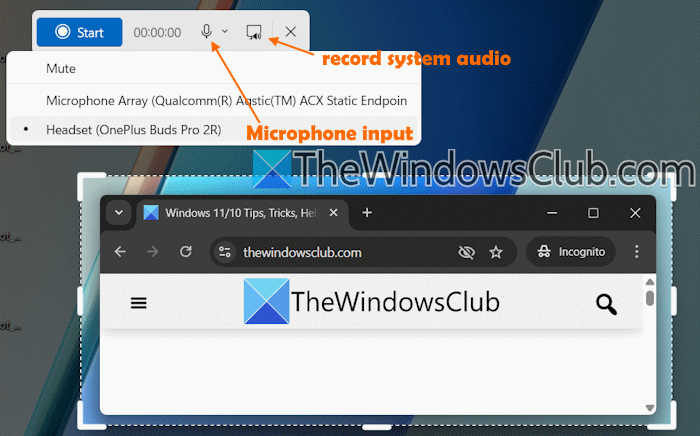
If there are multiple recording devices, use the drop-down icon and select a device, as visible in the image above. You can also mute system audio and/or microphone in between the recording and resume it at any point directly from the Snipping Tool capture bar when needed.
The next time you start a desktop recording using the Snipping Tool, the default audio recording settings will be there, which you can change anytime.
Now read: Snipping Tool screen recorder No sound problem in Windows PC
How to record system audio and microphone at the same time?
You can use the built-in Sound Recorder app in a Windows PC to record system audio and microphone at the same time. This app lets you save recordings in MP3, AAC, FLAC (lossless), WAV (lossless), and WMA audio formats. You can also select the audio quality (Best, High, Auto, or Medium) before recording. Apart from that, there are some best free audio recorder software for Windows PC, like Audio Recorder (from Weeny Software), Ashampoo Audio Recorder Free, etc., that let you record audio from different sources such as microphone, sound card, apps, line-in device, etc.
How to record the screen with system audio?
The native Snipping Tool app in Windows 11 is sufficient for recording the desktop screen with system audio. Just make sure the system audio setting is enabled when screen recording starts, or turn it on from the Snipping Tool capture bar. In case you are looking for additional features, such as select codec, max width, min height, etc., you can use free desktop screen recorder software like CamStudio.
Read next: Snipping Tool missing in Windows PC.
