
If you recently switched to Firefox and want to import passwords from another browser like Microsoft Edge or Google Chrome, follow these steps. Whether you are using Chrome, Microsoft Edge, or any other browser, you can import bookmarks, cookies, browsing history along with passwords from that browser to Firefox without using any third-party service or software.
Let’s say you recently moved from Chrome to Firefox and want to migrate all saved passwords from the old browser to Firefox. Although it is not recommended to save passwords in the browser, many folks do that instead of using a password manager for Windows. If you did that earlier and want to keep doing the same, follow this tutorial.
How to import passwords into Firefox from Chrome or Edge
To import passwords to Firefox from another browser like Chrome or Edge, follow these steps-
- Open the Firefox browser on your computer.
- Click on the hamburger icon or the Menu button.
- Select the Logins and Passwords option.
- Click the three-dotted icon.
- Select Import from Another Browser option.
- Select the source browser and click the Next button.
- Select only Saved Passwords and click the Next button.
- Hit the Finish button and check your passwords.
To know more about these steps, read on.
Open the Firefox browser on your computer. Then click the menu button (the hamburger icon) in the top-right corner of the Firefox window. After that, select the Logins and Passwords option. Alternatively, you can type about:logins in the address bar, and hit the Enter button.
Now click on the three-dotted icon and select Import from Another Browser option.
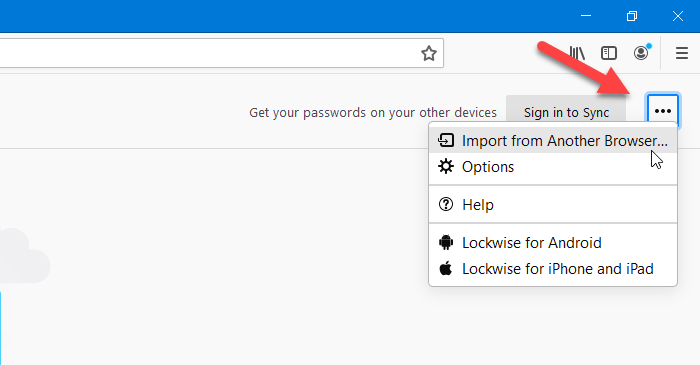
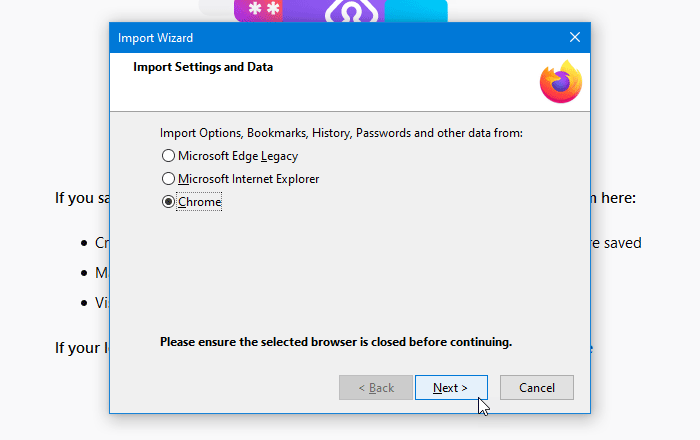
The next window shows browsers from which you can export all saved passwords. You need to select a browser from the list and click the Next button.
After that, remove ticks from all checkboxes except Saved Passwords. Then, click the Next button.
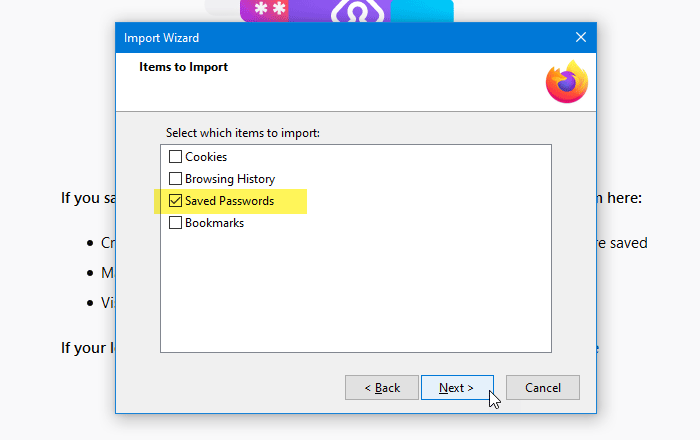
For your information, if you want to import other data such as browsing history, cookies, etc., you can select the corresponding boxes.
If everything is done correctly, it should display a success message; then click the Finish button. Then, you can find all the passwords exported from other browsers to Firefox in the Logins and Passwords window.
I hope this tutorial helps.
Related reads:
- How to Export Logins and Passwords from Firefox
- How to Export or Backup Bookmarks from Firefox
- How to Import Bookmarks into Firefox from Edge, Chrome.
