
AppLocker is a Windows security feature found in Local Security Policy that lets administrators control which applications can run on a system. It works by creating rules that allow or block apps based on specific criteria. In this post, we are going to see how to import and export AppLocker Policy and some other configuration settings.
If you want to import and export AppLocker Policy on Windows 11, you can follow the guides mentioned below.
How to export AppLocker Policy on Windows 11
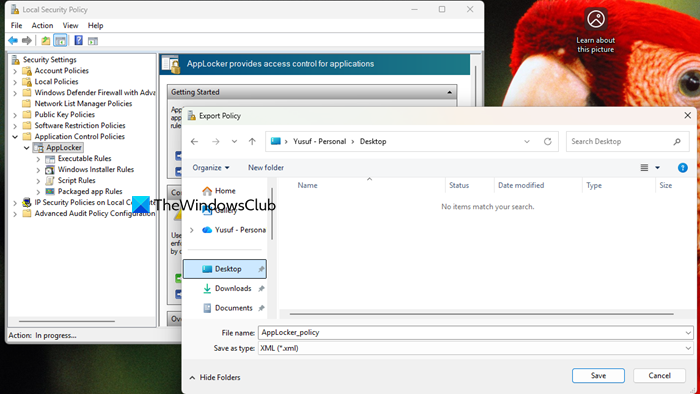
You can export your AppLocker policy rules to an XML file, which serves as both a convenient way to review the configuration and a reliable backup. This exported XML file can later be imported onto any computer, allowing you to quickly restore the same set of rules or replicate the policy across multiple systems. This process ensures consistency in application control policies and provides a safeguard against accidental loss or misconfiguration.
To export an AppLocker Policy, follow the steps below.
- Open the Local Security Policy (secpol.msc).
- Now, navigate to Application Control Policies, right-click on AppLocker, and select Export Policy.
- You need to navigate to the location where you want to store the XML file, set Save as type to XML, enter the name of the file you want for the XML file, and click on Save.
- Finally, click OK.
You will see a confirmation message stating that the rules were exported.
How to import AppLocker Policy on Windows 11
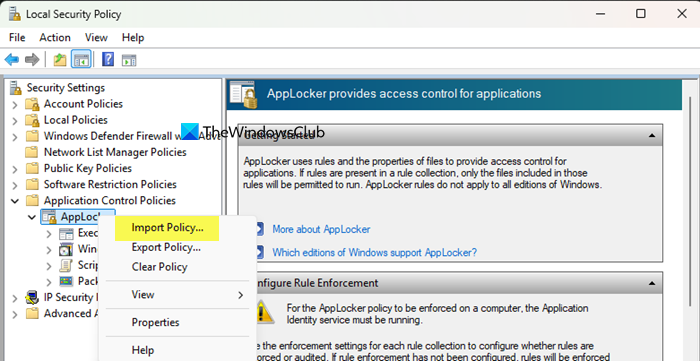
To import AppLocker Policy, you need to follow the steps mentioned below.
- Launch Local Security Policy.
- Now, go to Application Control Policies from the left section of the window, right-click on AppLocker, and then go to Import Policy.
- Go to the location where you have stored the exported file, select it, and click OK.
- Click Yes to confirm.
Finally, check if the issue is resolved.
Clear AppLocker Policy to default
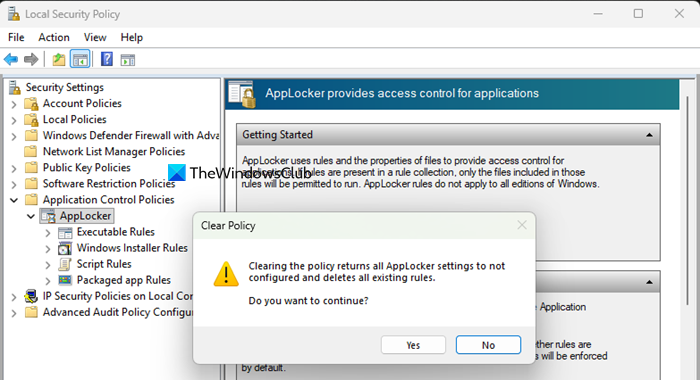
To clear the AppLocker Policy to the default, follow the solutions mentioned below.
- Launch Local Security Policy.
- Navigate to Application Control Policies > AppLocker, right-click on the AppLocker, and select Clear Policy.
- Click Yes to confirm.
- Click OK when finished.
Hopefully, with the help of the aforementioned guides, you will be able to configure AppLocker Policy.
Read: How to Enable or Disable access to Microsoft Store in Windows 11
How do I export the AppLocker policy?
You can export an AppLocker policy using either the Local Security Policy console or PowerShell. In Local Security Policy, navigate to Application Control Policies > AppLocker, right-click AppLocker, and choose Export Policy to save it as an XML file. Alternatively, PowerShell provides more flexibility by using the Get-AppLockerPolicy -Effective -Xml command, which exports the currently applied policy for backup, auditing, or deployment to other systems.
Read: How to Blacklist or Whitelist a Program in Windows 11
Where can I find my AppLocker policy?
The AppLocker policy is located in the Local Security Policy editor under Application Control Policies > AppLocker on standalone systems. In domain environments, AppLocker rules are typically managed through Group Policy Management and applied via a linked Group Policy Object (GPO). You can also view the effective AppLocker policy in PowerShell to see whether the rules are coming from local settings or domain-based policies.
