
If Hyper-V Manager fails to connect to the local computer, you will usually see this error followed by a second line that reads Hyper-V encountered an error trying to access an object on computer because the object was not found. This points to a problem with the Virtual Machine Management Service (VMMS) data itself, rather than a simple service outage. In this article, we will explore the causes and find ways to solve them, so that Hyper-V Manager can connect to the local computer again.
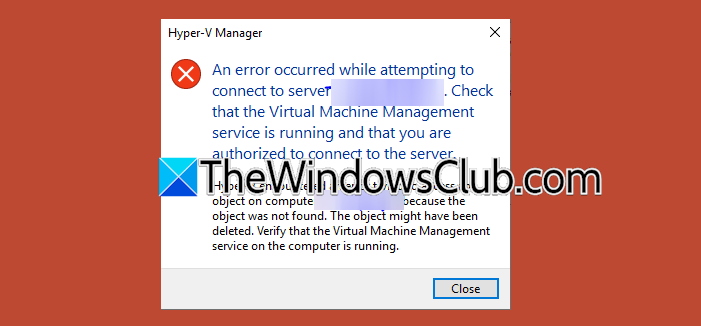
When this issue occurs, you will see an error such as:
An error occurred while attempting to connect to server “computer name”. Check that the Virtual Machine Management service is running and that you are authorized to connect to the server.
Hyper-V encountered an error trying to access an object on computer “computer name” because the object was not found. The object might have been deleted. Verify that the Virtual Machine Management service on the computer is running.
Hyper-V failed to connect to local computer
Hyper-V may fail to connect to the local computer if the Hyper-V Manager can reach the Virtual Machine Management Service, but the service cannot locate the object it expects to find on the local computer. The reasons for this vary, but the common ones include a virtual machine entry that still exists in the Hyper-V Virtual Machines folder even though its files were deleted or moved, Hyper-V Manager not being run with administrator rights, the WMI repository becoming corrupted, or the Hyper-V Host Compute Service not finishing the generation of a self-signed certificate.
If Hyper-V is not connecting to the Local Computer, execute the solutions mentioned below:
- Run Hyper-V Manager as an administrator
- Remove the orphaned VM entry
- Wait for the Hyper-V certificate check to complete
- Repair the WMI repository
- Reinstall the Hyper-V feature
1] Run Hyper-V Manager as an administrator
Hyper-V may fail to access objects if it doesn’t have the necessary permissions. Therefore, we need to launch it as an admin. Follow the steps mentioned below to do the same.
- Close Hyper-V Manager if it is open.
- Click on the Start menu, search for Hyper-V Manager.
- Right-click on the search result and select Run as administrator.
- Click Yes when prompted by User Account Control.
Now, try booting your virtual machine.
2] Remove the orphaned VM entry
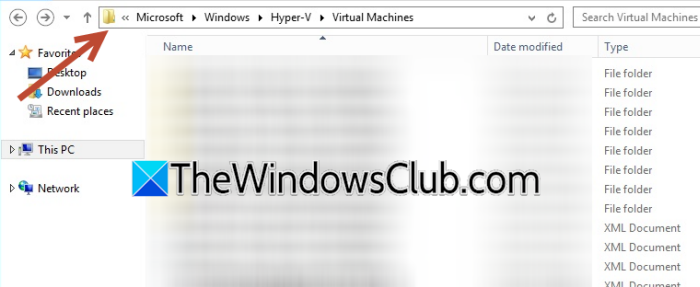
If a virtual machine’s files were deleted or moved without properly removing it, an orphaned entry can remain in the Hyper-V configuration folder. When Hyper-V Manager tries to enumerate this entry, it cannot find the object, and the connection fails. We need to move the redundant GUIDs to the backup location, then refresh Hyper-V. Follow these steps to do the same
- Open the Run dialog box, type services.msc, and press Enter.
- Find Hyper-V Virtual Machine Management, right-click on it, and select Stop.
- Open File Explorer and navigate to C:\ProgramData\Microsoft\Windows\Hyper-V\Virtual Machines.
- Note down the folder names (GUIDs) and compare them against the virtual machines you expect.
- If a GUID folder does not correspond to any VM, move it to a backup location.
- Go back to services.msc, right-click on Hyper-V Virtual Machine Management, and select Start.
Now, let us try booting the VM and accessing the local resources.
3] Wait for the Hyper-V certificate check to complete
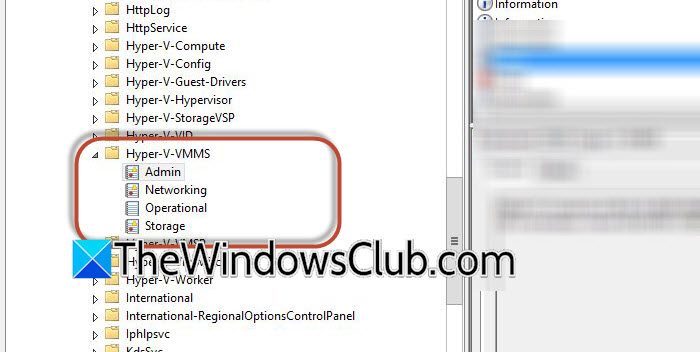
The Hyper-V Host Compute Service generates a self-signed certificate at startup, and VMMS depends on it before it can respond. On some systems, this check takes a few minutes. Follow the steps mentioned below to do the same.
- Open the Run dialog box, type eventvwr.msc, and press Enter.
- Navigate to Applications and Services Logs > Microsoft > Windows > Hyper-V-VMMS > Admin.
- Wait a few minutes, then look for an informational event indicating that a certificate was found.
- Once this event appears, return to Hyper-V Manager and try connecting again.
Hopefully, this will allow you to connect without any error message.
4] Repair the WMI repository
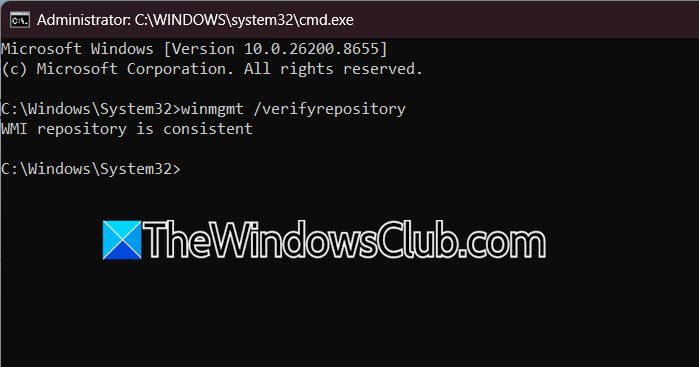
The Windows Management Instrumentation (WMI) repository stores the virtualization classes that Hyper-V relies on to manage objects on the local computer. If this repository becomes corrupted, the Virtual Machine Management Service cannot find the object it needs, even when the service itself is running normally. Let us go ahead and verify the same.
- Search for Command Prompt, right-click, and select Run as administrator.
- Type
winmgmt /verifyrepositoryand press Enter. - If inconsistent, type
winmgmt /resetrepositoryand press Enter.
Restart the computer.
5] Reinstall the Hyper-V feature
If repairing the WMI repository does not resolve the issue, the next step is to reinstall the Hyper-V feature itself. This process forces Windows to rebuild all virtualization components from scratch, eliminating any corrupted or missing files that may be preventing proper operation. After reinstalling, you will need to re‑enable Hyper-V, restart the system, and then re‑import your previously configured virtual machines to restore your environment. This ensures a clean, consistent setup.
Hopefully, with the help of these solutions, your issue will be resolved.
Read: Fix Error applying Virtual Switch Properties changes in Hyper-V
Why does Hyper-V say the object was not found even though the service is running?
Hyper-V can show this error even when the Virtual Machine Management Service is running because it’s not about the service itself. The problem is with a specific object, like a VM entry or a WMI class. If that object’s data is missing, corrupted, or moved, the service won’t be able to find it, so the error appears.
Read: Hyper-V VM cannot connect to the Host M/C
Is it safe to delete the Hyper-V folder to fix this error?
It is safer to rename the C:\ProgramData\Microsoft\Windows\Hyper-V folder instead of deleting it outright, since this preserves your VM configuration data in case you need to recover it after reinstalling.
Also Read: Can’t Connect to Hyper-V Virtual Machine on Windows computer.
