
If you want to use Samsung apps on Windows 11 computer, this guide will show the process. You can use any app you installed on your Samsung mobile on your Windows 11 computer. For your information, you need to use the Your Phone app to do this.
At times, you might want to use Android apps on your Windows 11 computer. There are multiple methods available for Windows 11 users. For example, you can use the Windows Subsystem for Android to do so. However, if you own one of the latest Samsung mobiles, you can broadcast your mobile’s screen on your computer. That way, you do not need to install the app. All you need to do is connect your phone to your computer via Your Phone Companion.
This method is for those who do not want to install any Android apps on their computers but still want to use them for a different experience. If you are one of them, you can certainly check out this guide to use your installed apps on your Windows 11 computer.
Note: Your mobile must be connected to your computer via the Your Phone app. Although it is not mandatory, you can try using a Wi-Fi network instead of mobile data. If you’re not sure, follow this guide to connect your mobile to your PC via Your Phone. Once done, you can proceed to the next steps.
How to install & use Samsung apps on Windows 11
To install and use Samsung apps on Windows 11, follow these steps:
- Open Your Phone app on your computer.
- Switch to the Apps section.
- Find an app you want to open.
- Click on it.
- Tap on Start now button on your mobile.
Let’s check out these steps in detail.
As mentioned earlier, you must connect your phone and computer via Your Phone. If you have already done that, open the Your Phone app on your computer first.
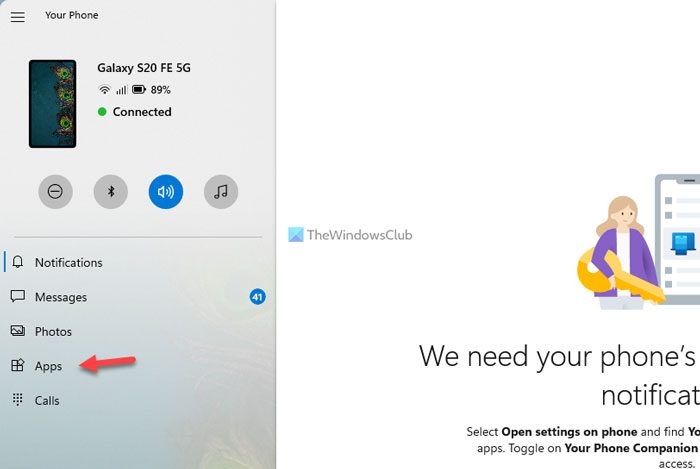
Then, switch to the Apps section, which is visible on the left-hand side.
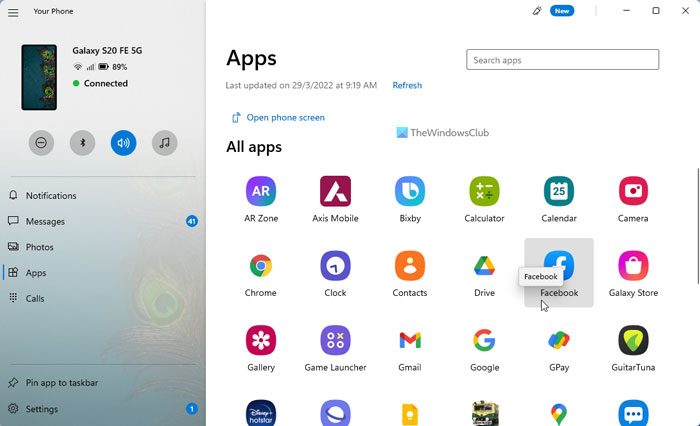
Now you can see all the apps that you have on your mobile. Whether it is a banking app, social media app, pre-installed app, or anything else, you can find it on your computer screen. Choose an app you want to use on your computer, then click it.
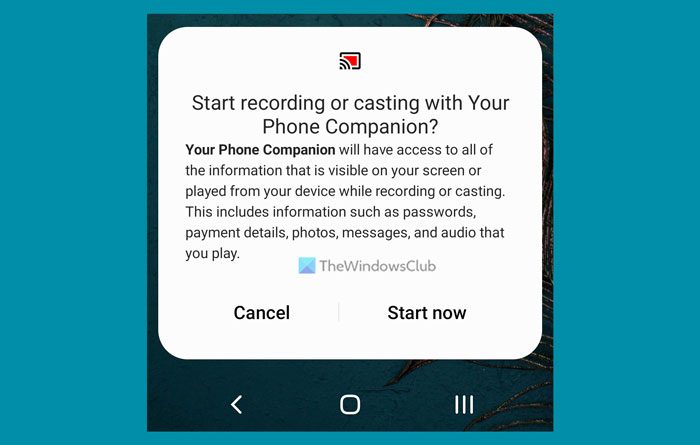
You may see a pop-up on your mobile device asking for permission to start recording or casting with Your Phone Companion. You need to tap on the Start now button.
After that, you can find the app on your computer screen.
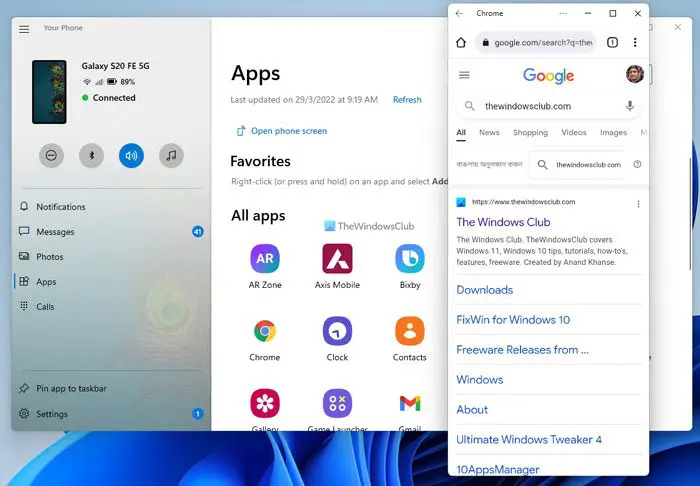
This is how you can open any installed app on your computer. However, to view the mobile’s home screen, click the Open phone screen option in the Your Phone app.
For your information, if you get Unlock from your PC message while opening an app on your computer, you need to unlock your phone to start using it.
On that note, it is mandatory that your phone be unlocked when using the apps on your computer. Otherwise, you will keep getting the same error message.
Can Windows 11 use Android apps?
Yes, there are mainly two ways to use Android apps on Windows 11 – using Your Phone app and Windows Subsystem for Android. If you have a Samsung mobile, you can use the first method, which is easier than the second. However, if you need more flexibility, you can opt for the second method mentioned here.
Is Samsung compatible with Windows 11?
Yes, Samsung mobiles are fully compatible with Windows 11. Whether you want to transfer data from your mobile to your computer or vice versa, you can do that with your Samsung mobile. On the other hand, you can follow the aforementioned guide to use the installed Samsung app on your Windows 11 PC.
