
If you want to use your phone as a speaker for a Windows 11/10 PC, this post will help you. You can turn your phone into a virtual speaker or microphone using AudioRelay, a free Android app.
Bluetooth speakers are a great option when you are on the go, since many low-end Windows laptops don’t have great speakers. On the other hand, if your Bluetooth speakers are not working right now and you are in the middle of something, AudioRelay could be handy.
The first benefit of using AudioRelay is that you do not need to carry another device in your backpack along with your heavy laptop. That said, there are two ways to connect your phone to your computer: via a USB cable or by creating a server.
Important features of AudioRelay
This is a list of some useful features of AudioRelay:
- Next-to-none delay in audio streaming. Whether you use your USB cable or create a server, you won’t find any delay.
- Windows 11 and Windows 10 PCs work smoothly.
- You can create multiple servers for multiple PCs and connect to them one at a time.
- Use your phone as an external microphone for your computer to record videos or voiceovers.
- Turn ON or OFF audio effects that help you get a better audio experience.
- Stream the sound of your phone to another device. That said, you can play videos on one device while listening to audio on another.
- Switch between the Dark and Light themes.
- Multiple language options available.
- Adjust mobile volume from PC.
There are other features that could be handy for you.
How to use Phone as a Speaker for PC using AudioRelay
Before downloading, you must know that two tools are required. One for your PC and another one for your Android mobile. You can go to Audiorelay.net to download them both on the respective devices.
Once the download is done on both devices, open it on your computer. First, go to the Settings tab and enter a name, which will be used later to identify your computer. By default, it uses your original PC name, but you can use anything if you want.
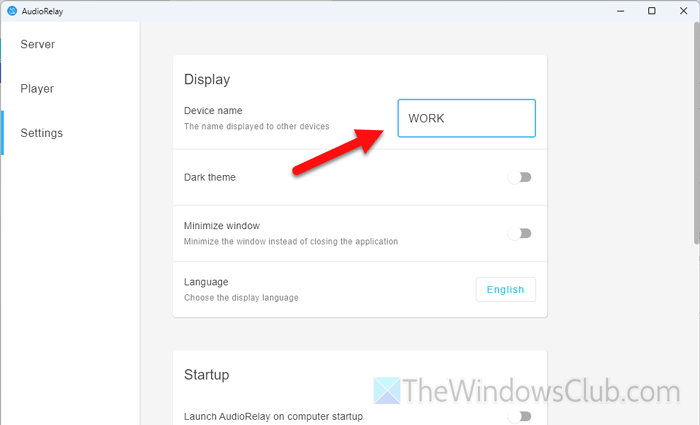
Then, open the app on your mobile and do the same.
As mentioned earlier, you have two options for connecting both devices. First. Take a look at the USB tethering method, which is preferred since it doesn’t require an internet connection and offers better audio quality than connecting to a server.
Having said that, connect your phone to your computer using a USB cable and tap on the SETTINGS button under the USB tethering section.
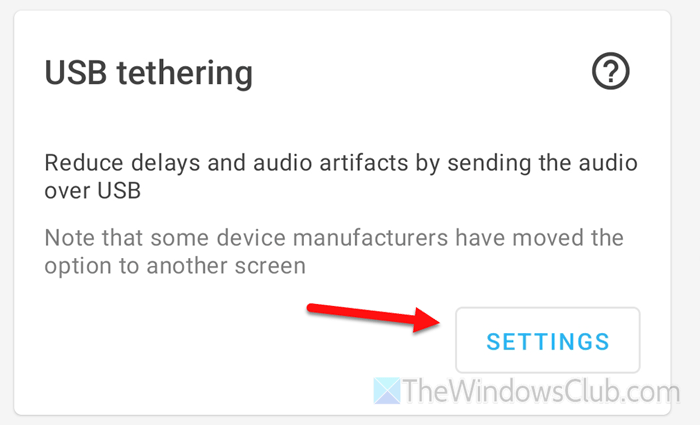
Then, toggle the USB tethering button to turn it ON. Once done, make sure that you are in the Player tab. If so, you will find your computer name. Tap on it to start listening to your PC audio.
Once done, you can play audio on your computer and listen to it on your mobile.
However, if you want to connect your devices without a USB cable, you have the Server option. For that, open AudioRelay on your computer and find the IP address under your computer name.
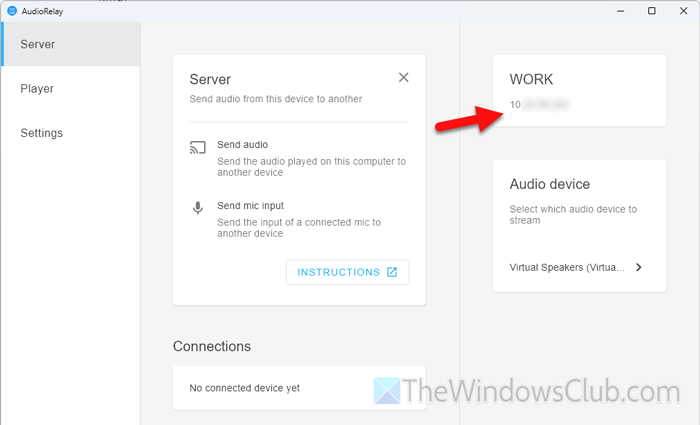
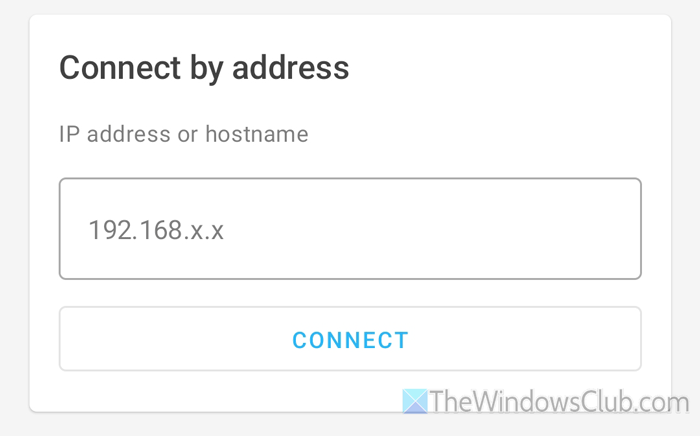
Then, open the app on your mobile, head to the Connect by address option, type the IP address, and tap on the CONNECT button.
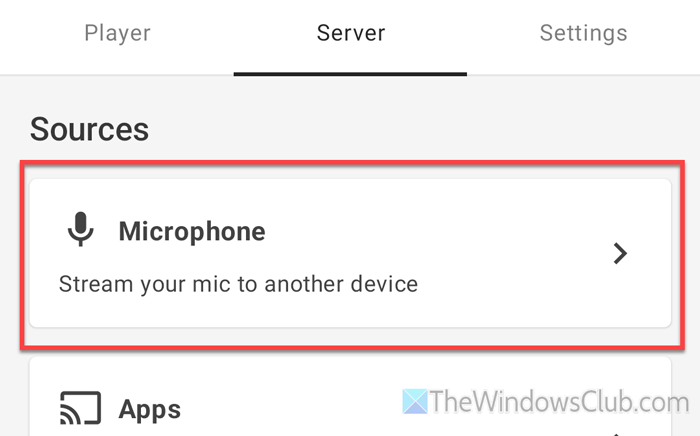
If you want to use your mobile’s microphone, open the app on your mobile and go to the Server tab. Select the Microphone option.
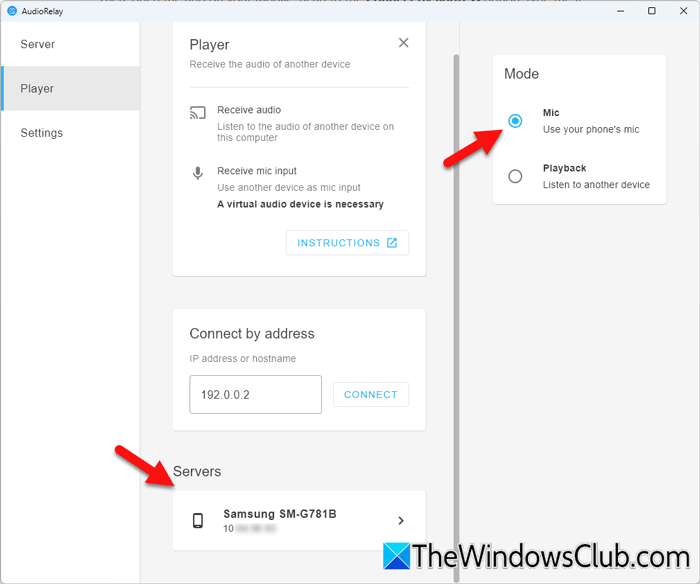
Then, open the AudioRelay on your computer and choose the Mic option instead of Playback on your computer first. After that, find your mobile name in the Servers section and select it.
Alternatively, if you want to connect them via servers, find the IP address on your mobile. It is visible when you open the Server tab and select the Microphone option.
You must enter the IP address in the empty box under Connect by address and click on the CONNECT button.
To stop the streaming, tap on the Stop button on your mobile.
Read: How to open Sound Settings in Windows 11
How to use phone as speaker for PC in Windows 11?
To use the phone as a speaker for the PC in Windows 11, use AudioRelay. Connect your phone to your computer via a USB cable, or set up a server to stream PC audio to your mobile device.
Can I turn my phone into a speaker for my PC?
Yes, you can turn your phone into a speaker and microphone for your PC. You can listen to PC audio on your mobile and use your mobile’s microphone to record audio on your computer.
