
This post explains how to use GitHub Spark to create web apps. The market today is flooded with AI-powered coding assistants — from tools that autocomplete lines of code to platforms that generate frontend mockups in seconds. But most of them stop halfway. Enter GitHub Spark: a groundbreaking tool that doesn’t just draw the frontend for you but also wires up the backend, manages hosting, and even handles deployment.
What is GitHub Spark?
GitHub Spark is an AI-powered app builder that enables you to develop full-stack web applications, also known as micro-apps or “sparks”, without writing or deploying any code yourself. It leverages Claude Sonnet 4 (part of Anthropic’s Claude 3.5 family of AI models, tuned for reasoning, coding, and productivity tasks) to understand natural language prompts and translate them into working apps.
How to use GitHub Spark to create web apps?
To use GitHub Spark to create web apps, you need a Copilot Pro+ license. If you’re on Copilot for Business or the free tier, you won’t see Spark. The good news is that GitHub has confirmed a broader rollout is on the way, so all users can expect access in the coming weeks.
To create a micro-app using Spark, you need to follow these steps:
- Open GitHub Spark
- Create a Prototype
- Preview the app
- Refine and iterate
- Save and Publish
Let us see this in detail.
1] Open GitHub Spark
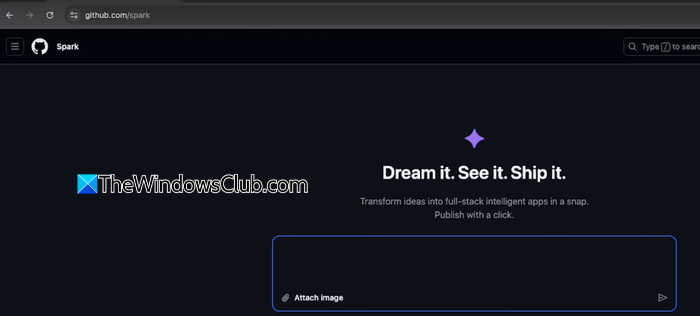
Open your browser and go to github.com/spark. Make sure you’re signed in with a GitHub account that has an active Copilot Pro subscription.
2] Create a Prototype
A prompt box appears. In the box, describe (in natural language) the kind of app you want to build, what you want it to do, and the features you’d like it to have. The more detail you provide, the more accurate and tailored your app will be. If you’re not sure how to frame a detailed prompt, you can use an AI tool (like Claude or ChatGPT) to help you craft one.
Tip: Treat your prompt like a mini Product Requirements Document (PRD). List the goals, features, and functionality you expect. This gives Spark the best chance to generate a high-quality app right from the beginning.
Once you’re done, click Submit Prompt.
3] Preview the app
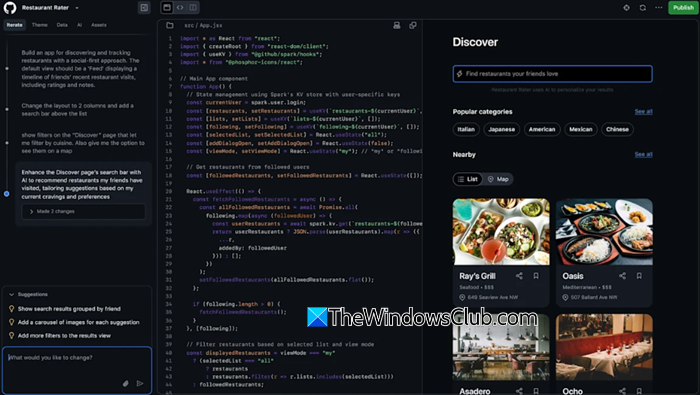
After the prompt is submitted, Spark takes you to the Preview screen. The left pane of the screen displays processing messages, while the right pane stays in a waiting state. During this stage, Spark generates the app’s structure and prepares a draft version.
When the process is complete, the right pane updates to display a live prototype of the app. From here, you can interact with the app preview (click buttons, test flows, etc.) to see if it behaves as expected.
4] Refine and iterate
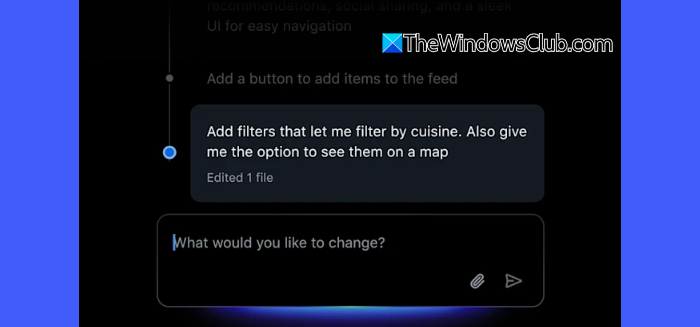
If you are not satisfied with the outcome or if something is missing, you can refine or iterate using follow-up prompts, visual editing tools, or even code.
To make changes using plain language, open the Iterate tab in the left sidebar, type your instructions in the input box, and hit Submit. You can also use prompt suggestions that appear above the input field.
Spark highlights any errors it detects, and you can resolve them all at once by clicking Fix All. If you want more control, click < > Code to view and edit code. The code editor comes with built-in Copilot suggestions to speed up your work.
Apart from this, you can make changes using the visual editing controls under the following tabs:
- Theme: Change the app’s appearance by applying a design theme.
- Data: Define or connect datasets for the app.
- Prompts: Review and reuse previous prompts.
- Assets: Manage images, icons, and other resources.
5] Save and Publish
Once you are satisfied with your app, you can save it directly to GitHub for version control and collaboration.
Click the three-dots icon on the top right. You will see the following options:
- Open codespace: If you’re familiar with coding, you can open the project in GitHub Codespaces (cloud-based development environment) to edit, test, and manage the app, without requiring local setup.
- Create repository: With a single click, you can create a complete GitHub repository for your app. This saves you the effort of manually setting up a repo, making it easy to publish, share, and collaborate on your project.
- Settings: This option allows you to configure important details about your app before publishing it. Here, you can set the app’s name and provide a description to explain its purpose and functionality. You can also delete the app entirely if you no longer want to keep it.
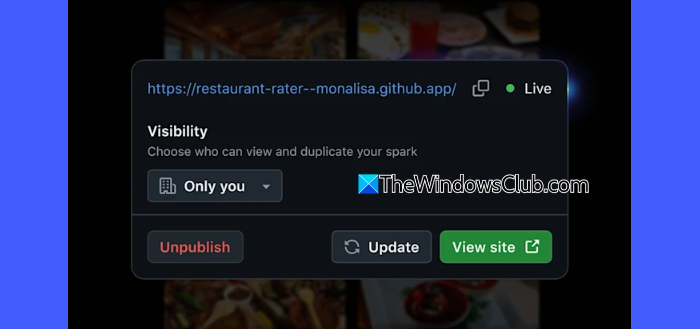
After saving your app to GitHub, click the Publish button next to the three-dots icon. This makes your app live with just one click.
By default, the app will only be visible to you, but you can change the visibility settings to share it with others.
Overall, GitHub Spark lets you skip the coding altogether and still walk away with a working, full-stack app. I hope you find this useful.
Read: How to use Deepseek in Visual Studio Code.
What is the alternative to GitHub Spark?
The best open-source alternative to GitHub Spark is Pythagora. It lets you generate full applications from natural language prompts and gives you the source code that you may download, edit, and host anywhere. Some other notable open-source options include Bolt.new, which focuses on rapid prototyping in the browser, and Reflex, which lets you build and deploy full-stack apps in pure Python.
Read Next: How to use Copilot to generate code.
