
In this post, we will show you how to download, install, and use Cinema HD on a Fire TV Stick.

Cinema HD is a popular app for streaming movies and TV shows in high quality. However, since it is an unofficial app, you won’t find it on the Amazon Appstore. If you still want to use it on your Fire TV Stick, there is a way. You can download and install it manually. The process is simple and works on all Fire TV Stick models, including Fire TV Stick Lite, 4K, 4K Max, and Fire TV Cube.
Is Cinema HD legal and safe to use?
Before we explain how to install and use Cinema HD on a Fire TV Stick, here are a few important points to keep in mind:
- Cinema HD is a third-party app, not an official Amazon app.
- Some content available through the app may not be licensed. We recommend streaming only content that is legally permissible in your region.
- For safety, download Cinema HD from the official website or trusted sources and scan the APK for potential malware.
- Use a VPN service while streaming on third-party apps to maintain privacy and avoid content restrictions.
How to use Cinema HD on Fire TV Stick?
To download, install, and use Cinema HD on Fire TV Stick, you need to follow these steps:
- Enable apps from unknown sources
- Install the Downloader app
- Download the Cinema HD APK
- Install Cinema HD
- Use Cinema HD on Fire TV Stick
Let us see this in detail.
1] Enable apps from unknown sources
Since Cinema HD is not available on the Amazon Appstore, the Fire TV Stick blocks its installation by default. To install it manually, Fire OS requires you to enable certain permissions that are hidden under Developer Options. This includes turning on the setting that allows apps from unknown sources.
On your Fire TV home screen, click the Settings (gear) icon. Go to My Fire TV, then select About.
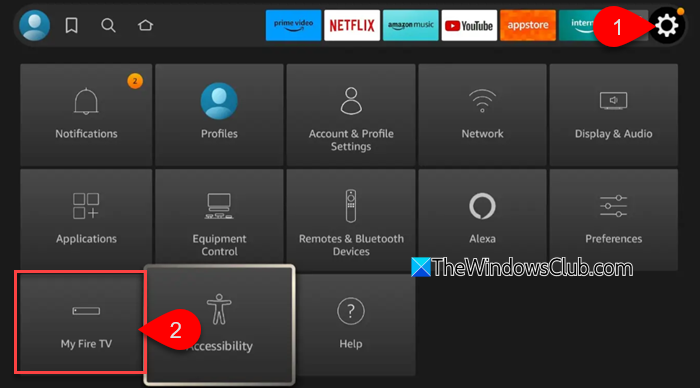
A recent Amazon update hides the Developer Options menu by default, so you may not see it initially. To make it visible, select your device name in the About menu, then press the OK button 7 times.
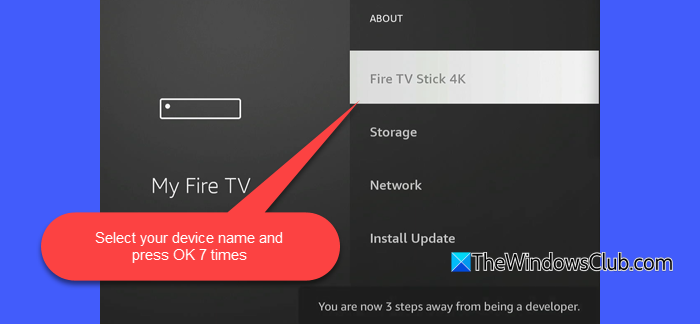
A message will appear saying, “No need, you are already a developer.” Now go back to the About menu, and you’ll see Developer Options.
Select Developer Options. Then select Install unknown apps (or Apps from Unknown Sources on older Fire OS versions).
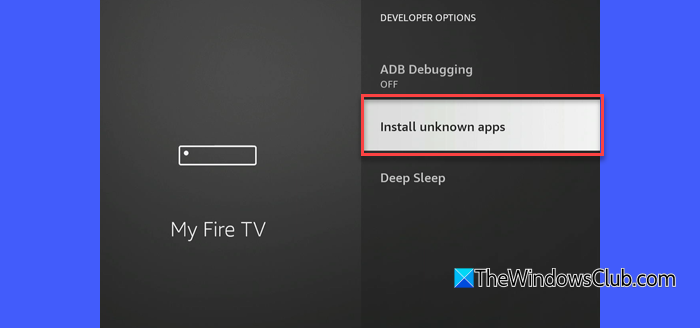
A warning message will appear. Go ahead and enable the option to allow installing apps that aren’t from the Amazon Appstore.
2] Install the Downloader app
Next, you need to install the Downloader app. Downloader is the safest and most widely recommended app for downloading files, including APKs, on Fire TV devices.
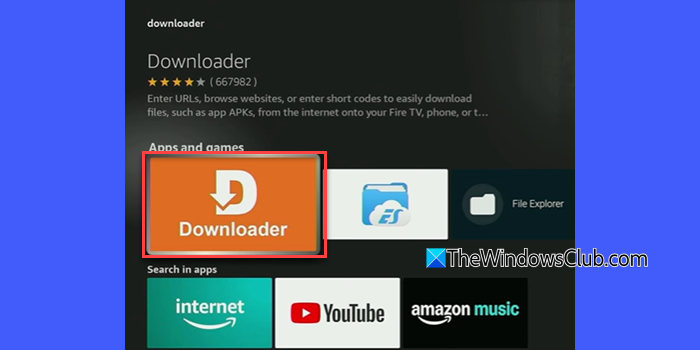
To install the Downloader app, go to the Search option on your Fire TV home screen and type Downloader.
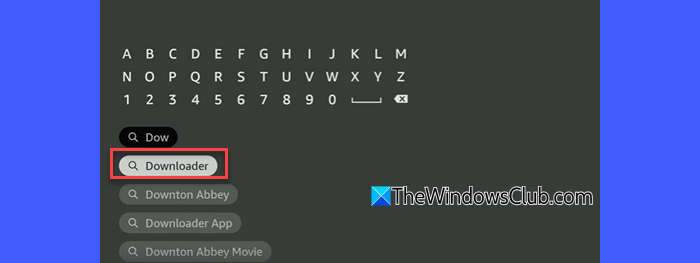
Select the Downloader app from the search results, click Download, and wait for it to install.
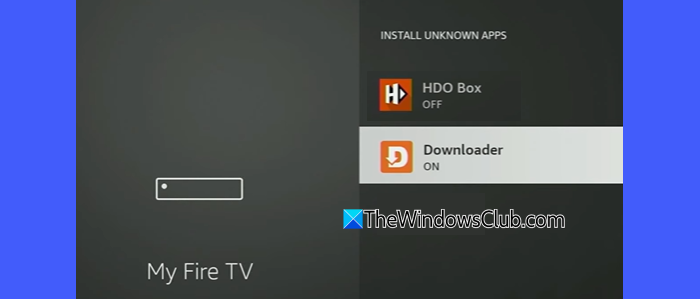
Once the app is installed, go back to Settings > About > Developer Options > Install unknown apps. You’ll see the Downloader app listed there. Click on it to enable the app.
3] Download the Cinema HD APK
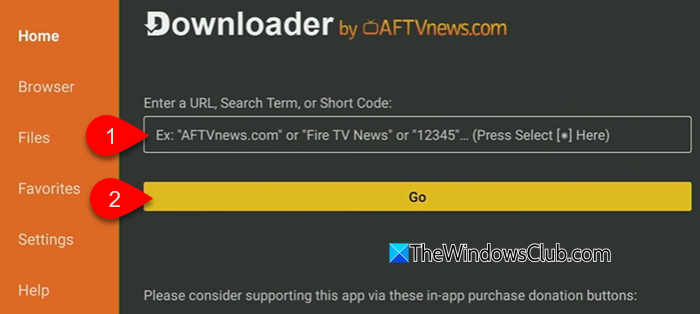
Open the Downloader app on your Fire TV Stick and go to the Home tab. In the URL field, enter the verified downloader code for the Cinema HD app. Click Go to begin downloading the APK file.
Note: Use the Cinema HD downloader code only from a trusted and reputable source. Avoid links from unknown websites, pop-ups, or redirects, as they may contain modified or unsafe files.
4] Install Cinema HD
Once the download completes, Downloader will automatically prompt you to install Cinema HD on your Fire TV Stick. Select Install, wait for the installation to finish, and then click Done.

You can delete the APK file afterward to free up storage.
To launch Cinema HD anytime, press the Home button on your Fire TV Stick remote and go to Your Apps & Channels. Scroll down, and you will find Cinema HD.
Tip: You may press the options (≡) button and choose Move to Front to keep it on your home screen.
5] Use Cinema HD on Fire TV Stick
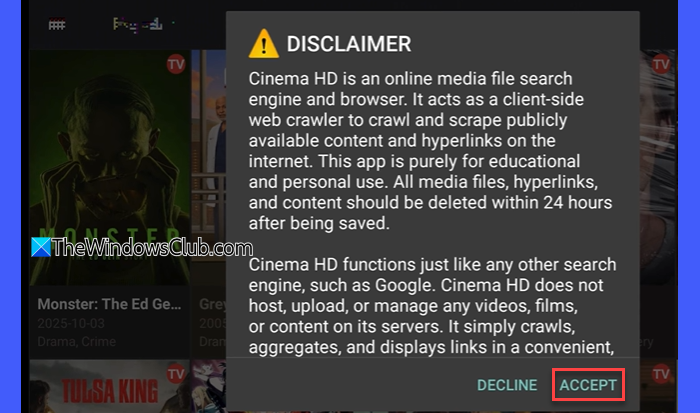
On first launch, a disclaimer message will appear. Click Accept to use the application.
The home screen displays popular and trending titles. You can switch between Movies, TV Shows, Favorites, and other categories using the side menu.
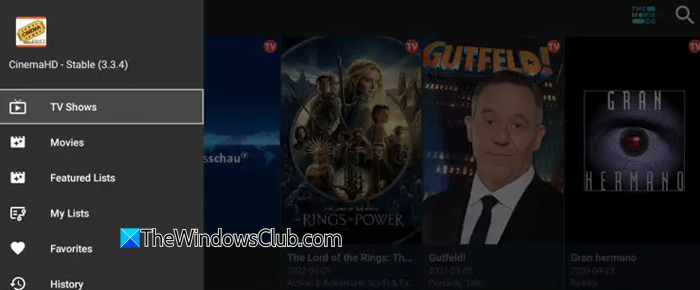
Use the Search icon to quickly find a movie or show by name. When you select a title, Cinema HD will scan for available streaming sources. After a few seconds, you’ll see a list of links with different qualities (480p, 720p, 1080p). Click a link to start playback.
Note: Some of the links Cinema HD aggregates may not be licensed in your region. For privacy and security, always use a trusted VPN when streaming through such third-party apps.
That’s all! I hope you find this useful.
Read: Amazon Fire TV does not open browser links.
What is the Cinema HD app?
Cinema HD is a popular (unofficial) third-party streaming app that lets users watch movies and TV shows for free. It provides a large library of content with multiple streaming links. Since it’s not available on the Amazon Appstore, it must be downloaded manually.
How to install 3rd party apps on Firestick HD?
Fire TV Stick blocks installations from outside the Amazon Appstore by default. To install third-party apps, you must enable the option to install apps from unknown sources in Settings > My Fire TV > Developer Options. After that, you can use tools like the Downloader app to download and install APK files safely onto your Fire TV Stick.
Read Next: How to activate MTV on Roku, Android, iOs, Amazon Fire Stick, and Apple TV.
