
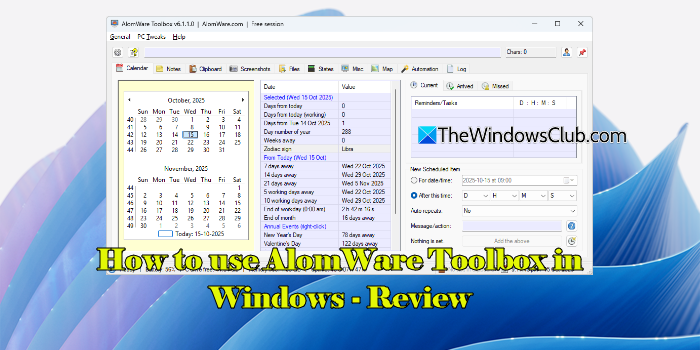
If you often find yourself juggling multiple apps, resizing windows, or repeating the same steps on your PC, AlomWare Toolbox is the one utility you need. It’s a lightweight productivity software that helps you make everyday PC tasks faster and easier by automatically handling routine actions and customizing your computer’s behavior. In this post, we’ll introduce you to AlomWare Toolbox, explain how to set it up, and demonstrate how to maximize its powerful features.
What is AlomWare Toolbox?
AlomWare Toolbox is an all-in-one Windows companion designed to simplify your work and interaction with your PC. It combines the best parts of automation tools like AutoHotkey and productivity suites like PowerToys, but without the complexity. With all its tools and options, it helps you save time and effort when carrying out routine tasks.
How to use AlomWare Toolbox in Windows 11
To use AlomWare Toolbox in Windows 11, you must first download it on your system.
Visit the official AlomWare Toolbox page by clicking here. Click the Download button in the top-right corner. AlomWare Toolbox will download as a zip file. Unzip it and double-click the executable (Toolbox.exe) to run the software.
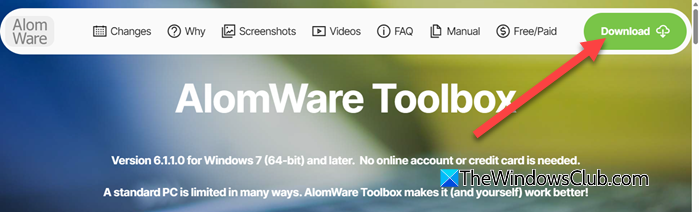
Note: AlomWare Toolbox is a portable software that doesn’t require installation. It runs immediately from wherever you unzip it.
Accept the End-User-License Agreement. Next, enter the usage code in the Free Session window and click OK (AlomWare Toolbox can be used for free, but to do so, you must enter a new unlock code each day to activate that day’s session).
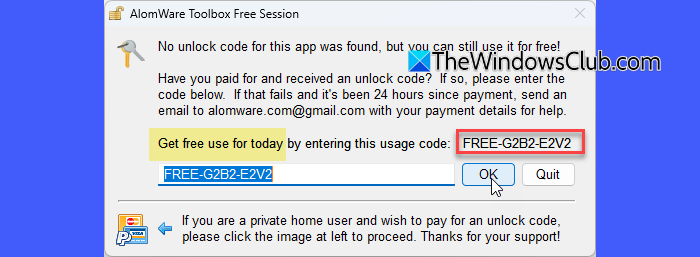
After this, AlomWare Toolbox will be ready for use.
Key Features of AlomWare Toolbox
AlomWare Toolbox might be tiny in size (just 4 MB), but it packs in more features than you’d expect. Here are a few worth checking out:
- Auto-typing: Instantly insert repetitive text like emails or canned responses to save time and prevent typos.
- Automated actions: Trigger quick tasks via hotkeys. Calculate, format text, or perform custom actions instantly.
- App arrangement: Auto-position, resize, or pin apps exactly how you like every time they open.
- Clipboard history: Keep unlimited clipboard items (text or images) and access them anytime, even after reboot.
- Reminders & tasks: Set portable reminders or automate PC actions on specific dates/times.
- Window control: Keep windows on top, lock their position, prevent focus stealing, or dock them together.
- PC tweaks: Add fun and useful tweaks. Typewriter sounds, Caps Lock tray icon, folder quick-view, and more.
- Portable: Runs directly from its folder or even a USB stick. Take your reminders, notes, clipboard items, and automations anywhere.
- Offline: Works completely without an internet connection or online account. Your data stays local and immune to online threats.
Use AlomWare Toolbox in Windows 11
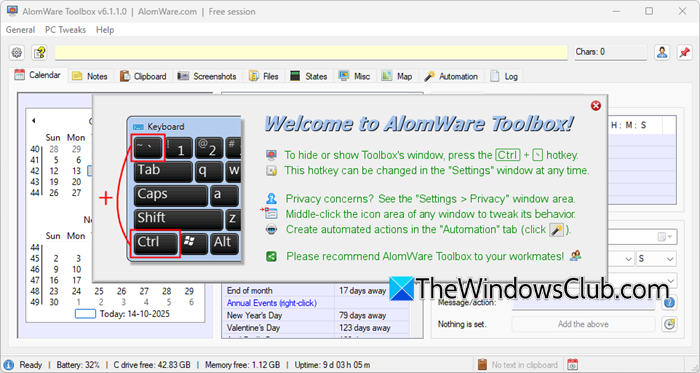
At first glance, AlomWare Toolbox’s UI may look outdated or overwhelming, but it’s actually quite easy to use. The top section contains several tabs, and each tab houses specific actions you can configure.
For example, the Calendar tab provides a month-view calendar interface for planning and tracking. It helps you see how many days remain between dates, track how much time is left in your workday, and set reminders or schedules without using Windows Task Scheduler.
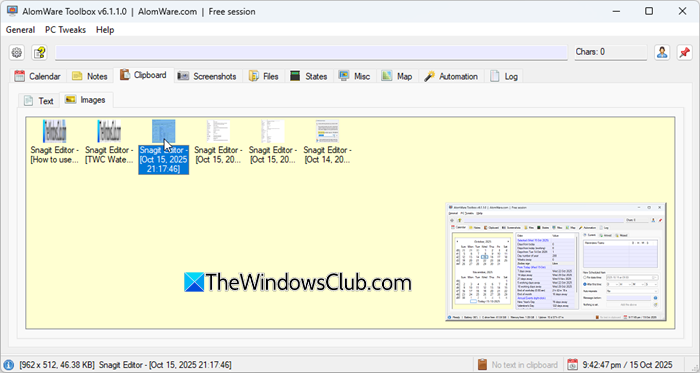
The Clipboard tab stores a history of plain text and images that you’ve cut or copied under the Text and the Images tabs, respectively. Clicking any text in the left panel of the Text tab shows its preview in the right panel. To recopy any text to the clipboard, double-click it. The same applies to the Images tab, except that the image previews are shown in smaller sizes.
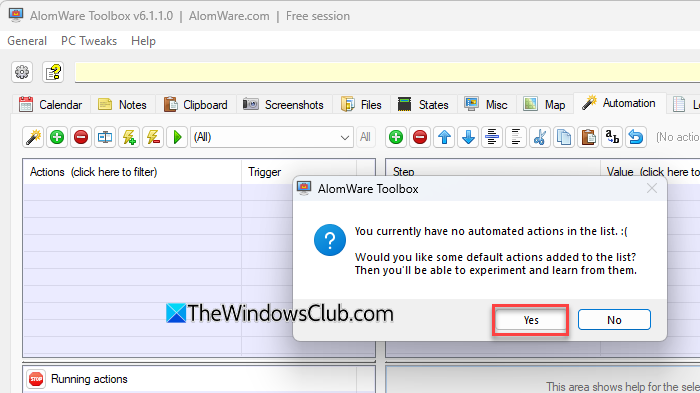
The Automation tab lets you create scripted automated actions, such as typing text, manipulating windows, launching apps, etc. When you first switch to the tab, the app prompts you to add some pre-built actions. I recommend allowing the app to add these to the list so that you gain a better understanding of what these actions are and how they are triggered.
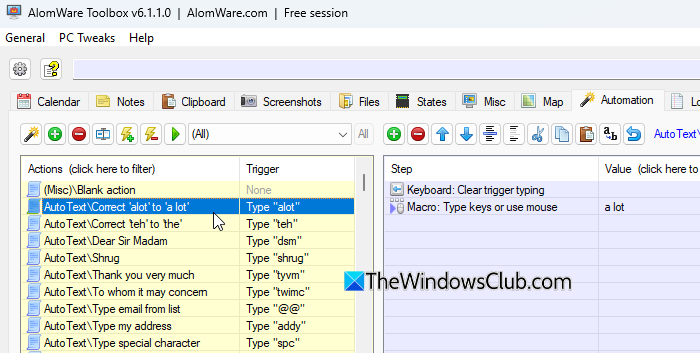
For example, I kept the app running in the background and started typing some random text. I made typos deliberately to see if this really works. A common mistake, like typing “teh” instead of “the” was instantly corrected, and “alot” changed to “a lot”. Other typing corrections were triggered as well. Please be cautious not to type continuously, as the app requires a brief pause to make corrections. It moves the cursor back to delete the typo, then forward to insert the right word. If you keep typing during this process, it can interfere with the app’s behavior.
Apart from typing corrections, other automated actions can also be triggered. To create a new action, use the plus (+) icon above the actions list.
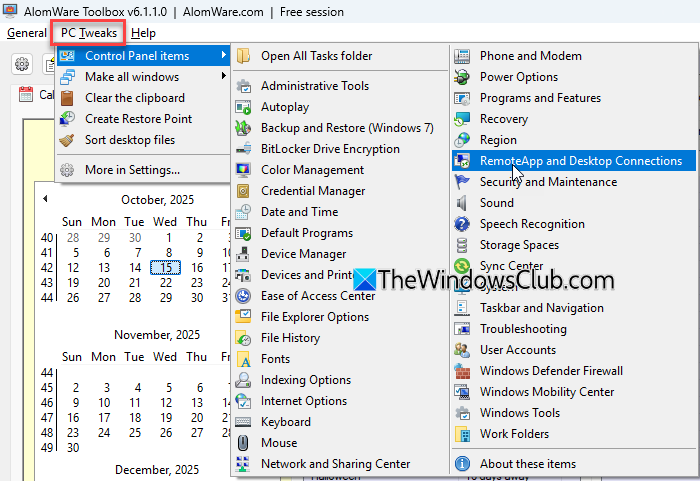
Apart from the tabs, there are 3 menus on top: General, PC Tweaks, and Help. The PC Tweaks menu offers a set of quick one-click tools that let you instantly perform small system adjustments, like clearing your clipboard, centering or dimming all open windows, or directly opening Control Panel items (without needing to go through multiple Windows settings manually).
Note: If you’re unable to use the tool, you may need to add AlomWare Toolbox’s folder to your anti-virus software’s white list or exclusions list.
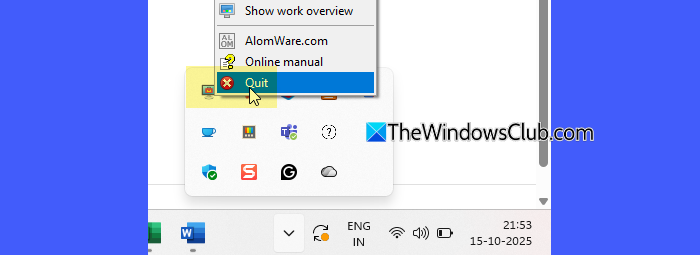
To exit AlomWare Toolbox, right-click its icon in the system tray and select Quit.
Overall, AlomWare Toolbox is a handy utility for day-to-day productivity tasks and small system tweaks. It helps you save time, stay organized, and automate routine actions without any complex setup.
To learn more about the tool and explore its full capabilities, please refer to AlomWare Toolbox’s help manual here.
Read: Ultimate Windows Tweaker for Windows – Review.
Why is the toolbox used?
AlomWare Toolbox is used to save time, reduce repetitive work, and make your PC behave exactly the way you want. It’s an all-in-one productivity and automation toolkit that simulates physical actions, such as keyboard typing and mouse actions, working with files and folders, and manipulating windows.
Read Next: FixWin – Best PC Repair software to fix Windows problems.
