
A Graphics Processing Unit (GPU), popularly known as a graphics card/video card, is a processor made up of smaller specialized cores for multitasking. All these cores operate at a specific speed, determined by the default clock speed specified by the graphics card manufacturer. While most of us rarely change or adjust settings related to the graphics card and run it with the factory clock speed, some users want to optimize GPU by overclocking or underclocking it for playing games and other purposes. So, for those who want to underclock GPU, this post will be helpful. We will also discuss if it is safe to underclock GPU.
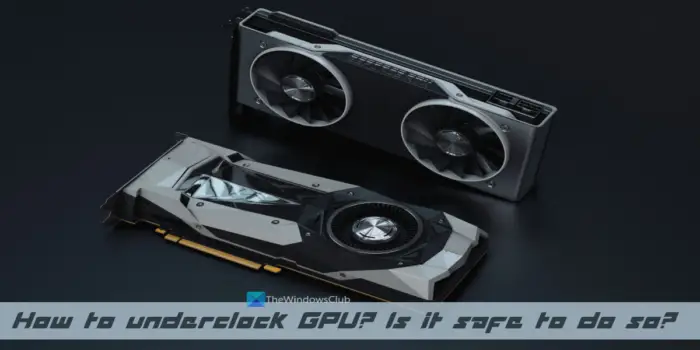
While overclocking your graphics card boosts its performance by increasing the clock speed, which is helpful for gamers, underclocking GPU lowers its performance but it has its own benefits. Before we proceed further, let’s discuss underclocking the graphics card.
What is GPU underclocking?
The term underclocking in this context is reducing the GPU clock speed below the default or factory clock speed. This may result in low performance and lag (especially for heavy games and programs) but there will be less stress on the graphics card. Underclocking your graphics card can be helpful if you aren’t satisfied with the default clock speed results or overclocking results and your PC can run smoothly by lowering the GPU clock speed to an optimal level. Now, let’s see how to underclock a graphics card.
How to underclock GPU?
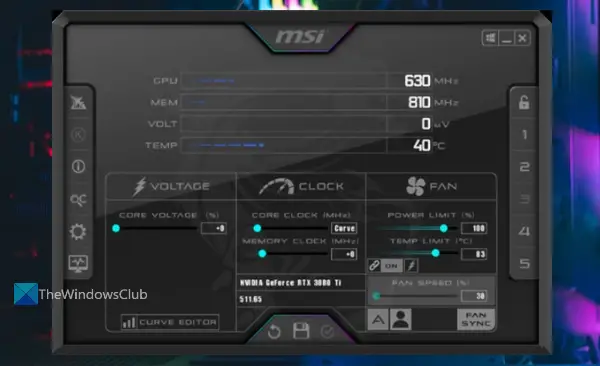
If you want to underclock GPU on a Windows 11/10 computer, then you can use the most popular and universal software MSI Afterburner. It is one of the best free overclocking software that also lets you easily underclock GPU. Its user-friendly interface makes it easy to operate for beginners. Here are the steps:
- Download MSI Afterburner ZIP file from msi.com
- Extract the downloaded ZIP, run the setup or EXE file and complete the installation
- Open the software interface and it will automatically detect your graphics card. In case the MSI Afterburner is not detecting GPU for some reason, then update your graphics driver or use other fixes and then proceed to the next step
- Its interface is self-explanatory. You will see GPU, MEM (Memory), VOLT, and temperature usage at the top, along with three different sections to adjust voltage, fan, and clock-related settings on the lower part. You need to use the CLOCK section in that part
- In the CLOCK section, there is a slider available for CORE CLOCK (MHz). Move the slider to the left to underclock the GPU. And, moving that slider to the right will increase the clock speed
- Press the Save button.
The work is not done yet. You need to check if underclocking GPU results in some hiccups (games or programs are lagging or crashing or something else). If yes, you need to adjust the underclocking level until everything runs smoothly.
Along with the required underclock level, you can also adjust the fan speed, core voltage, etc., but there must be a balance and it shouldn’t affect the performance of your system.
Related: How to check the GPU Temperature in Windows
Benefits of underclocking your graphics card
Following are the positive effects or benefits of underclocking your graphics card:
- An underclocked GPU generates less heat than overclocked GPU or with a default clock speed. So, overheating should not be an issue. And, when the GPU cores run at a lower speed, it will put less stress on GPU which may be helpful to extend the GPU life
- Lower heat generation by the GPU will also help reduce the overall temperature of your system. That is another good reason to underclock GPU
- Your GPU would be quieter (or less noisy) than before as fans speed is reduced after underclocking the graphics card.
- With high performance, GPU consumes more energy. Running it at a slower speed will decrease power consumption. Hence, it will help a bit in saving the electricity bill.
Read: How to force a Game to use a Graphics Card or GPU in Windows 11
How safe is underclocking?
If you are wondering if it is safe to underclock your graphics card, then it is up to you only. Simply put, you shouldn’t underclock GPU if you have little to no idea about it. You might have unwanted consequences and that may lead you to take the help of a technician. Why mess up things if everything is running smoothly as needed? Underclocking the GPU has benefits, as explained above, but it should only be done when you are well aware of what you are doing and how to achieve a balanced performance.
Can underclocking cause damage?
There is no definitive answer to this question, as it depends on both the GPU hardware and settings. However, to answer this question, underclocking may not physically or electrically damage your GPU or CPU. However, it is highly recommended to follow the official instructions if there is any for your installed GPU.
Read next: TPU vs GPU vs CPU Performance and Differences discussed.
