
Microsoft Excel is a powerful spreadsheet maker tool that you can use to organize and analyze data. In addition, Excel offers calculation capabilities, pivot tables, graphing tools, and more. Some of you might have noticed that Excel rounds numbers in certain cases, such as when you enter large numbers or decimal values. This is very annoying because it causes issues for users who do not want Excel to round numbers. For example, when you enter values such as credit card numbers, scientific data, etc. In this article, we will see how to stop Excel from rounding numbers.
How to stop Excel from rounding numbers
Here, we will see how to stop Excel from rounding off:
- Large numbers
- Decimal numbers
Let’s start.
1] How to stop Excel from rounding large numbers
Excel displays the original number up to 11 digits. When you enter a number that has more than 11 digits, Excel does not display the original value. Instead, it displays the number in the exponential format. This exponential format is difficult to understand for normal users. The below screenshot shows such an example.
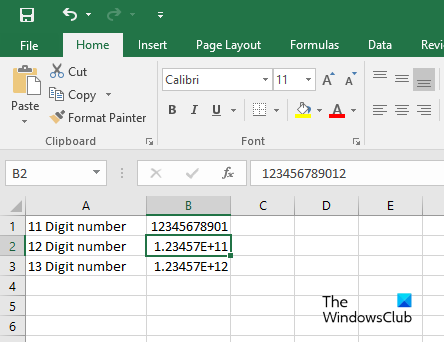
In the above screenshot, you can see I have entered three different values, an 11 digit number, a 12 digit number, and a 13 digit number. The 11 digit number is displayed as it is. But the problem starts when I entered a number with more than 11 digits. Excel has rounded off the 12 and 13 digit numbers. The formula bar shows the actual value but the cell shows the rounded value.
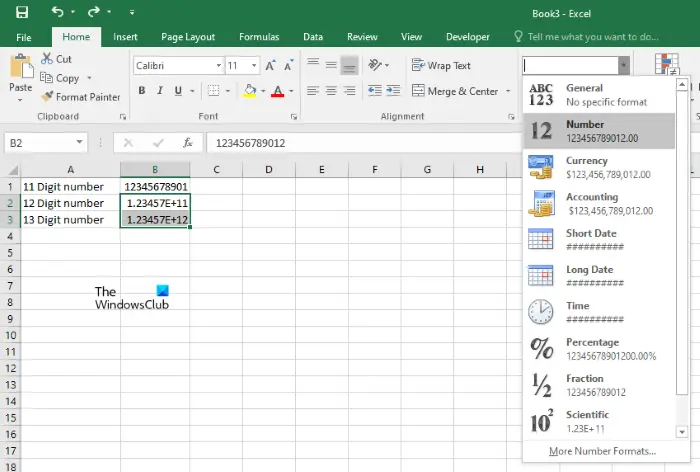
Fixing this problem is easy. You just have to change the format of the cell in which you have entered the values containing more than 11 digits. By default, the cell format is set to General. You have to change its format to Number. To do so, select the cell(s) and click on the Home tab. Now, click on the drop-down menu under the Number group and select Number.
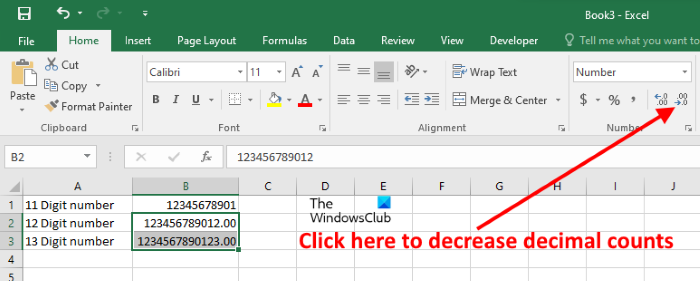
When you change the cell format, you will see that Excel automatically adds two decimal values after the number. If you do not want Excel to add decimal values, you can remove them by clicking on the Decrease Decimal button under the Number group.
Another problem starts when you enter a value containing more than 15 digits. In this case, Excel replaces the number after the 15 digits with a 0. For example, in a 16 digit number, Excel replaces the 16th digit with 0. Similarly, in a 17 digit number, Excel replaces the 16th digit and 17th digit with 0.
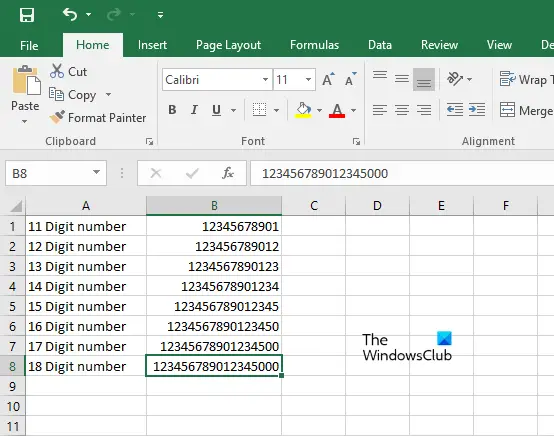
As shown in the screenshot above, Excel displayed the actual value for numbers up to 15 digits. But when I entered numbers with more than 15 digits, Excel truncated all digits beyond the 15th to 0. This problem can be fixed simply by adding an apostrophe before the number. This will force Excel to consider the entered value as text due to which it does not round that number.
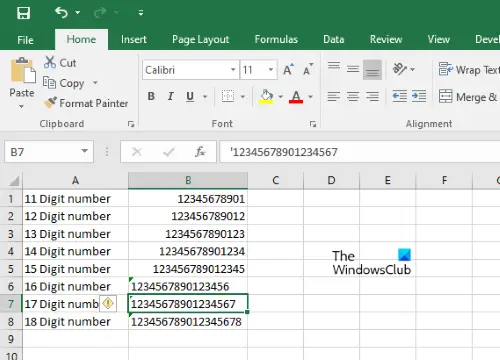
As you can see in the above screenshot, I have added an apostrophe before the 16, 17, and 18 digit numbers. This apostrophe is not displayed in the cell but you can see it in the formula bar. After adding apostrophes, Excel has displayed the original value without rounding.
Read: How to create a Thermometer Chart in Excel.
2] How to prevent Excel from rounding decimal numbers
When working with scientific data, rounding decimal values can introduce errors. By default, Excel rounds numbers to a specified number of decimal places. One way to solve the problem is to increase the column width.
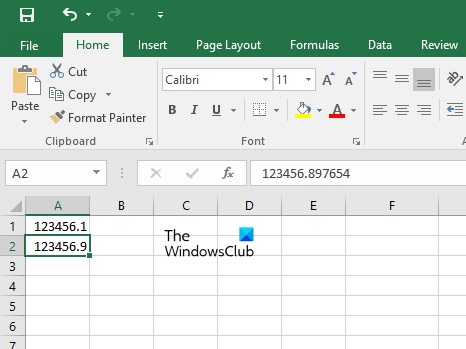
As shown in the screenshot above, Excel has rounded the decimal value. The formula bar is showing the original number but the cell is displaying only the rounded number. To fix this issue, increase the column width.
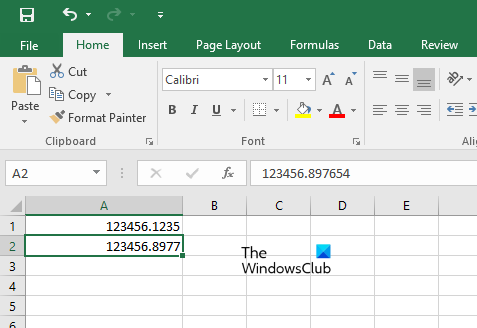
Increasing the column width does not work for large decimal values. In the screenshot above, I increased the column width, but Excel displayed only 4 decimal places and rounded the last digit. If you want to display the entire decimal value in Excel, you have to change the cell format.
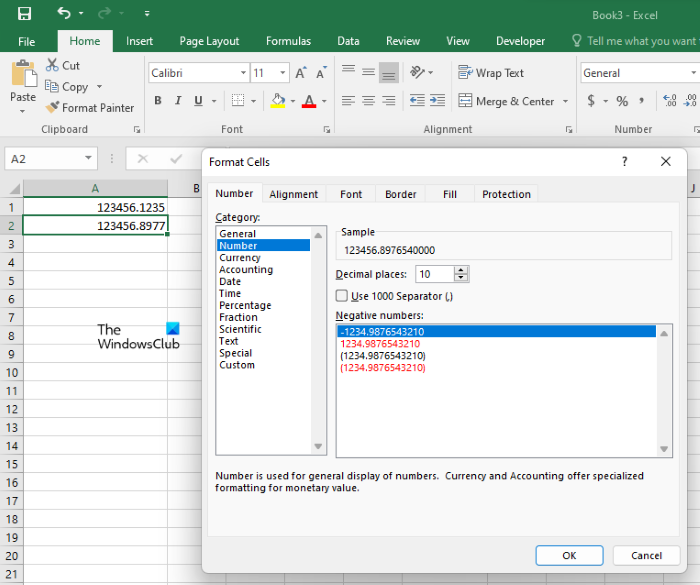
To change the format of the cell, follow the instructions written below:
- Right-click on the cell and select Format Cells.
- Select the Number tab.
- Select the category according to the data you are dealing with. I have selected the Number category.
- Increase the Decimal places.
- Click OK.
After that, Excel will display the decimal number without rounding it up to the decimal places you have selected. If you see ##### in place of the actual decimal value, just increase the width of the column.
We hope this article solved your problem.
Read: How to display Numbers as Fractions in Excel.
How do I get Excel to stop rounding long numbers?
You can stop Excel from rounding large numbers by changing the cell format from General to Number. This trick works for numbers with 15 or fewer digits. For the numbers that contain more than 15 digits, you have to convert the numbers into text to stop Excel from rounding them.
Why is Excel rounding 16 digits?
This thing happens because the cells are set to Number format by default. To fix this problem, convert the cell format to text. After this, Excel considers the number as a text string and stops rounding it.
Read next: How to create a Custom List in Excel.
