
If you are looking to manage your OneDrive more efficiently and organize memories, free up storage space, or prepare images for sharing, it is nice to learn how to select multiple photos on OneDrive. In this guide, we are going to learn how to do the same.
Select multiple Photos on OneDrive
Selecting multiple photos at once can save you a significant amount of time and effort when managing your cloud storage. Instead of handling each image individually, bulk selection allows you to quickly download entire collections, organize photos into albums, delete unwanted images, or move files between folders all at the same time. This feature is especially valuable when working with large photo libraries that encompass several years or multiple events.
To select multiple photos on OneDrive, follow one of the methods.
- Contiguous and Non-Contiguous Selection
- Using Folder View instead of Photos View
- Drag and select
Let’s discuss them in detail.
1] Contiguous and Non-Contiguous Selection
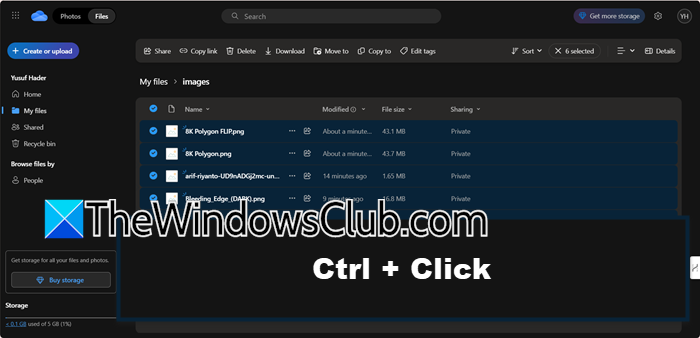
One of the most common ways to select multiple photos in OneDrive involves using standard keyboard shortcuts combined with mouse clicks.
You can either go for Contiguous or Non-Contiguous selection.
For Contiguous selection, i.e., Shift + Click, you need to navigate to your OneDrive photos folder or the Photos view, click on the first photo in the series you want to select. Now, press and hold the Shift key on your keyboard, and click on the last photo in the series you want to select to select all photos between the first and last clicked items.
When it comes to Non-Contiguous selection, i.e., Ctrl + Click, click on the first photo you want to select, then press and hold the Ctrl key, while holding the key, click on each additional image you want to include in your selection. This allows you to selectively pick photos that aren’t adjacent to each other.
2] Using Folder View instead of Photos View
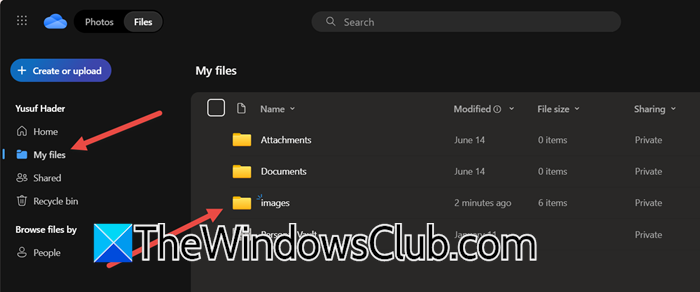
The Photos view in OneDrive aggregates images from across your storage, which can sometimes limit selection options.
Navigate to My Files rather than using the Photos tab. From there, browse to the specific folder where your images are stored, such as Pictures or Camera Roll. In folder view, you’ll find that selection tools like Shift+Click and Ctrl+Click work more reliably, allowing you to choose multiple files with ease. To organize your photos chronologically, click the Sort button located at the top right and select Date to arrange them by when they were taken. Once sorted, you can use Shift+Click to select entire ranges of photos from particular time periods, making it simpler to manage or move them as needed.
3] Drag and select
If keyboard shortcuts fail, use drag selection. Just click and hold in an empty space near your photos, drag to form a box around the desired images, then release to highlight them. This works best for tightly grouped photos, but is less efficient for scattered selections.
Hopefully, with the help of these methods, you will be able to select multiple OneDrive photos at once.
Read: Can’t copy-paste files and folders in OneDrive
Can’t select multiple photos in OneDrive
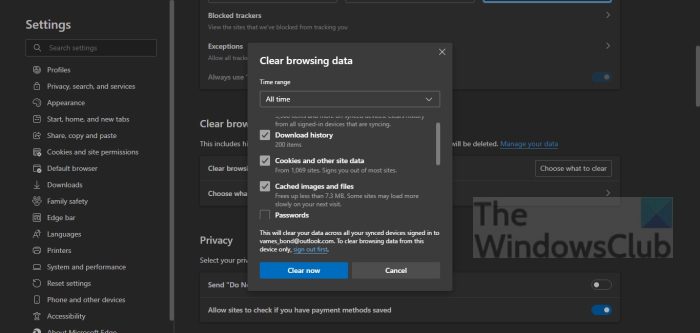
We are dealing with a widespread issue where the standard methods for selecting multiple photos in OneDrive’s web interface (such as using selection circles or Ctrl+Click) have stopped working for many users. This problem persists across different browsers, making it particularly frustrating to manage photos. To resolve the issue, you can follow the solutions and workarounds mentioned below.
- Use Drag Selection: This method bypasses the faulty checkbox and keyboard-based selection logic by using a different interface element. You need to click and hold your mouse button in an empty area next to the photos, then drag the cursor to create a blue selection box around the items you want to select.
- Click Date Headers to Select by Day: OneDrive groups photos by date, and the header selection function often remains operational even when manual multi-selection fails. In the Photos view, locate the date header (e.g., “August 29, 2025”) above a group of photos and click on the text of the date itself to select all images from that specific day
- Try a Different Browser or Clear Cache: Sometimes, browser-specific issues, cached data, or extensions can interfere with OneDrive’s functionality. First, try clearing your browser’s cache and cookies (Chrome or Edge) or using an incognito/private window. If that fails, test the selection in a different browser. Some users report that Microsoft Edge may handle the selection more reliably than Chrome.
Hopefully, this will do the job for you.
Also Read: OneDrive Personal Vault not showing in Windows 11
How to bulk delete photos on OneDrive?
Once you have bulk-selected photos using one of the methods mentioned earlier in the post, you will see a Delete icon at the top. Just click on it to delete the photos. To delete all photos in a folder, press Ctrl + A to select all of them, and then click the Delete icon.
Also Read: Free up Disk Space with OneDrive on Windows 11.
