
If you struggle with time management and keeping up with tasks, you can schedule tasks and complete them accordingly. Google Calendar is one of the most-used calendars on Android phones, as it comes preinstalled on the phones. When you schedule tasks on Google Calendar, you can never miss them, as you can get reminders on your phone, too. In this guide, we show you how to schedule tasks on Google Calendar and manage them.
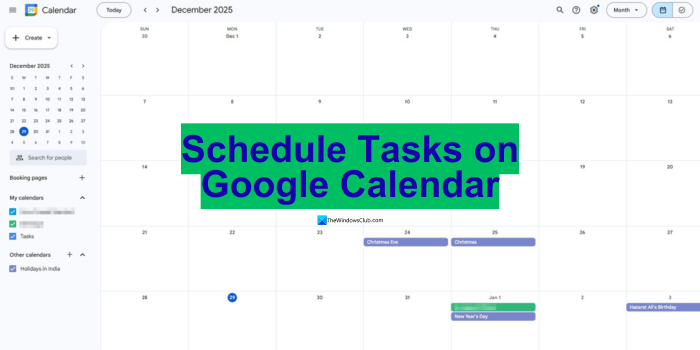
How to schedule Tasks on Google Calendar
Google Calendar helps a lot with tracking tasks, keeping up with them, and planning. Let’s see how to do it.
- Schedule a Task on Google Calendar
- Edit a task and its deadline
- Mark a task as complete
- Delete a Task on Google Calendar
- Find completed or pending tasks on Google Calendar
Now, we get into the details of each one in Google Calendar.
1] Schedule a Task on Google Calendar
You can schedule a Task on Google Calendar in two ways. You can either add a task directly to a specific date and time in the calendar. Go to a date on the Calendar you want to create a task on. It will display the hourly schedule for the selected date. Click on the hour. A pop-up appears asking you to add an Event or Task, or an Appointment schedule.
Type a name for your task in the text box, then select Task, adjust date and time if you want, and click on the date and time information to see the frequency options. Then, set the frequency if the task repeats, like daily, weekly, monthly, annually, or on weekdays. You can even set a custom frequency for the task to repeat. Add a deadline, choose a category where to add it, and click Save to save it.
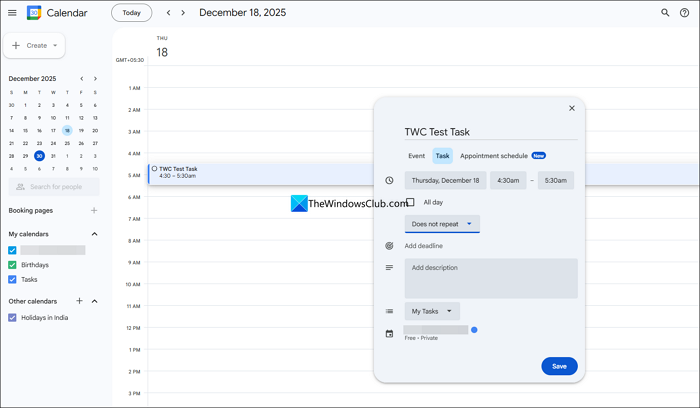
The task will now be added to your Google Calendar.
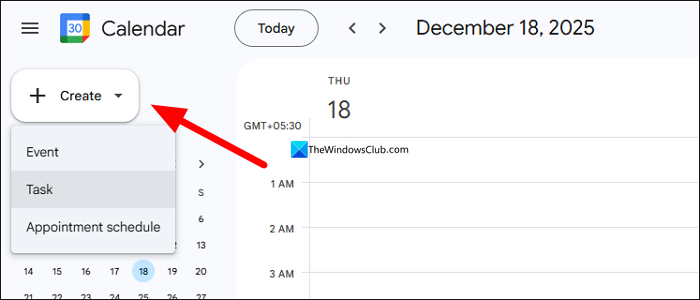
Alternatively, you can click Create and select Task to create a Task.
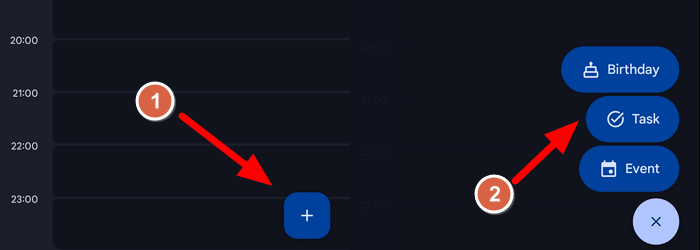
To create a Task on the Google Calendar app on a smartphone, you can just tap on the + icon at the bottom right and select Task.
2] Edit a task and its deadline
Editing tasks on Google Calendar is as easy as creating a task. Switch to Tasks by clicking on the Task complete icon at the top-right of the Google Calendar page.
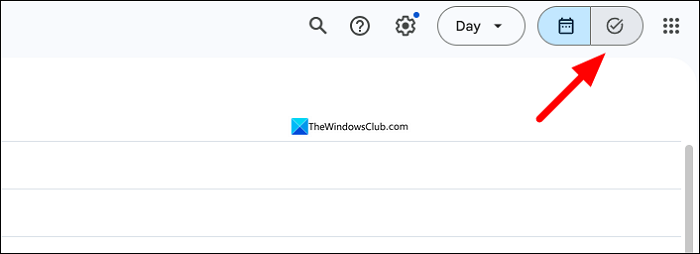
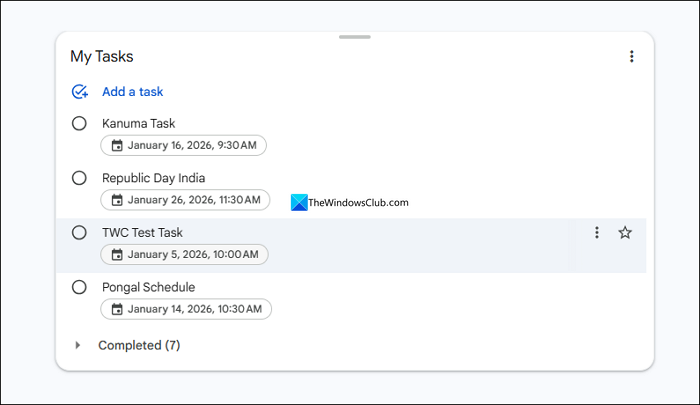
You will now see all the tasks you have created and scheduled on your calendar. Click on the Task you want to edit.
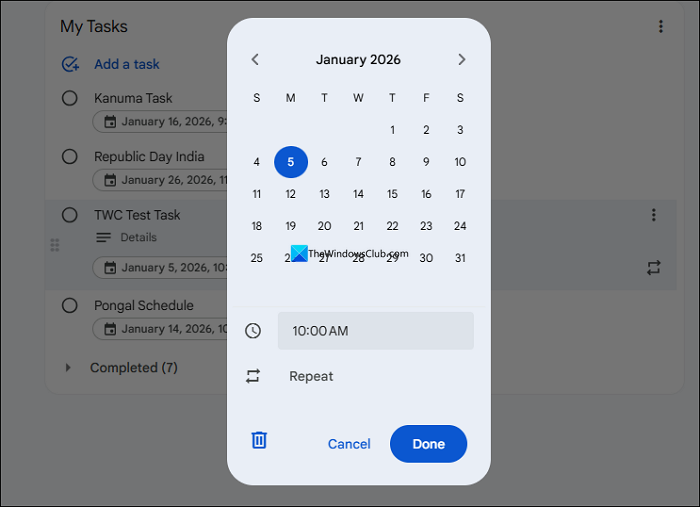
Then, change the date, time, or frequency and click Done to save changes.
If you want to edit the title or make more changes, you can create another task.
3] Mark a task as complete
When you complete a task you have scheduled or created on Google Calendar, you can mark it as completed. You can mark a task as completed in two ways. Go to the task on the calendar, then click the time and name of the task you see under the task. You will see the details of the task. Click Mark completed.
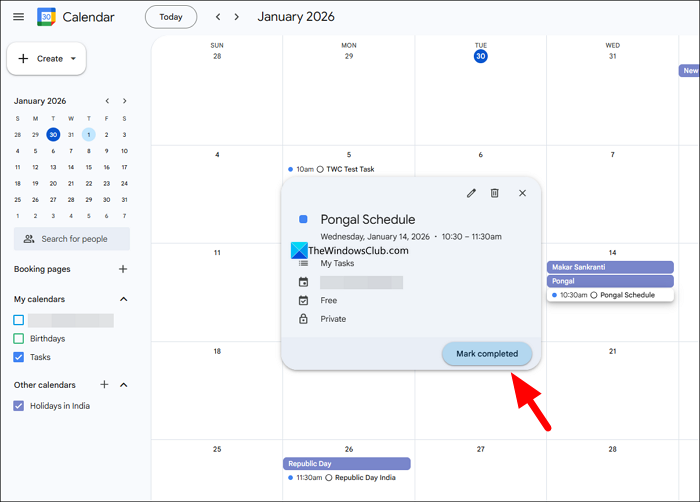
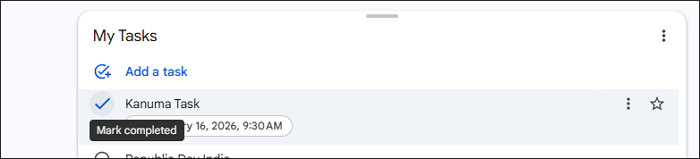
Alternatively, you can mark a task as complete on the My Tasks page. Go to the My Tasks page to view all your tasks. When you hover your mouse over a task, you will see a circle with a tick mark beside the task name. Click on it to mark the task complete.
4] Delete a Task on Google Calendar
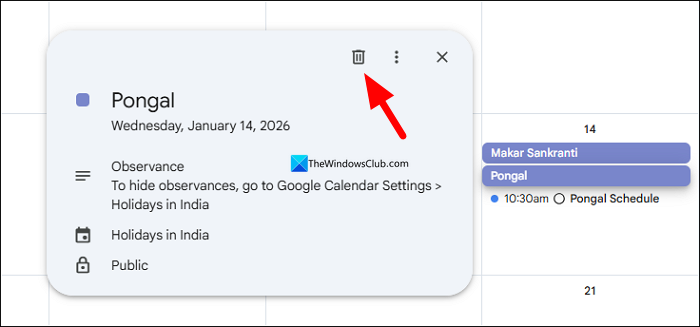
You can delete a task on Google Calendar in two ways: directly from the Calendar and in the My Tasks page. Open Google Calendar and go to the task on the calendar, and click on it. The task’s details will pop up. Click on the Delete icon to delete the task.
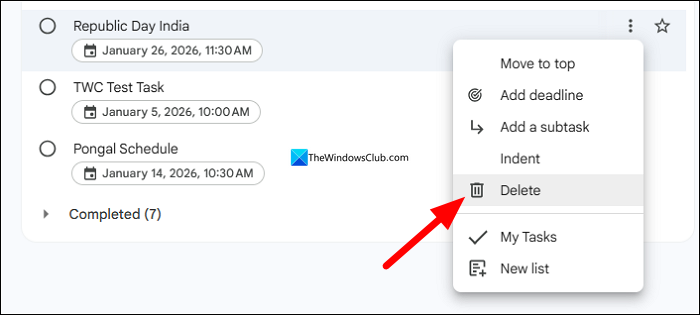
To delete tasks on the My Tasks page, switch to Tasks on Google Calendar and click on the three-dot icon beside the task. Then, select Delete.
Read: How to add Google Calendar to Windows 11 Taskbar
5] Find completed or pending tasks on Google Calendar
To find tasks you have completed or know the tasks pending to complete, you can check them on the My Tasks page. Click on the Switch to tasks button on Google Calendar. It shows the My Tasks page. Click on Completed to see all the completed tasks.
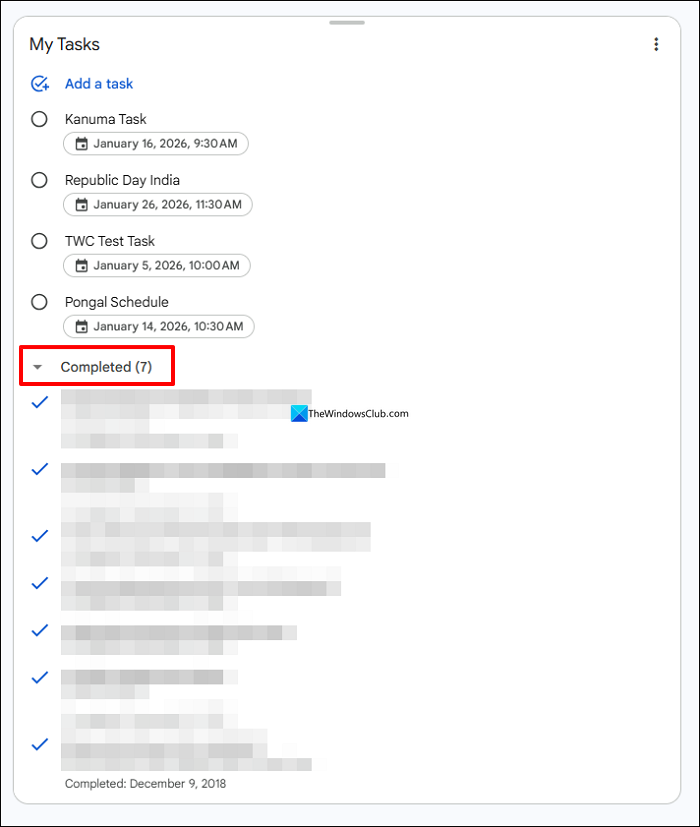
The tasks you see on the My Tasks page are generally pending. All completed posts automatically go into the Completed section when you mark them as complete.
Read: How to turn off or change Notifications for Google Calendar
How do I schedule activities on Google Calendar?
You can schedule events, tasks, and appointments on Google Calendar. On the calendar, go to the date you want to schedule an activity, select an hour in the timeline that shows, and click it. A pop-up will appear. Please enter the title, select the activity type like Event, Task, or an Appointment, input the necessary information, and click Save to schedule them.
Should I use tasks or events in Google Calendar?
You can use Events for any important dates that you must attend. Tasks are good for to-do items that you need to be reminded to complete. If other people are involved, like a family meeting or work meeting where others need to be reminded of the schedule, you can choose Events and schedule it with their Google accounts so it adds automatically to their calendars.
Related read: Best free Google Calendar alternatives for Windows PC.
