
Do you not like the little Bing Image that appears in the Search Bar? Well! You are not the only one. Several people want to remove Bing Image from the search bar. That is what we’ll show in this post. We will show you a few easy ways to get rid of the little Bing Image.

Why am I seeing Bing Image in Search Bar?
The reason you are seeing Bing Image in the search bar is the existence of a Windows feature called Search Highlights. This adds an icon to the right side of your search box, which changes depending on the day. On special days, the image highlights it.
This is somewhat similar to Google Doodles, which adopt any special days and events. However, the big difference is, that doodles are there in your browser, but the image will look right in your eyes from the desktop itself. This might not be a deal-breaker for most, but remember that everything running on your computer is a process and takes its own share of CPU, GPU, and Memory. Also, since the images update over the Internet, this will take a bit of resources as well, but not much.
Microsoft is well aware of these factors and that not everyone will like this new attempt. That is why they let you disable Search Highlight any time you want. We have mentioned three methods to do the same.
Remove Bing Image from Search Bar on Windows 11
To remove Bing Image from the Taskbar Search Bar in Windows 11/10, we need to disable Search Highlights, you have to follow any of the following methods.
- Using the Taskbar
- Using Registry Editor
- Using Group Policy Editor
Let us talk about them in detail.
1] Using the Taskbar in Windows
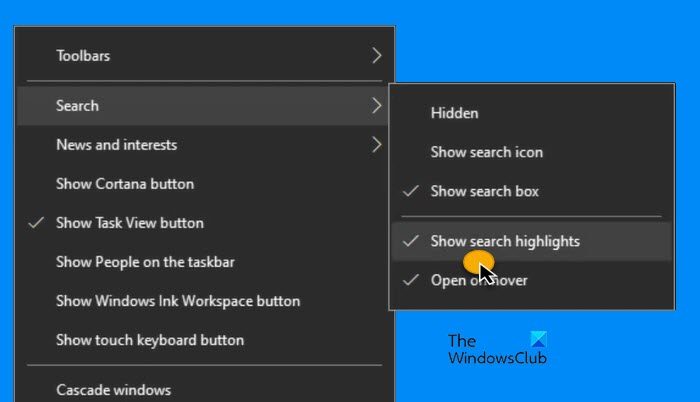
To disable Search Highlights using the Taskbar in Windows, follow these steps.
- Right-click on the empty space of the Taskbar.
- Go to Search.
- Untick Show search highlights.
This will remove the image for good. If you want to enable it again, just tick the Show search highlights option and you will be good to go.
2] Using Registry Editor
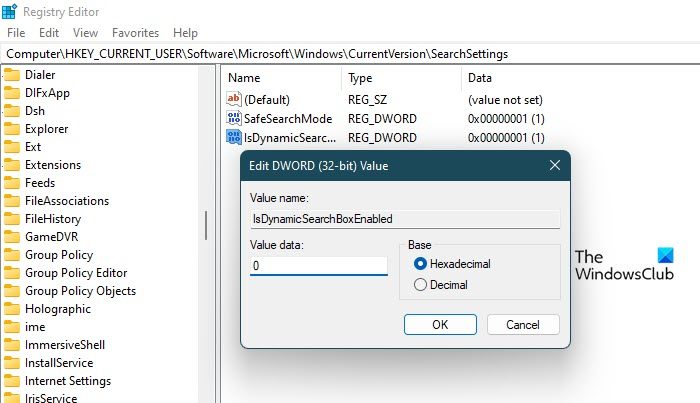
Next up, let us see how you can do the same using the Registry Editor. So, first of all, open Registry Editor. You will get UAC prompt asking you to confirm your actions, so, click on Yes. Once the editor is launched, go to the following location.
HKEY_CURRENT_USER\Software\Microsoft\Windows\CurrentVersion\SearchSettings
Look for IsDynamicSearchBoxEnabled, double-click on it to open, and set the Value Data to 0. Finally, you may have to restart your system. After that, Bing images won’t appear in the search bar.
To enable it, go to the same location in Registry Editor, and change the Value Data of IsDynamicSearchBoxEnabled to 1.
Related: How to remove Edge and Bing Search on Windows 11
3] Using Group Policy Editor
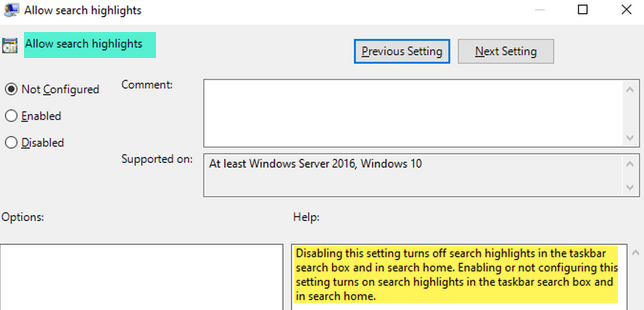
You can also edit a policy on your computer to remove the image; all you have to do is disable Search Highlights, and you will be good to go. Follow the steps below to do the same.
Open Group Policy Editor by searching it out of the Start Menu.
Go to the following location.
Computer Configuration/Administrative Templates/Windows Components/Search
Look for Allow search highlights.
Double-click on the policy, select Disabled and click Apply > Ok.
This will do the job for you. To get the feature back, enable Allow search highlights in the Group Policy Editor.
Hopefully, you can get rid of the annoying Bing image using any of the methods above.
NOTE: Windows 11 does not display the Search Bar in the Taskbar and hence does not display the icon. If you want, you can follow methods 2 and 3 above to disable the Search Highlights feature.
Read: Icons not showing in Search panel on Windows
How to disable Bing Search Windows 11?
You can easily Bing Search results from the Start Menu using the Registry Editor. To do the same, open Registry Editor by searching it out of the Start Menu. Now, move to the following location.
HKEY_CURRENT_USER\SOFTWARE\Policies\Microsoft\Windows\Explorer
Right-click on the empty space in the left panel and select New > DWORD (32-bit) Value. Name, it DisableSearchBoxSuggestions, double-click on it, and set the Value data to 1.
This will disable Bing Search results in Start Menu. If you want to know more about it, check out our complete guide on this subject.
How do I change from Bing to Google in Windows 11?
If you are a Google Search user and would love to search the web right from the taskbar or start using Google instead of Bing as your web search engine, you can use SearchDeflector or Chrometana. This post will show you how to change the default search engine in Chrome, Firefox, Opera or Microsoft Edge. If you want certain files to open in Chrome, scroll down and make changes as per their respective extension. If you want to set Google Search as a default search, then check out this guide. Although there is no built-in feature to do this, we discussed a workaround.
Also Read: Windows Search not working; How to Fix?
