
Importing data from a Microsoft Forms PDF into Excel can be approached in several ways, from using Excel’s built-in features to employing online services or advanced scripting. In this post, we are going to discuss these methods and see how you can import data from Microsoft Forms PDF into Excel.
Import data from Microsoft Forms PDF into Excel
To import data from a Microsoft Forms PDF into Excel, you need to follow the methods mentioned below.
- Export directly from Microsoft Forms to Excel
- Use Excel’s Built-in “Get Data from PDF” Feature
- Use an Online PDF to Excel Converter Service
- Use Advanced PDF Data Extraction Tools
Let us talk about them in detail.
1] Export directly from Microsoft Forms to Excel

The most reliable and straightforward method is to bypass the PDF entirely. If you have access to the original Microsoft Form, you can export responses directly into an Excel workbook. To achieve the same, follow the steps outlined below.
- Open your form in Microsoft Forms.
- Then, go to View Responses.
- Now, click on the Open results in Excel button on the top right.
This will automatically download an Excel file containing all responses in a structured table format. This is the best practice as it avoids any formatting or data interpretation issues that can occur with PDFs.
2] Use Excel’s Built-in “Get Data from PDF” Feature
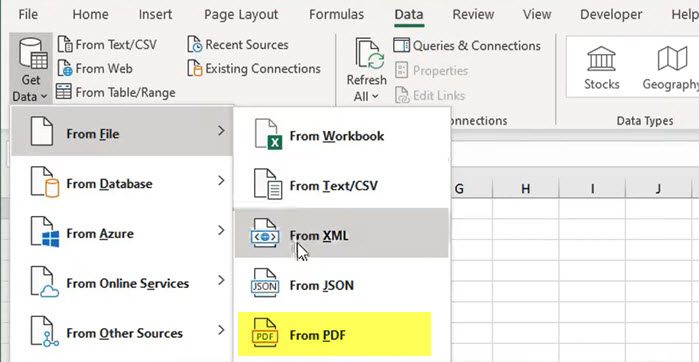
If you only have the PDF file and not access to the original form, you can use Excel’s powerful data import feature called Power Query. However, ensure that your file is in Tabular format for it to be imported into Excel. You can follow the steps mentioned below to do the same.
- First of all, launch Excel and then open a fresh workbook.
- Then, go to the Data tab on the Ribbon.
- Now, look for Get Data, click on it, hover over From File, and then select From PDF from the menu.
- The Navigator pane will appear, showing a preview of the tables and pages found within the PDF. Select the table you wish to import. A checkmark will appear next to it.
- Click Load to import the data directly into your worksheet, or click Transform Data to open the Power Query Editor and clean your data (e.g., rename columns, remove unnecessary rows) before loading.
Finally, your data will be loaded into an Excel Workbook.
3] Use an Online PDF to Excel Converter Service

In some cases, Power Query fails to recognize the column due to a discrepancy in the metadata, resulting in inconsistent data. Therefore, for a quick, one-time conversion, online tools can be a viable alternative. These services can sometimes handle visual layouts better than Excel’s native importer.
Go to a reputable online conversion website (e.g., SmallPDF, iLovePDF, etc.). Use their PDF to Excel conversion tool, upload your Microsoft Forms PDF file, start the conversion process, and download the resulting .xlsx file.
4] Use Advanced PDF Data Extraction Tools
If you need to extract data frequently, on a large scale, or from complex formats, use tools like Power Automate with a PDF extractor or third-party software like Docparser.
These tools let you create a template that understands your form’s layout. You can specify areas for data, such as the name, date, or rating, and set rules for how to extract this information. You can then export the data directly to Excel or a database. This method is well-suited for automating the processing of multiple similar forms.
Hopefully, with the help of these methods, you will be able to import your Microsoft Form PDF content into an Excel Workbook.
Null or Blank Import issues
A common problem discussed in Microsoft’s community forums is that when using the PDF import method, checkbox groups and Likert scales (rating questions) often display as “null” or blank values. This occurs because the PDF engine does not recognize the selected option within a group of buttons.
The best way to fix this issue is to use Method 1, which is to export the data directly by selecting Open in Excel. If you cannot use this method, you will need to manually enter the data for those fields. You can also try using advanced tools (Method 4) that may be able to capture this data correctly.
Read: How to import a PDF in Excel?
How do I import data from a PDF form to Excel?
The easiest way to import data from a PDF into Excel is to use the Get Data feature. First, go to the Data tab and select From PDF. Then choose your file to load the data into Excel. If the PDF has interactive elements like checkboxes, this method may not work well. In those cases, it’s often better to copy the data manually or use the export function from the original form.
Read: How to insert Excel Spreadsheet in Word Document?
Can you convert PDF to Excel in Excel?
No, Excel cannot directly convert PDF files; you can import them using the methods mentioned earlier. Since you already have the PDF open in Adobe Acrobat, you can use its export function. Navigate to File > Export To > Microsoft Excel Workbook to create an XLSX file, which you can then open and edit in Excel.
Also Read: Move highlighted cells in Excel.
