
If you’ve highlighted a group of cells in Excel and you want to move them to another section of your worksheet, you can do that in several simple ways without losing any data or formatting. In this post, we will show you how to move highlighted cells in Excel on a Windows 11/10 PC.
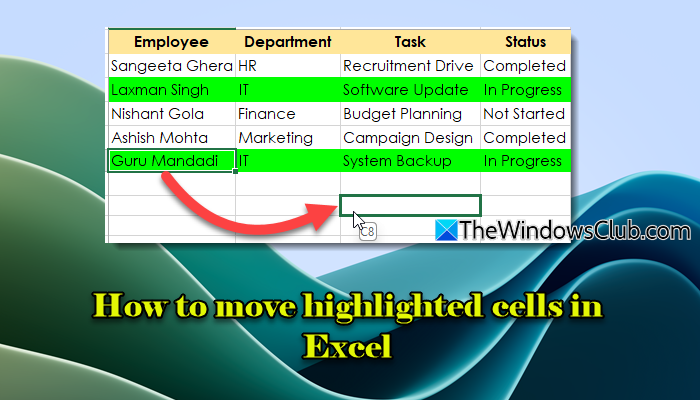
Whether you’re handling a large dataset, trying to rearrange data, or inserting new information, it’s important to learn how to quickly move rows or cells without disrupting the existing data.
How to move highlighted cells in Excel
To move highlighted cells in Excel in Windows 11/10, you can use any of the following methods:
- Drag and Drop
- Cut and Paste
- Move entire row/column
- Move highlighted (colored) cells to the top
Before we explain how to move highlighted cells, it’s essential to understand what the term “highlight” means in this context.
In Excel, the word “highlighted” doesn’t necessarily refer to data that has been color-coded; it can also refer to the cells that have been clicked or selected. In methods 1, 2, and 3, we will demonstrate how to move selected cells, whereas in method 4, we will show you how to move colored cells up in Excel.
Let us see this in detail.
1] Drag and Drop

This is the quickest and simplest method to move highlighted cells within a worksheet.
Select the cells you want to move. Then move the mouse pointer to the edge of the selected area until the cursor becomes a four-headed arrow. Click and hold the left mouse button, drag the cells to the destination, then release the mouse button to drop the cells. The selected cells will move to the new location.
2] Cut and Paste
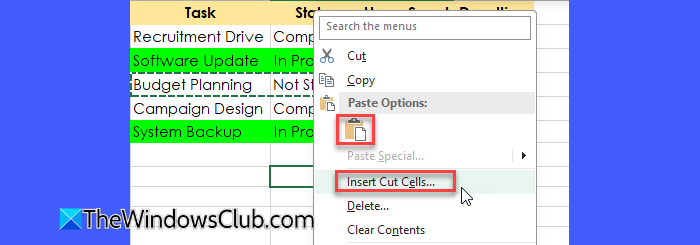
This method removes (cuts) the original cells and pastes them at the destination.
Select the cells and press Ctrl + X (or right-click > Cut). Then click the cell where you want the top-left of the selection to go. Press Ctrl + V (or right-click > Paste).
If you need to move highlighted data to another sheet within the same workbook, select the cells, cut them, and then navigate to the sheet where you want to move the cells. Click on the cell where you want the data to begin and press Ctrl + V.
Note: Paste (Ctrl + V) replaces whatever data is already in the destination cells. If you want to rearrange data while preserving all existing data (for example, to move a row higher up without replacing other rows), use the Insert Cut Cells option within the context menu.
Select the cells or range you want to move. Right-click the selection and choose Cut. Go to the location where you want to move the data. Right-click on the target cell and select Insert Cut Cells.
Choose whether to Shift cells down (moves existing cells below the inserted data) or Shift cells right (moves existing cells to the right of the inserted data), and click OK.
3] Move entire row/column
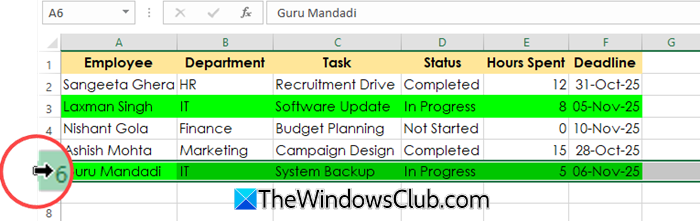
This method is useful when you want to rearrange rows or columns without disturbing individual cells.
Select the entire row or column by clicking its row number or column letter. Then press Ctrl + X. Select the row or column where you want to move it. Right-click and choose Insert Cut Cells.
Alternatively, hover over the border of the selected row/column until the cursor becomes a four-headed arrow. Then click and drag to move it to the desired position. This replaces any existing data in the destination cells, so use it carefully to avoid overwriting important information.
4] Move highlighted (colored) cells to the top
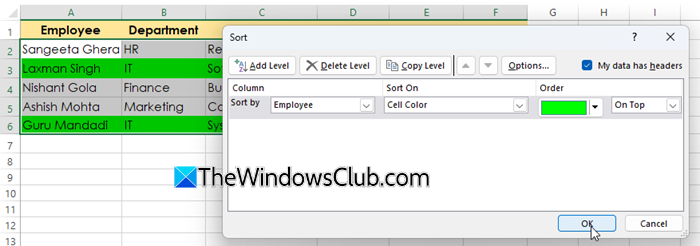
If you’ve color-coded a few rows or cells (either manually or through conditional formatting) and want them to appear at the top of your dataset, follow these steps:
Highlight the entire range that contains the cells you want to move, including column headers. Then, go to the Data tab and click the Sort button.
In the Sort dialog box, configure the following options:
- Column: Select the column that contains your highlighted cells.
- Sort On: Select Cell Color.
- Order: Pick the color you want to sort by (e.g., Green).
- In the final drop-down, choose On Top to bring all highlighted cells to the top of your range.
Tip: If your dataset includes headers, check My data has headers for easier identification.
Click OK. All rows or cells with the selected highlight color will move to the top of your data range.
Note:
- Moving cells that contain formulas can sometimes cause reference errors, especially when the formula links to other sheets or external workbooks. Double-check all links and references after rearranging your data.
- If your selection includes hidden cells, they will also move along with the visible cells. Unhide them first to see what data is being moved.
- Always double-check before dropping your selection to avoid accidental data loss.
I hope you find this useful.
Read: How to add an apostrophe in Excel before date.
How do I move highlighted cells up in Excel?
You can move highlighted cells up in Excel using the cut and paste method. Press Ctrl + X to cut the highlighted cells, then right-click the target cell above where you want to place them and choose Insert Cut Cells. In the dialog box, select Shift cells down. This moves the cut cells upward while adjusting the surrounding data accordingly.
How do I shift highlighted cells down in Excel?
To shift highlighted cells down, cut them using Ctrl + X, then right-click the cell below your target location and choose Insert Cut Cells. When prompted, select Shift cells down to insert the data below without overwriting existing content.
Read Next: Design Mode greyed out in Excel; How to enable it?
