
Are you stuck in a situation where you need to add an apostrophe before a date or date-like value in Excel without changing the actual data? This post will guide you through simple ways to do it on a Windows 11/10 PC.
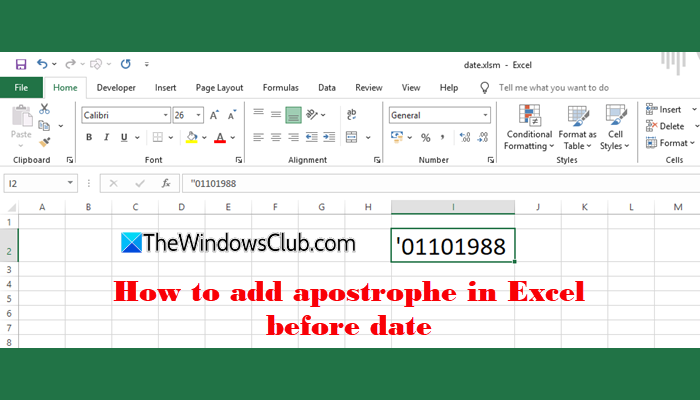
By default, Excel automatically tries to detect and format values based on what it thinks they represent. For instance, if you type 02/03/2024, Excel interprets it as a date and reformats it as 2-Mar-24. To prevent this automatic conversion and keep your entry as plain text, you can add an apostrophe (‘) before the value.
How to add an apostrophe in Excel before date
To add an apostrophe in Excel before a date, you may use the following methods:
- Manual entry
- Using the CONCATENATE function
- Using a formula
- Preformatting cells as text
- Using VBA macro
Let us see this in detail.
1] Manual entry
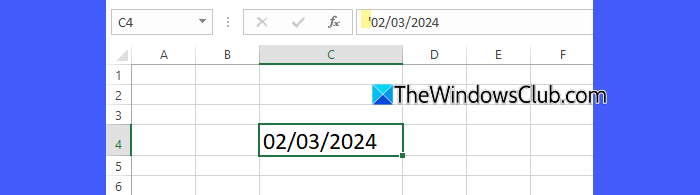
The simplest way to add an apostrophe before a date in Excel is to type it directly before the date when entering it in a cell. This method works best when you’re dealing with a small number of entries.
For example, type ’02/03/2024 instead of 02/03/2024 while entering the data. Excel will store it as text and preserve the value exactly as you type it. You’ll notice that the apostrophe isn’t visible in the cell itself. However, if you click on that cell and look at the formula bar (the long bar above the worksheet where you can view or edit the cell’s contents), you’ll see the apostrophe there.
2] Using the CONCATENATE function
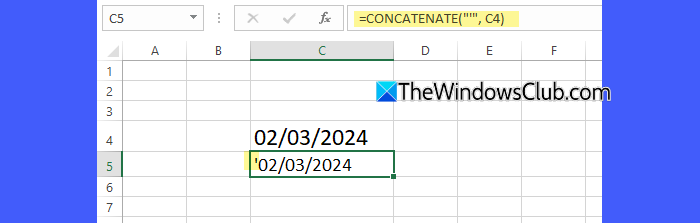
If you explicitly need the apostrophe to appear in the cell (not just make the value text), use a formula-based method.
A quick way is by using the CONCATENATE function. To use it, enter the following formula in a new column:
=CONCATENATE("'", A1)
This formula takes the value in cell A1, adds an apostrophe before it, and returns the result as text. You can then drag the formula down to apply it to the entire column.
Alternatively, you can achieve the same result using the ampersand (&) operator:
="'" & A1
Both formulas prepend an apostrophe to the given value, ensuring Excel interprets them as text and doesn’t alter the formatting of date-like numbers or leading zeros.
3] Using a formula
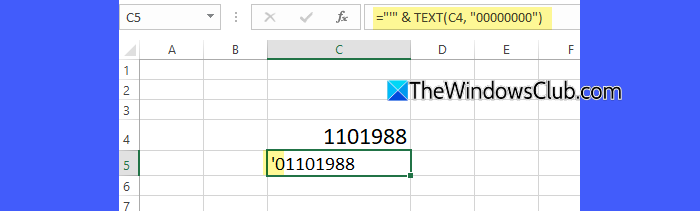
This method is particularly useful when you have a column of date-like numbers (for example, 01011900 for 1 Jan 1900) and want to convert them all into text with an apostrophe, without manually editing each cell. It preserves leading zeros and ensures Excel treats the values as text rather than automatically reformatting them as numbers or dates.
The following formula works well for this scenario:
="'" & TEXT(A1, "00000000")
Here’s how it works:
TEXT(A1, "00000000")ensures that the value in A1 is formatted as an 8-digit number, adding leading zeros if necessary.- The
"'" &part prepends an apostrophe to the value, forcing Excel to store it as text.
Once applied, you can drag the formula down the column to convert all entries at once. After that, copy the results and paste them as values to replace the original data with the text version.
4] Preformatting cells as text
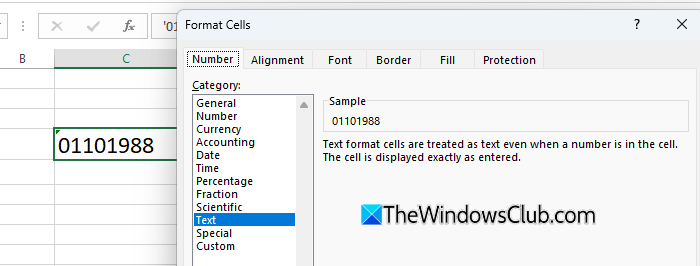
If your goal for adding an apostrophe is simply to prevent Excel from automatically converting your data and to retain the original date format or leading zeros, then you may consider preformatting the cells as Text.
To do this, select the cells or column where you plan to enter dates, right-click, and choose Format Cells. In the Format Cells dialogue box, go to the Number tab, and select Text as Category. Click OK to apply the changes.
Once done, Excel will automatically treat any value you enter as plain text (even without a visible apostrophe), ensuring your dates stay exactly as you type them. This method works best when you’re entering new data and want Excel to store it in text format from the start.
5] Using VBA macro
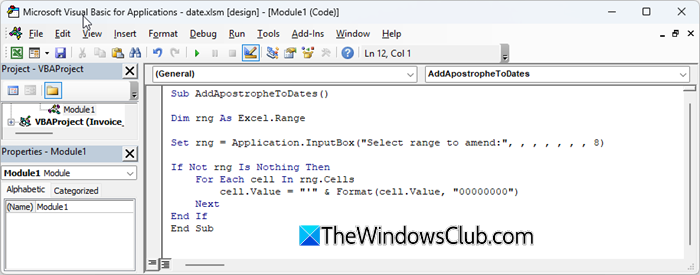
For large datasets, using a VBA macro is a fast and reliable way to add an apostrophe before dates or date-like numbers.
Here’s a simple macro that works for date-like numbers stored as text or plain numbers, preserving their displayed format while adding an apostrophe:
Sub AddApostropheToDates()

Dim rng As Excel.Range

Set rng = Application.InputBox("Select range to amend:", , , , , , , 8)

If Not rng Is Nothing Then
For Each cell In rng.Cells
cell.Value = "'" & Format(cell.Value, "00000000")
Next
End If

End Sub
To use the VBA macro, first press ALT + F11 to open the VBA editor. Then, go to Insert > Module and paste the macro code into the new module. Close the editor and return to your Excel worksheet.
Next, select the range of cells you want to modify. Finally, press ALT + F8, choose the macro AddApostropheToDates from the list, and click Run.
Note: Make sure macros are enabled in Excel before running the script; otherwise, it won’t execute.
The macro will automatically add an apostrophe to all selected dates, converting them to text while preserving their original appearance.
That’s all! I hope you find this useful.
Read: How to prevent Excel from removing leading Zeros.
How to add text before a date formula in Excel?
To add text before a date formula in Excel, you may use the & operator or the CONCATENATE function. For example, ="DOB: " & TEXT(A1, "dd/mm/yyyy") will display text followed by the date in the desired format.
How to make an apostrophe show in Excel?
In Excel, an apostrophe at the start of a cell is normally invisible and only signals text formatting. To make an apostrophe show in Excel, type two apostrophes at the beginning of the cell, or include it within a formula like ="'" & A1. This forces Excel to show the apostrophe as part of the text.
Read Next: Excel keeps changing Number to Date; Changes dates to random numbers.
