
To find large files in OneDrive, follow these steps. You can view or find large files in OneDrive Web, Desktop, and the mobile app. No matter which version of OneDrive you use, you can find large files with this guide.
Let’s assume you don’t have a paid plan and use only the free storage, which isn’t enough for many people. If you don’t have much free storage left and want to make space for new files, you might want to delete unnecessary large files. If so, this guide will be helpful.
Note: If you use the web version, you can expect the best result since it comes with built-in functionality to find large files. On the other hand, if you use the desktop or mobile app, you may not get the best results. Instead of showing large files by size at once, it displays large folders one folder at a time.
How to find large files in OneDrive Web
To find large files in OneDrive Web, follow these steps:
- Open the OneDrive website and log in to your account.
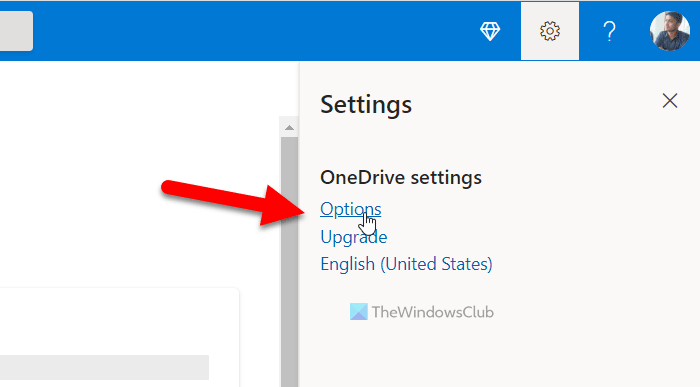
- Click the settings gear icon.
- Select Options.
- Click the What’s taking up space option.
To learn more about these steps, continue reading.
First, you need to open the OneDrive website and log in to the Microsoft account you use to access OneDrive files. Once you are logged, click on the settings gear icon visible in the top-right corner and select the Options.
Then, click on the What’s taking up space option.
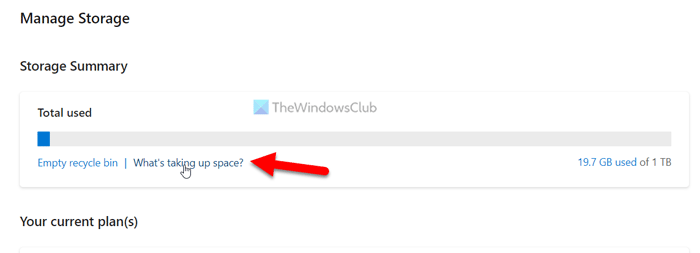
Then, you can find all files by size. Whether you have a ZIP file, image, audio, video, or anything else, you can sort them by size on the website.
In case you want to find the original location of the file, select the file and click the Open file location option.
Similarly, if you want to delete the file, click on it to select and choose the Delete option.
How to find large files in OneDrive Desktop app
To find large files in OneDrive Desktop app, follow these steps:
- Open the OneDrive in File Explorer.
- Right-click on empty space > Sort by > More.
- Tick the Total file size checkbox.
- Click the OK button.
- Right-click on empty space > Sort > select Total file size option.
Let’s check out these steps in detail.
To get started, you need to open the OneDrive in File Explorer on your computer. Then, right-click on empty space, and select Sort by > Total file size option.
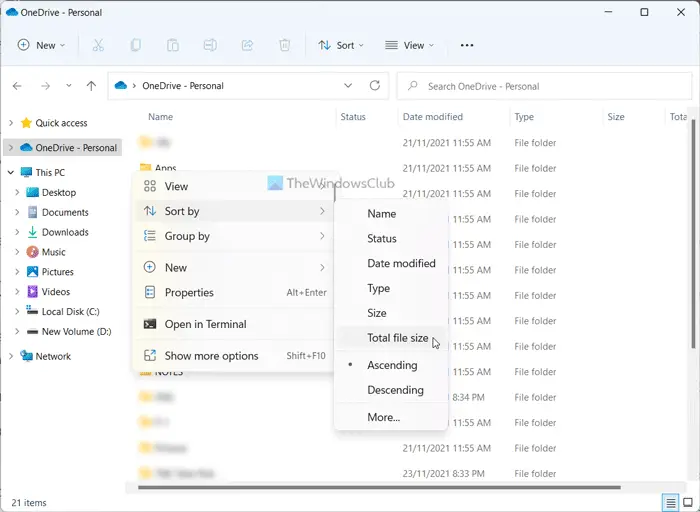
However, if you cannot find the Total file size option, you need to add it manually. For that, right-click on empty space, and select Sort by > More.
It will open a popup window. From here, you need to find the Total file size option and tick the corresponding checkbox.
Then, click the OK button to save the change. Following that, again, right-click on empty space, select Sort by > Total file size.
Now, the first file on your screen is the largest file. You can select, move, delete, or manage the file as per your requirements.
How to find large files in OneDrive mobile app
To find large files in OneDrive mobile app, follow these steps:
- Open the OneDrive app on your mobile.
- Switch to the Files tab.
- Click on the Sort option.
- Select the Largest option.
Let’s delve into these steps in detail.
First, open the OneDrive app on your mobile. By default, it opens the Home tab. You need to switch to the Files tab, where you can find all the uploaded files at once.
Then, tap on the Sort option, which displays the A-Z option. Although it sorts files by characters, you can choose the Largest option from the menu.
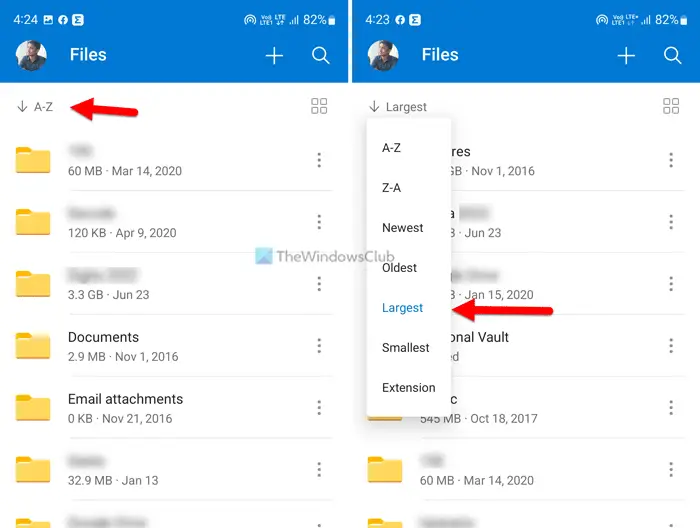
After that, your Files tab will rearrange files by size. For your information, the first file is the largest.
Read: How to use the new Files Restore feature in OneDrive
How do I sort my OneDrive by size?
To sort your OneDrive files by size, follow the guides above. Whether you use OneDrive Web, desktop app, or mobile app, you can get it done easily. If you are using the Web version, open the OneDrive website and log on to your account. Then click Sort and choose File size.
How do I delete large files from OneDrive?
To delete large files from OneDrive, first find them. If you are using the OneDrive Web version, it is easier than a mobile or desktop app. To get started, open OneDrive on your browser, click the settings gear icon and select Options. Then, click on the What’s taking up space option and select the file you want to delete. Finally, click the Delete option in the top menu bar.
