
If you are an IT admin and like to learn more about Microsoft 365 administration, we have a guide for you. In this post, we will learn how to find disabled users in Microsoft 365.
Find disabled users in Microsoft 365
If you want to find disabled users in Microsoft 365, follow one of the methods below.
- Using Microsoft 365 Admin Center
- Using Microsoft Entra Admin Center
- Using PowerShell
Let us discuss them in detail.
1] Using Microsoft 365 Admin Center
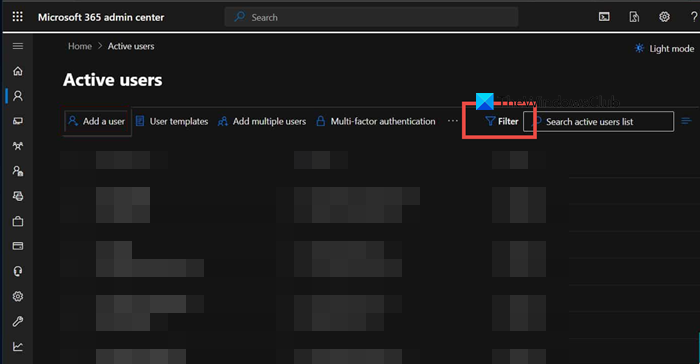
First, let us try using the Microsoft 365 Admin Center to find all disabled users in your organization.
Follow the steps mentioned below to do the same.
- First, go to your Microsoft 365 Admin Center page and log in to your account.
- Navigate to Users > Active Users.
- Click on Filter ( Filter > Sign-in blocked) or Filter set and create a new or custom filter.
- Give it a name, and in Sign-in status, select Sign-in blocked.
- Click Add.
You will now see all the disabled users of your organization there.
2] Using Microsoft Entra Admin Center
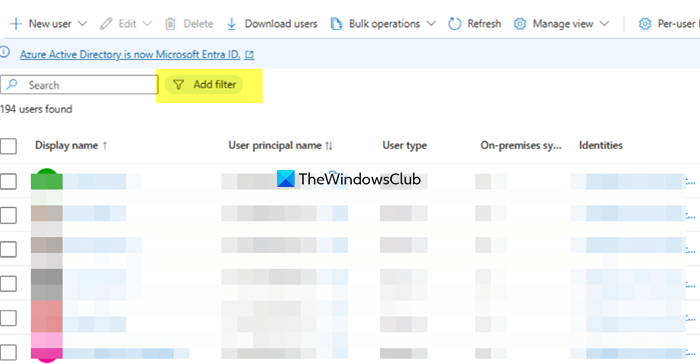
You can even log in to Microsoft 365 Entra Admin Center, go to Users > All Users. Click on Add filters, populate Account enabled in the Filter field, disable Value, and click on Apply.
3] Using PowerShell
You need to launch PowerShell and connect to Microsoft Graph.
Then, execute the following command.
Get-MgUser –Filter “accountEnabled eq false” | select DisplayName, UserPrincipalName
It will provide you with a list of all disabled accounts in your organization.
Hopefully, with these methods, you will be able to check all disabled users.
Read: Locked out of the Microsoft 365 admin account? What to do?
How do I find all disabled users in Microsoft 365?
You can find disabled users through several methods. In the Microsoft 365 Admin Center, navigate to Users > Active Users, click the filter icon, and select Sign-in blocked to view a list of disabled accounts. Alternatively, in the Microsoft Entra Admin Center, go to Identity > Users > All users, apply a filter for Account enabled, and set the value to “No.” For automation or managing large environments, you can use PowerShell with the Microsoft Graph module; after connecting using the command Connect-MgGraph, run Get-MgUser -Filter “accountEnabled eq false” to retrieve a list of all disabled accounts.
Read: Recover Microsoft account without email and phone number.
What’s the difference between an inactive user and a disabled user?
An inactive user has not signed in for a specified period (usually 90-180 days) but can still log in, as their account remains enabled. A disabled user, however, has had their account explicitly disabled, preventing any sign-in. Inactivity is tracked via the lastSignInDateTime property, while disabling is an administrative action often used during offboarding for security reasons. Disabling keeps data intact but blocks access, whereas deleting an account permanently removes it after a soft-delete period.
Also Read: Disable Account Notice message in Microsoft 365 for Business Plan.
