
By default, Exploit Protection is enabled in Windows 11, with a set of system-wide security mitigations already active. In this post, we will show you how to disable Exploit Protection on a Windows 11/10 PC.
What is Exploit Protection in Windows 11?
Exploit Protection is a set of built-in mitigation techniques that help protect Windows from malware and malicious processes that exploit vulnerabilities in installed software to infect devices. It’s based on Microsoft’s Enhanced Mitigation Experience Toolkit (EMET), which was introduced as a standalone tool to provide similar exploit-prevention capabilities. Microsoft later integrated EMET’s features directly into Windows Defender Exploit Guard, making them easier to manage through Windows Security.
How to disable Exploit Protection in Windows 11
Windows doesn’t offer a single switch to disable Exploit Protection completely. You can only disable individual mitigations system-wide or per app. We strongly recommend turning it off only for specific apps that are causing compatibility issues.
1] Disable Exploit Protection using Windows Security
Type ‘security’ in the Windows Search bar. Click Open next to Windows Security.
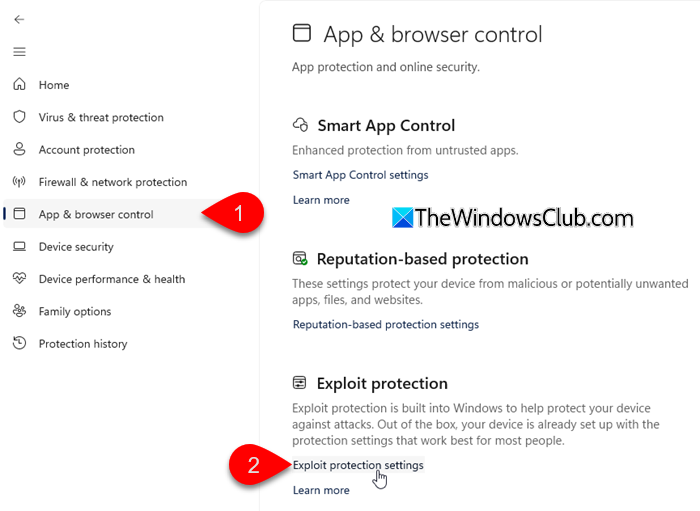
The Windows Security app will open. Select App & browser control from the left panel. Scroll down and click on Exploit protection settings under Exploit protection.
Switch to the Programme settings tab on the next screen. Then click the plus (+) icon in front of Add programme to customise, and choose either Add by programme name or Choose exact file path.
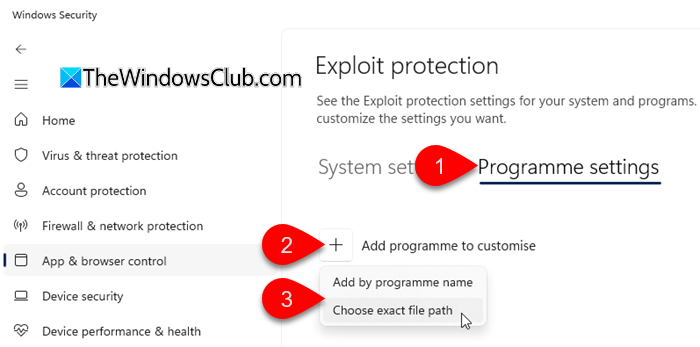
Select the executable (.exe) file of the program for which you want to disable protection.
A dialogue box will open, displaying the mitigations that apply to the app. Common mitigations you may see include:
- Arbitrary Code Guard (ACG): Prevents untrusted code from running.
- Block low integrity images: Prevents loading unsafe images.
- Block remote images: Stops images from remote sources.
- Other mitigations like Control Flow Guard, Data Execution Prevention (DEP), etc., may also appear.
Not all mitigations are enabled by default. To disable a particular mitigation, check the Override system settings box below it, and once the toggle activates, switch it to the Off position.
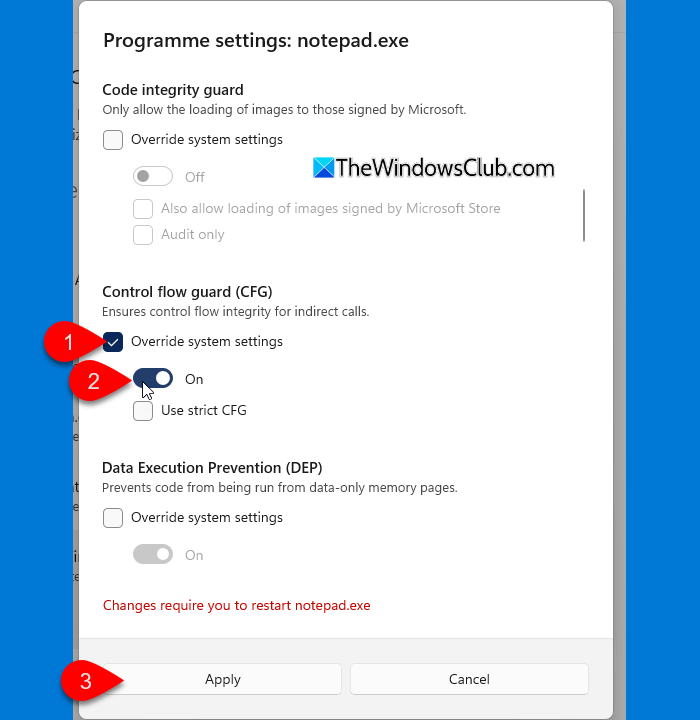
Click Apply, then click Yes in the User Account Control prompt.
You’ll see a confirmation that the override was applied.
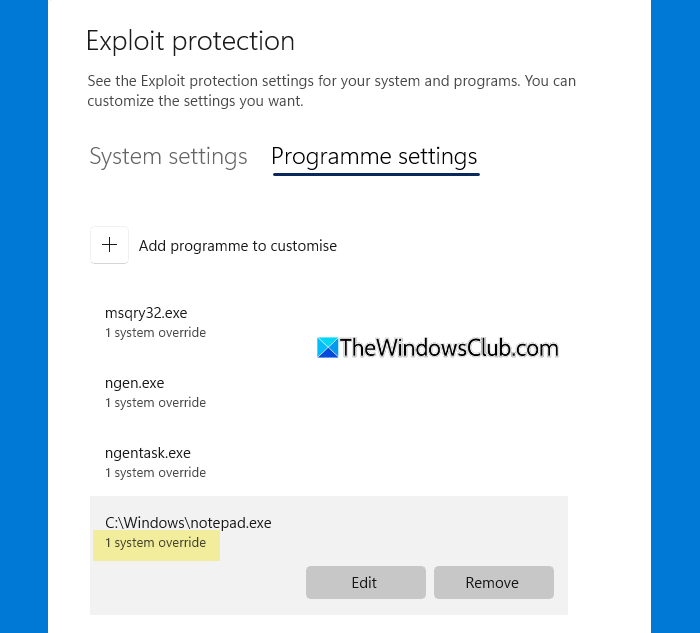
Exit Windows Security and restart the app to check if it works properly. If it still fails, review the other mitigations in the same window and apply overrides one at a time.
Note:
- Avoid turning everything off; doing so unnecessarily weakens your system’s protection.
- Re-enable the mitigations once you’re done testing or troubleshooting to restore your system’s protection.
Related: How to Add or Exclude an app in Exploit Protection of Windows 11
2] Disable Exploit Protection using PowerShell
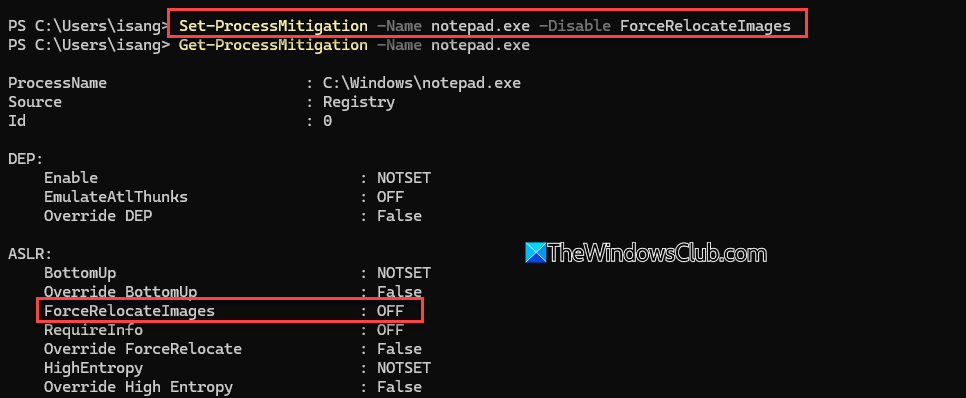
If you prefer using PowerShell, you can modify Exploit Protection settings with the Set-ProcessMitigation command.
Right-click on the Start button and select Terminal (Admin). A User Account Control prompt will appear. Click Yes to continue.
To view current Exploit Protection settings, run:
Get-ProcessMitigation -System
To disable a specific mitigation, run:
Set-ProcessMitigation -System -Disable ControlFlowGuard
The above command disables the ControlFlowGuard mitigation for the entire system.
You can also disable a mitigation for a specific program by specifying its path:
Set-ProcessMitigation -Name notepad.exe -Disable ForceRelocateImages
The above command disables the ForceRelocateImages mitigation for the Notepad app.
Restart your computer for the changes to take effect.
3] Disable Exploit Protection using Group Policy Editor
Admins in managed environments (Pro, Enterprise, or Education editions) can disable specific Exploit Protection settings across multiple PCs using the Group Policy Editor.
For Exploit Protection, Group Policy doesn’t directly turn the feature ON or OFF. Instead, it uses a configuration file (XML) that contains all your Exploit Protection settings. These settings are first configured using the Windows Security app on an individual device. Then, exported as XML to be deployed to other devices in the organization.
On one computer, open Windows Security > App & browser control > Exploit protection settings. Customize the settings you want (enable/disable mitigations). Then click Export settings. This creates an XML file that stores your chosen configuration.
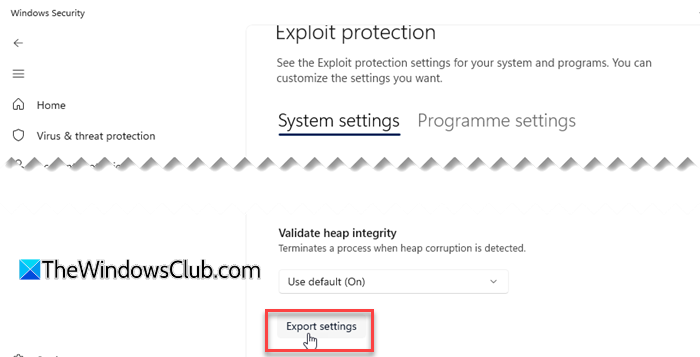
To deploy this configuration across multiple PCs, follow these steps on each target PC:
Press Win + R, type gpedit.msc, and press Enter to open the Group Policy Editor. Navigate to the following path:
Computer Configuration > Administrative Templates > Windows Components > Windows Security > Exploit Protection
Double-click Use a common set of Exploit Protection settings.
Select Enabled, then under Options, type the URL of the XML file. Click Apply and OK.
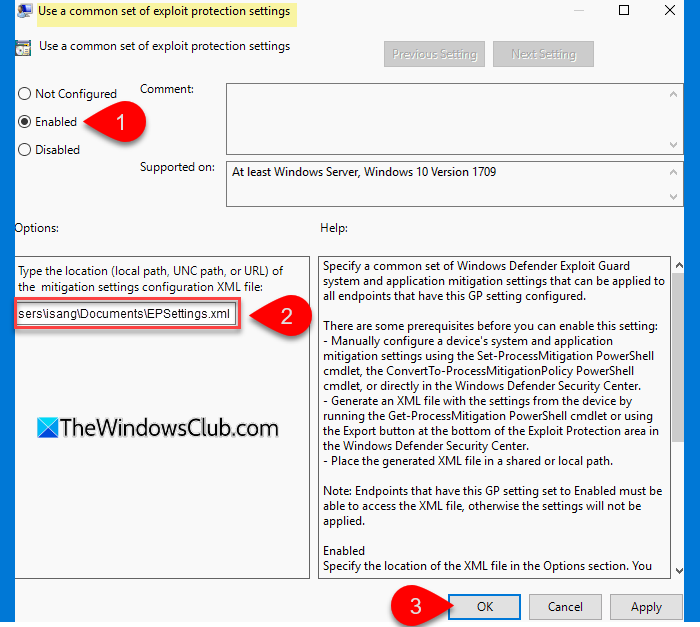
Run gpupdate /force to make the policy take effect. The system will import the XML and apply the specified mitigations.
How to disable Arbitrary Code Guard (ACG) in Windows 11
Arbitrary Code Guard (ACG) is a layer of memory protection that makes it harder for attackers to inject and run harmful code on your PC. Disabling ACG reduces security; if necessary for compatibility or testing, you may follow these methods:
1] Windows Security UI:
Open Windows Security. Go to App & browser control > Exploit protection settings. Switch to the Programme settings tab. Click Add programme to customize, the choose the executable.
Scroll and find Arbitrary Code Guard (ACG). Click Override system settings, then select Off.
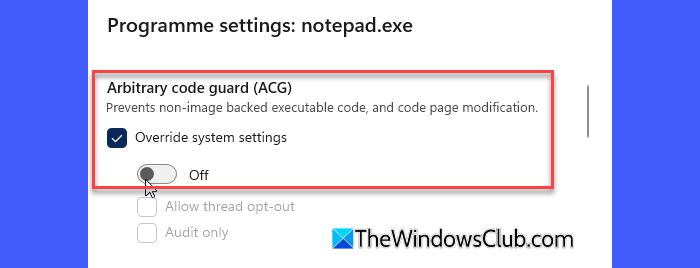
Click Apply, and then reboot your PC.
2] Group Policy Method:
You can follow the same steps described in the Exploit Protection section for system‑wide overrides. Before exporting the XML, make sure the Arbitrary Code Guard (ACG) is turned off on the reference PC. Then deploy that XML via Group Policy to apply the setting across multiple PCs.
For specific executables only, you may follow these steps:
Press Win + R, type gpedit.msc, and press Enter. Navigate to:
Computer Configuration > Administrative Templates > System > Mitigation Options
Double-click Process Mitigation Options in the right pane.
In the window that opens, select Enabled. Then click Show… under Options.
In the Show Contents dialog:
- Under Value Name, enter the name of the executable (e.g., notepad.exe).
- Under Value, enter the mitigation bitmask string to disable ACG.
Click OK to close the dialog. Click Apply and then OK to save the policy. Reboot to apply the new mitigation settings.
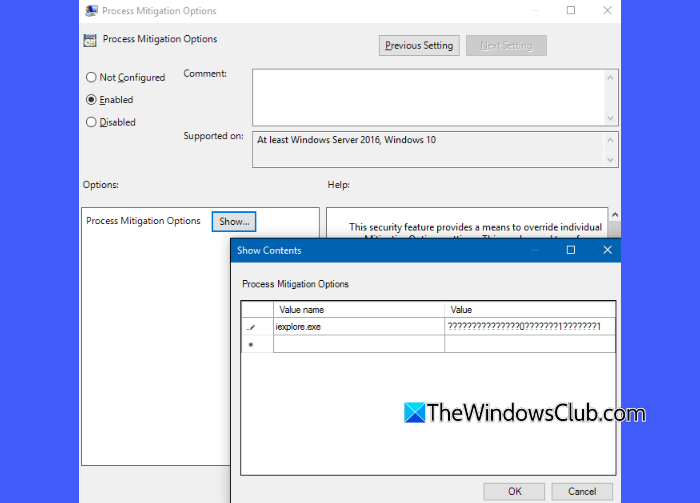
Note: Disabling ACG requires knowing the exact bitmask for ACG, which is not officially documented by Microsoft.
Read: How to turn off Control Flow Guard in Windows 11.
Where is Exploit Protection?
Exploit Protection is part of Windows Security. You can find it by opening Windows Security > App & browser control > Exploit protection settings. It lets you manage system-wide and app-specific security mitigations to protect your system against malware and exploits.
Read Next: Prevent users from modifying Exploit Protection settings in Windows Security.
