
When Microsoft Defender Antivirus isn’t your primary antivirus, running it in passive mode is a good way to improve visibility. In this post, we are going to explain Passive Mode and see how you can deploy Defender for Endpoint in Passive mode.
Deploy Defender for Endpoint in Passive mode
If Passive Mode is enabled, Microsoft Defender Antivirus scans files without taking action. It finds and reports malware and security threats to your security console, but it does not quarantine files or stop processes. Its main job is to gather information, giving you insight into what’s happening on your devices without interfering with your main antivirus software.
EDR (Endpoint Detection and Response) in Block Mode enhances Passive Mode by addressing its main weakness. Think of your main antivirus as a guard checking IDs at the entrance. EDR Block Mode acts like undercover security inside the building. It uses advanced sensors to detect malicious activities that slip past the initial guard, often only appearing after a breach. When you enable EDR Block Mode, Defender can automatically fix these dangerous threats, like stopping a suspicious process or isolating a compromised file.
Enable Passive Mode or EDR Block Mode
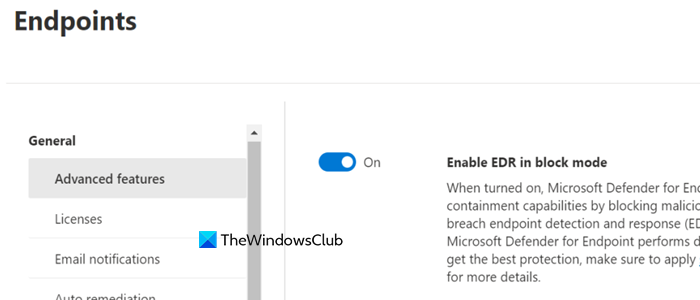
Using only passive mode limits your automated response abilities. You will see threats, but you won’t be able to act on them automatically. Turning on EDR block mode solves this issue. It allows Defender to respond to advanced attacks that your main antivirus might miss. This layered approach, your primary antivirus managing common threats while Defender’s EDR handles complex breaches, creates a stronger security system.
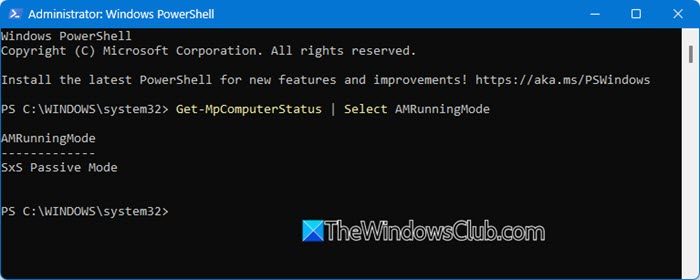
To determine how Defender is currently operating on a specific Windows device, open PowerShell as an administrator and run the following command.
Get-MpComputerStatus | Select AMRunningMode
The result will clearly state Normal, Passive, or EDR Block Mode.
If you want to enable EDR in Block Mode, you need to follow the steps mentioned below.
- Go to the Microsoft Defender security portal.
- Navigate to Settings > Endpoints > Advanced features.
- Find the option for Enable EDR in block mode.
- Enable the toggle and save your preferences.
A crucial technical exception applies to Windows Server versions 2012 R2, 2016, 2019, and 2022. Unlike Windows 10 and 11, these server versions do not automatically switch to passive mode when a third-party antivirus is installed. To enforce passive mode, you must manually create a specific registry key before onboarding the server to Defender for Endpoint.
Also Read: How to deploy Microsoft Defender for Endpoint
How do I verify Microsoft Defender is running in Passive Mode?
You can verify the operational mode directly on a Windows device using a simple PowerShell command. Open Windows PowerShell as an administrator and run:
Get-MpComputerStatus | Select AMRunningMode
The result will clearly state Passive if the configuration is correct. Other potential results include Normal (active mode) or EDR Block Mode (passive mode with enhanced blocking enabled). This is the most reliable method to confirm your deployment was successful.
Read: Setup Windows Defender Advanced Threat Protection (ATP) on Windows Server
Does Passive Mode still protect my device from threats?
In Passive Mode, Microsoft Defender Antivirus shifts its role from primary protector to advanced sensor. It continues to scan, detect, and report all threats to your security console, providing crucial visibility. However, it does not automatically quarantine files or block processes; that remediation is handled by your designated primary, non-Microsoft antivirus. For added protection, you can enable EDR in block mode in the Defender portal, which allows Defender to automatically remediate sophisticated, post-breach threats that your primary antivirus may miss.
Also Read: Install and Configure Microsoft Security Agents in Windows 11.
