
The built-in Disk Cleanup Tool may have some items to delete checked and unchecked by default. But you may want to have all the items checked by default instead when you open it. This post will show you how to create a Disk Cleanup shortcut that opens with all items selected by default in Windows 11/10.
You can use Disk Cleanup regularly to remove unnecessary files from your drives, freeing up space and helping your PC run better. The utility first searches the hard drive for files that are no longer in use, then removes them. There are a number of different file categories that Disk Cleanup targets when performing the initial disk analysis – some of which are:
- Compression of old files
- Temporary Internet files
- Temporary Windows files
- Downloaded program files
- Recycle Bin
- Setup log files
- Offline web pages (cached).
The above list, however, is not exhaustive. For instance, Temporary Remote Desktop files and Temporary Sync Files may appear only under certain computer configurations, differences such as the Windows Operating System and the use of additional programs such as Remote Desktop. Removing hibernation data may not be ideal for some users, as it may also remove the hibernate option.
Create shortcut to open Disk Cleanup with All Items Pre-selected in Windows 11
To make a shortcut that opens Disk Cleanup with all items pre‑selected, you’ll need to use the sageset and sagerun arguments with cleanmgr:
Run cleanmgr /sageset:9 and when Disk Cleanup tool opens, select all the items. Here I have used the number 9 as the profile identifier, but you can used any other number.
To create a desktop shortcut to open it:
Right-click an empty area on your desktop, and click New > Shortcut and copy-paste cleanmgr /sagerun:9 in the Location field. Save it and give it a suitable icon.
When you create this shortcut to open Disk Cleanup with All Items Selected, you will still be able to manually check and uncheck items in Disk CleanUp after it is opened using this shortcut.
You have now created the shortcut. If you like, you can Pin it to Taskbar, Pin it to Start, add it to Quick Launch, assign a keyboard shortcut, or move this shortcut to where you like for easy use.
Create shortcuts to run Disk Cleanup Utility when disk space is low
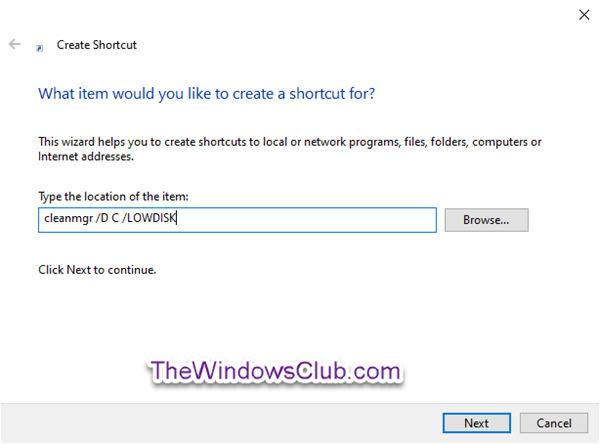
If you want, you can create separate shortcuts for different mode. You copy and paste cleanmgr /D C /LOWDISK into the location field, and click Next to run Disk Cleanup Utility when disk space is low. Here:
/D Ctells Disk Cleanup to target the C: drive./LOWDISKtriggers Disk Cleanup to run in a mode designed for low disk space situations.
Type All Items Disk CleanUp for the name, and click Finish. You can name this shortcut anything you like.
For your information, /VERYLOWDISK is even more aggressive, cleaning without prompting at all.
In short:
cleanmgr.exe /LOWDISKcarres out a quick cleanup when space is low.cleanmgr.exe /sagerun:9runs your custom preset where you have selected all the items.cleanmgr.exe /VERYLOWDISKcleans aggressively with minimal prompts
That’s it, folks!
How do I create a Disk Cleanup shortcut?
To create a Disk Cleanup shortcut, right‑click your desktop and select New > Shortcut. In the location field, type the cleanmgr.exe command. Give it a name and an icon, then save it. If you want it to target a specific C drive, use cleanmgr.exe /d C. If you want to use a preset cleanup profile, use cleanmgr.exe /sagerun:9 as explained in this post.
What is the shortcut for Disk Cleanup in Windows 11?
There is no predefined shortcut for Disk Cleanup in Windows 11 or Windows 10. However, you can create one by following the above-mentioned steps. If you want to open this utility quickly, you can enter cleanmgr in the Run prompt and press Enter.
