
Microsoft Teams is a great tool for collaboration, and rightfully so, as it was built for that purpose. For some, Teams is the most reliable when compared to others, and since it is a central part of Office 365, it has become quite difficult for users to avoid it altogether. Companies love to rely on Microsoft Teams because it’s so simple to schedule meetings. It is possible to accomplish this task with a link and then share it with an entire team or a single person.
How to create a link for a meeting in Microsoft Teams
Creating a meeting link is very simple in Teams, and the same applies to creating the link via Microsoft Outlook. For those who are not quite versed on how to create links for a meeting, well, you’re in the right place because we’re going to explain everything you need to know.
1] Create a meeting link in Microsoft Teams
Open Microsoft Teams: Begin this task by clicking on the Chat icon located on the Windows 11 taskbar. Once the Chat window appears, look at the bottom and click Open Microsoft Teams.
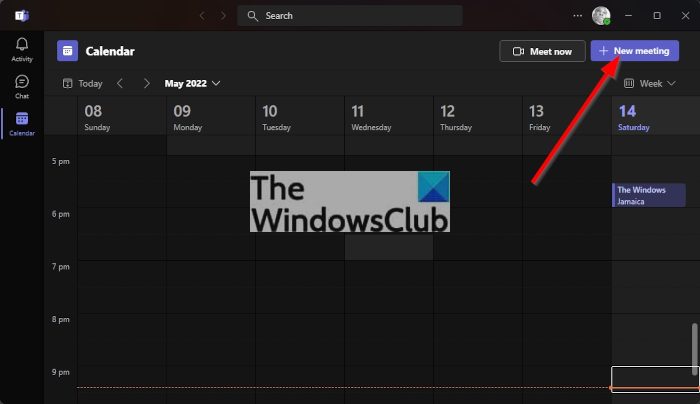
Navigate to Calendar: The next thing you will want to do is to click on Calendar via the left panel of the Microsoft Teams app.
Go to the New Meeting page: After firing up the Calendar area, you must now click on the big purple button with the words, New Meeting. Doing this will load a page where users can create a new meeting.
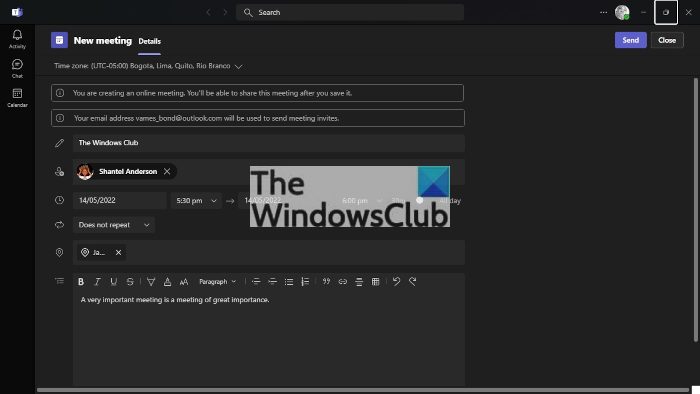
Add the relevant information: You are now required to add the relevant information before creating the meeting. Add the correct time zone first, and from there, add a title. Next, be sure to include a name, date, location, and important details about the meeting. Once you’ve completed this section, hit the Send button at the top to add the new meeting to the Calendar.
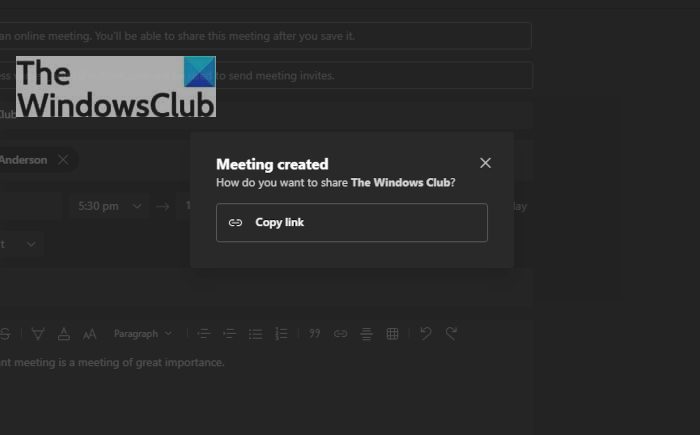
Copy Link after Send: The newest version of Microsoft Teams will showcase an option to copy the meeting link right after the Send button is selected. So, that is one way to create a link in Microsoft Teams.
Return to the Calendar: If you are using an older version of Microsoft Teams, you must return to the newly created meeting via the Calendar. After creating the meeting, Teams should automatically load the Calendar area.
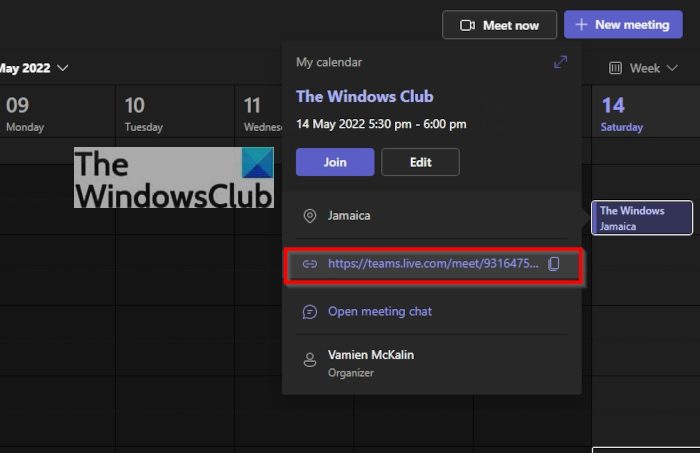
Copy the link from the Calendar: Find the correct date on the Calendar and there you will see the newly created meeting. Click on it, then select the Copy button next to the link, and that’s it.
Create a Microsoft Teams link via Outlook
Not only can you create a meeting from within Teams, as expected, but you can also create one from Microsoft Outlook.
- Fire up the Microsoft 365 Outlook app: First, you must open Outlook from either the Desktop, Taskbar or the Start Menu.
- Move over to the Calendar: Look to the left pane to locate the Calendar icon. Once you’ve found it, please select it right away to open the Calendar menu.
- Open a new Appointment: The next thing to do now is to right-click on the preferred date, then via the context menu, click on New Appointment. A new section should now appear with additional details.
- Create a new Teams meeting: Finally, click on the New Teams Meeting icon via the Ribbon, and from there, include all the relevant details then hit the Send button to complete.
Read: How to enable and use Just Me in Microsoft Teams
Do I need to download Microsoft Teams?
If you are using Windows 11 then you have no reason to download Microsoft Teams because the app is there by default. However, this is not the case for Windows 10 where you must download it yourself.
Do I need to install Teams to join a meeting?
No, you do not have to. After clicking the meeting link, you can choose to join via a web browser or download the app if you have to.
