
If you want to check the USB drive speed in Windows 11/10, here are some of the best methods to follow. Apart from using Task Manager to check the read and write speeds, you can also use third-party software to assess the speed of your USB flash drive or external hard drive on a Windows 11/10 PC.
Check USB drive speed in Windows 11/10 using Task Manager
To check USB drive speed in Windows 11/10 using Task Manager, follow these steps:
- Connect the USB drive to your computer.
- Open the Task Manager.
- Switch to the Performance tab.
- Click on the USB drive.
- Find the Read speed and Write speed when you transfer data.
To learn more about these steps, continue reading.
First, connect your USB drive to your computer. Then, press Ctrl+Shift+Esc to open the Task Manager.
Next, switch to the Performance tab and click on the USB drive.
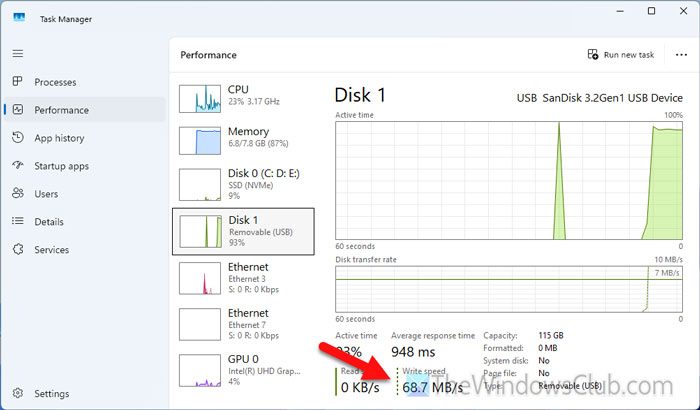
Then, find the Read speed and Write speed when you transfer data from or to the USB flash drive.
Best USB drive speed testing software for Windows PC
Some of the best USB drive speed testing software for Windows 11/10:
- Novabench
- USBDeview
- DiskCheck
- SysGauge
- CrystalDiskMark
To learn more about these tools, continue reading.
1] Novabench
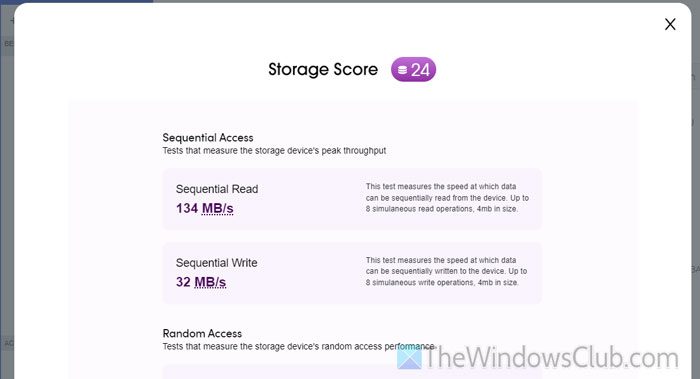
Novabench is the first freeware that allows you to check the reading and writing speeds of any USB flash drive. To use this software, download and install it from the official website. After opening, click on the arrow icon and select the Storage Test option. After a few moments, you will find the result displayed.
Download Novabench from novabench.com.
2] USBDeview
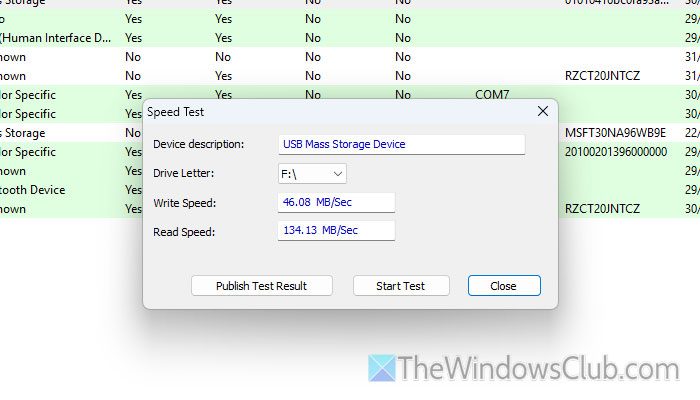
USBDeview helps you view and uninstall previously connected USB devices. It offers numerous features and options, including the ability to check the reading and writing speeds of any USB device.
You can check the speed of any USB flash drive using USBDeview from Nirsoft.net. You need to download and open the tool on your computer first. Then, right-click on the USB device and select the Speed test option. Alternatively, you can press Ctrl+T to open the same window.
Then, expand the Drive Letter list and choose the drive letter of your USB device, and click on the Start Test button.
3] DiskCheck
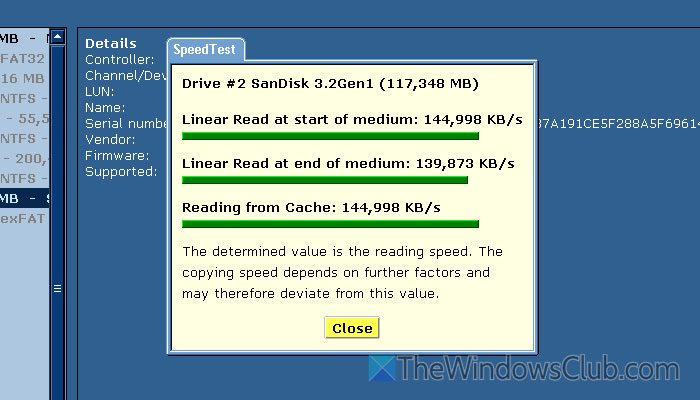
DiskCheck is yet another portable software that allows you to check the speed of your memory card, external hard disk, and other USB flash drives.
After downloading, open this tool, select the USB device, and click on the SpeedTest option located in the bottom section. Wait for a few moments until the result appears.
Download DiskCheck from miray-software.com.
4] SysGauge
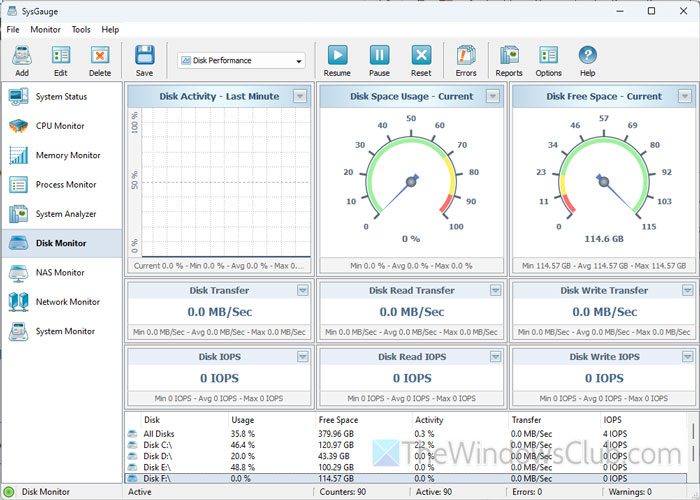
SysGauge from sysgauge.com is a system resource analyzer and performance monitor software for Windows 11/10. From your core CPU to GPU to storage, you can analyze almost everything with the help of SysGauge.
To check the reading and writing speed of your USB device using SysGauge, download and install the software first. Then, open it and go to the Disk Monitor section.
Next, select your USB device from the given list. Following that, check the Disk Transfer, Disk Read Transfer, and Disk Write Transfer sections. It shows all the information about the data transfer speed when you transfer data.
5] CrystalDiskMark
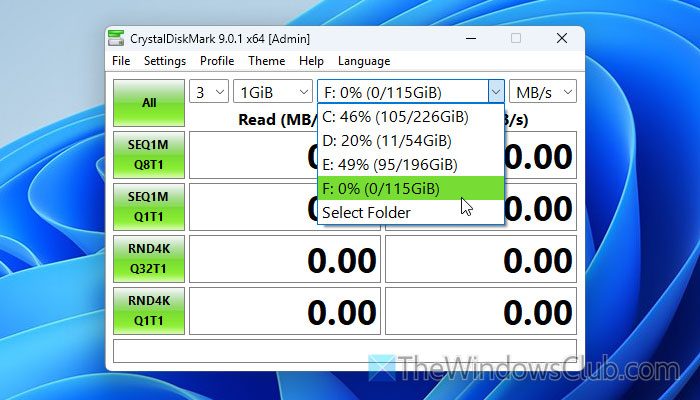
CrystalDiskMark from crystalmark.info is another storage performance monitoring tool that is available for Windows 11/10. Whether you want to check the speed of a USB drive, external hard drive, SSD, NVMe, SD card, or anything else, you can use CrystalDiskMark.
For this, download and install it on your computer, then open it after connecting the USB device.
Next, select the USB drive from the drop-down menu and attempt to transfer data to or from the device. You can view the speed in real-time.
Read: How to test Hard Drive speed on Windows computer
How to check USB speed in Windows 11?
To check the USB speed in Windows 11, open the Task Manager. Then, go to the Performance tab and click on the drive letter that denotes the USB device. Next, head to the Read speed and Write speed.
How to check if USB is 2.0 or 3.0 in Windows 11?
To check if your USB device is USB 2.0 or 3.0 in Windows 11, open the Device Manager first. Then, expand the Universal Serial Bus controllers section. If your USB device is connected to your computer, you can find an entry called USB root Hub (USB 3.0) if your device is carrying USB 3.0 facilities. Otherwise, you can find the 2.0 tag.
