
Ever wanted to lock and unlock your computer with a USB drive or a physical key? It looks cool and adds another layer of security to your computer. Unlocking a computer with a USB drive is more convenient and quick, and USB Raptor is a great tool that lets you do this and adds USB protection to your computer. The tool is flexible and completely open-sourced so you can sneak into it to customize it your way. You can easily set up a USB lock mechanism, as the program provides the highest possible security.
We have already see how we can use the built-in SysKey Utility in Windows 11/10, to lock the computer using a USB stick, and take a look at some other free software to lock & unlock Windows PC using USB Pen Drive. Now let us take a look at USB Raptor.
How to make a USB Security Key in Windows 11/10
To get started, you need a USB Pen Drive. You need to set up a master password when you run USB Raptor for the first time.
Once done with that, you can select your USB drive from the drop-down and then hit the ‘Create k3y file’ button. A hidden encrypted key file will be generated and saved on the USB drive. You must ensure that the file doesn’t get deleted or you’ll be unable to unlock your computer using that USB drive and in that case, you’ll need to unlock using any other alternate methods.
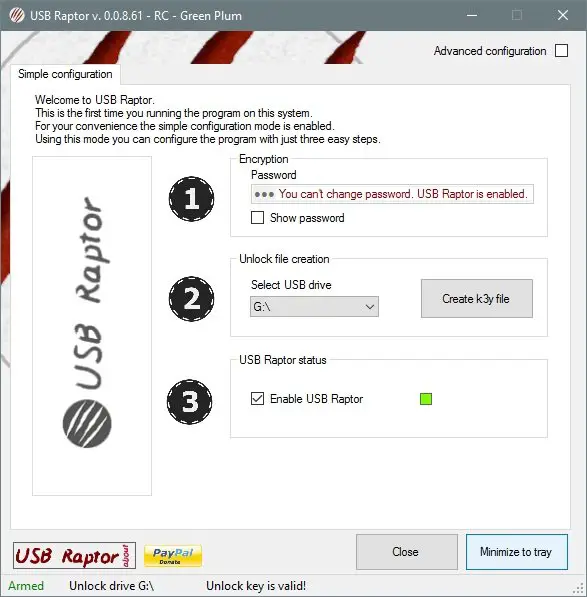
Having done this, you can enable USB Raptor and then minimize it to the system tray to keep it running in the background, so that the next time the USB Drive is removed from the computer, the computer will be locked and it will be again accessible only after you connect that USB drive or use the master password. This was all about the Basic Mode.
You can switch to Advanced Configuration Mode for more advanced features. I’ve discussed some of the advanced features here in this post.
There are two types of locks available: System Lock and USB Raptor Lock (Insane lock). USB Raptor Lock is tougher and recommended. There are also options to delay the lock screen, enable sounds, customize the lock screen, enable/disable the Clock, ID, USB Raptor Logos, write custom text, add custom logos, and enable random colors.
For your information, the system can also be locked without using the USB drive, if you’ve disabled USB locking and if the tool is being used in the Network Mode.
Backdoor access can also be controlled. Features such as unlocking by a master password, network commands, etc, can be enabled as well.
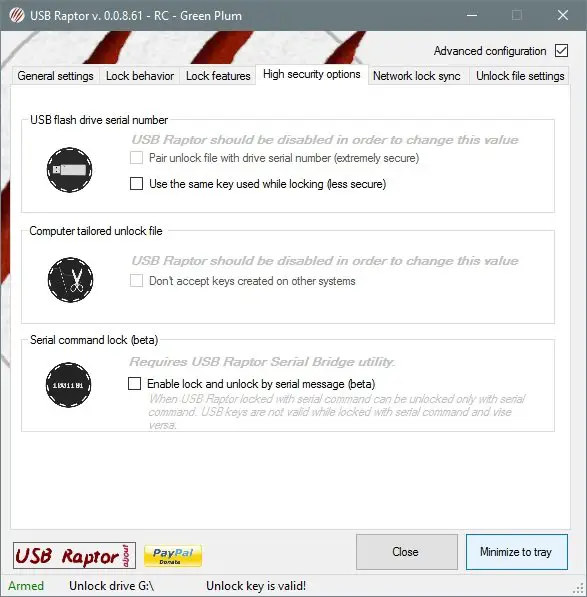
Under the High-Security Options, you can enable some advanced features that will ensure maximum security to the USB unlocking setup. Serial number verification can be enabled to prevent anyone from copying the security key file from your USB drive to another USB drive and unlocking the computer. Only the USB drive used to lock the system will be used to unlock it.
USB Raptor also supports network commands. You can run it in Master Mode to send commands to other computers. USB Raptor could be made to run in Slave Mode to receive commands from the master computer. You can enable Network sync so that if the master computer is locked, slave computers will also get automatically locked.
USB Raptor download
There are many other amazing features that are not covered in this post. Download the tool to know more and see these features in action. The tool is easy to use, and the distinction between simple and advanced modes is clear. The division enables basic users to stay in the simpler mode and, on the same tile, lets advanced users access all the tool’s advanced features. USB Raptor is free and available for download from SourceForge.
Can I turn my USB into a security key?
Yes, you can turn your USB device into a security key. Although Windows doesn’t have any option by default, you can use third-party programs to get the job done. For your information, USB Raptor is one of the best apps for converting your USB device into a security key on a Windows PC.
Read: How to set up Security Key for your Microsoft Account
How do I setup my USB Raptor?
The setup process for the USB Raptor is straightforward, and you won’t need much time. You can follow the on-screen instructions to set things up. However, it is recommended to follow the aforementioned steps to learn everything in detail and set everything up according to the requirements.
Read next: Free software to Lock and Unlock Windows PC using USB Pen Drive.
