
In this guide, we show you how you can change the theme in Teams chat on Windows 11/10. There is a way to make the Teams program look good with its theme. It provides the user with 3-4 options. Let’s explore how to change the theme on Microsoft Teams.
How do you change the background color in Microsoft Teams chat?
Unfortunately, there is no feature in Microsoft Teams chat to change the background color. The theme you applied will be applied to chat also. No additional option is provided to change the background color in Teams chat. But, you can change your background in the video while you are in a meeting on Teams.
How do I change the theme of my Microsoft Teams?
To change the theme on Microsoft Teams, follow these steps:
- Launch Microsoft Teams application
- Click on the three-dot button on the top bar
- Select Settings
- Click on Appearance and accessibility
- Select the theme.
Let’s get into the details of the process.
After launching Microsoft Teams, click on the three-dot button on the top bar of the Teams window. Then, select Settings from the options that you see.
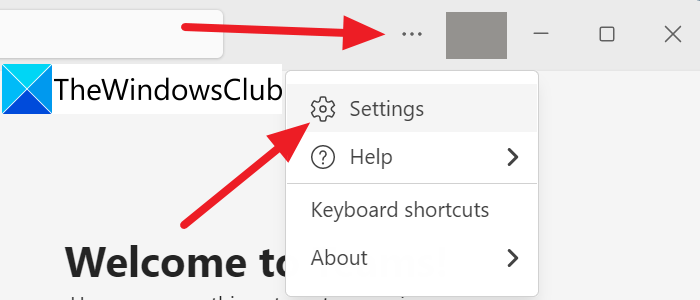
It opens the Settings of Microsoft Teams. Click on the Appearance and accessibility on the left side panel of the Teams window.
Then, you will see Theme and Animation settings. Under the theme, you can see:
- Light,
- Dark,
- High contrast, or
- Follow operating system theme.
Select the button beside any of them that you want to apply.
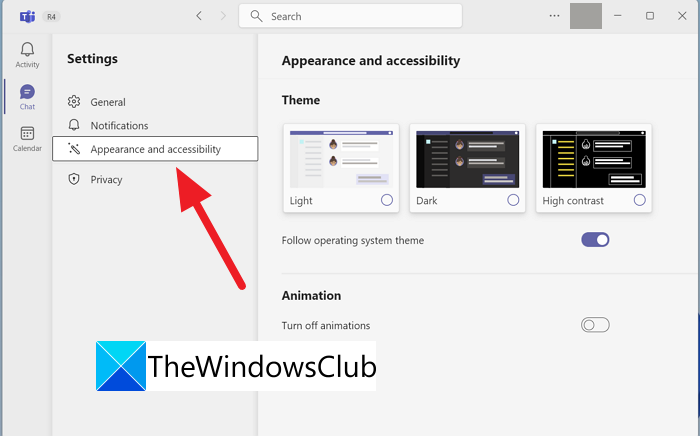
The theme you selected will apply to the Teams application.
This is how you can change the theme of Teams on Windows 11.
How do I change the chat color in Microsoft Teams?
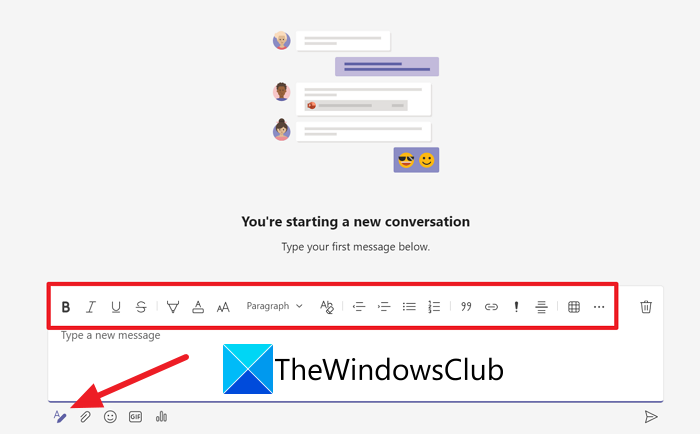
Currently, there is no setting or feature available on Microsoft Teams to change the chat color. The theme you selected in the settings will be applied to the chats also. The only way you can decorate or make your text stand out is by formatting it with the different options available.
Is there a dark mode for Teams?
Yes, a dark mode is available as a theme for Teams. You can set the appearance to dark mode, high contrast mode, light mode, or follow the system theme.
Read: How to send Urgent or Important Message in Microsoft Teams
