
Outlook is one of the best yet secure email providers. You can use Outlook via the web, desktop client, Outlook (new) app or its Mobile app. You can use Outlook apps to manage Microsoft email accounts as well as other email providers too. In this post, we will show you how to change your Password in Outlook.com, Outlook desktop client, Outlook (New) app, Outlook Mobile app or Outlook 365.
How to change password in Outlook.com
Changing passwords for the email provider via the web interface is easy. Since Outlook Desktop can only use passwords for authentication, once you have changed the password on its website, you can update it across your desktop, mobile, and other devices.
Also, you can use Outlook as an email client for any other email service provider like Google or Zoho. If you use an email provider other than Outlook, you will need to visit their respective website, change your password, and then return to Outlook.
But for this tutorial, we will be sticking to Microsoft account, and here is how to change your Outlook password:
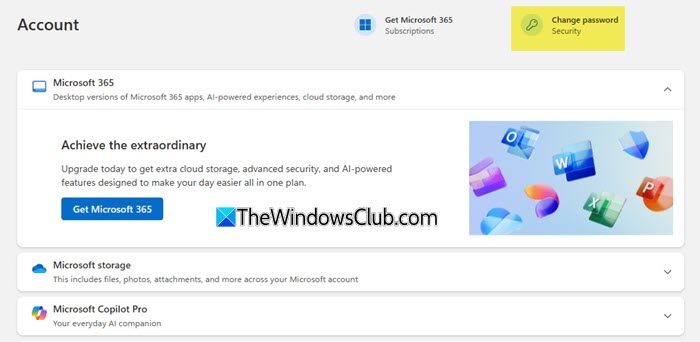
Go to account.microsoft.com and sign in using your Outlook email. You will see the Change password link at the top right side, which you should click.
Alternatively, you can also visit your Outlook.com email page, click on your profile picture on the top right and select My Microsoft Account. Go to the Security tab from the top bar. You should see the Change my password option at the top or under Security Basics.
Once you have clicked the Change password link, follow the onscreen steps and update your password.
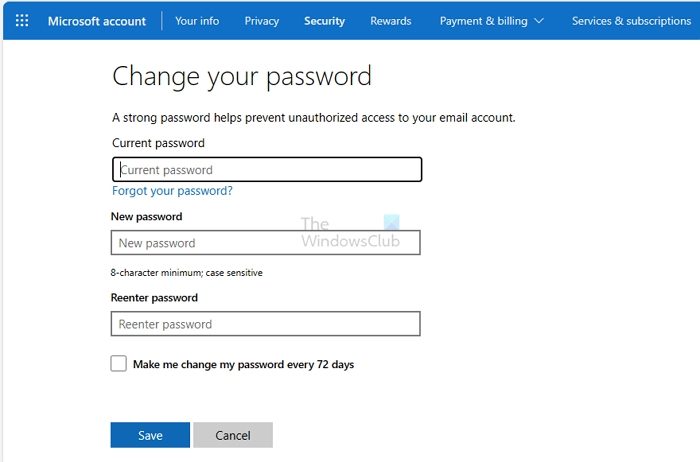
You will be prompted to enter the current password before accessing the Change Password screen and updating it to the new password. If you have set up 2FA, Windows PIN, or Physical Key, you will need to use that too.
Fix: Remember password option missing in Outlook
How to change Password in Outlook desktop client or Outlook apps
Once you have changed your password on the web, the next step is to update the password for your Outlook email client, Outlook Mobile app, Outlook (new) app or Outlook 365.
If you are signed into your Windows PC using a Microsoft Account, there is nothing you need to do now. The Outlook desktop clients and the Outlook (new) will sync the details automatically and update the password. Your password will get updated automatically! This applies to Outlook email client, Outlook (new) app or Outlook 365.
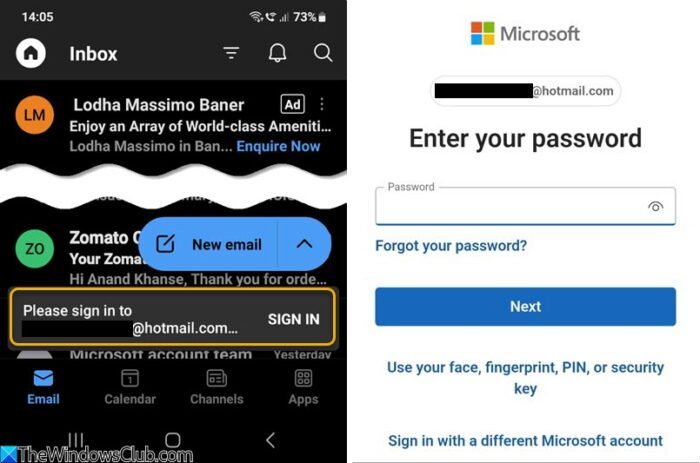
Incidentally, I noticed that the Outlook Mobile app on my Android phone also automatically synced the new passwords, and I didn’t have to do anything.
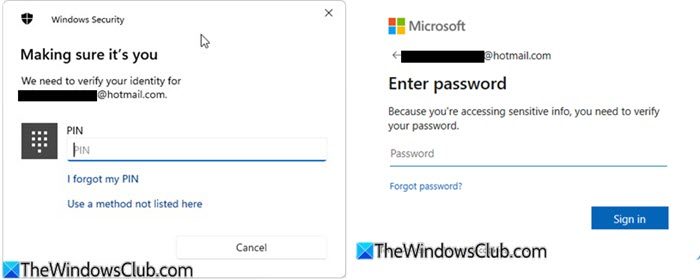
In some cases, you might be asked to enter the new password as soon as you launch Outlook. Enter the PIN and then the Password as required.
This is how it appears on Outlook desktop:
This is how it appears on Outlook Mobile:
In case it doesn’t ask you to update your password. Then you need to go to Tools > Account Settings.
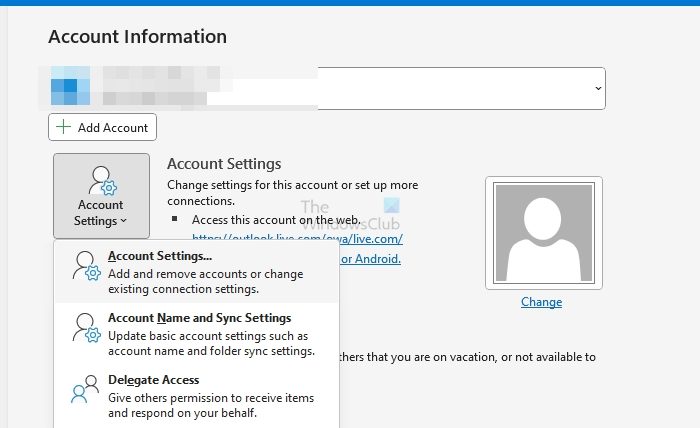
Then select your email account > Change. Here you can change the password.
That is all for how you can change your Outlook passwords.
Read: How to remove NEED PASSWORD error message in Outlook
How do I find my password for Outlook 365?
While Microsoft doesn’t reveal the password anywhere, you can check with the password manager or the browser to find it out. You may need to reauthenticate using the OS password to view the password for the account. However, you must reset the password if you have never saved it anywhere.
Read: Outlook not saving passwords in Windows
How do I change my Outlook email in Office 365?
If you use multiple aliases, you can change it through the Outlook settings, remove and add the account again and then select the new mail id. If you want to add another one and remove the old one, you need to add the new Outlook email and then remove the old account from Outlook. Be aware that any data related to the old account will be removed.
