
In this post, we are going to see how you can change Four-finger Tap Gestures on Windows 11 or Windows 10 computers. This feature is great for someone who wants to create shortcuts and make their OS more efficient. Let us go through the guide and see how to configure this option for your touchpad.
Change Four-finger Tap Gestures in Windows 11
The following are the three methods to change Four-finger Tap Gesture in Windows 11/10.
- Via Windows Settings
- Via Registry Editor
- Via Advanced Gestures
Let us go through them one by one.
1] Via Windows Settings
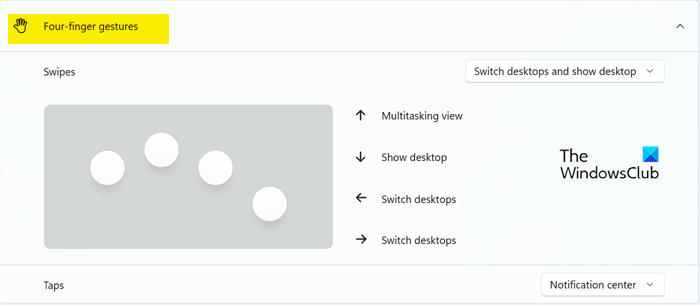
Let us start customizing from something you must be familiar with. We are going to configure Windows Settings and set the gestures. However, Windows 11 and 10 have different steps, that is why we have mentioned steps for both the OSs below. Follow the steps below.
Windows 11
- Open Settings by Win + I.
- Go to Bluetooth & devices.
- Click on Touchpad and then on Four-finger gestures.
- Select any of the following methods.
=> Nothing
=> Open search
=> Notification center, Play/pause
=> Middle mouse button - Close Settings.
Windows 10
- Launch Settings.
- Go to Devices > Mouse & touchpad.
- Go to Four-finger swipe and choose an option from the drop-down menu.
Hopefully, you can configure the Four-finger swipe using the steps above.
2] Via Registry Editor
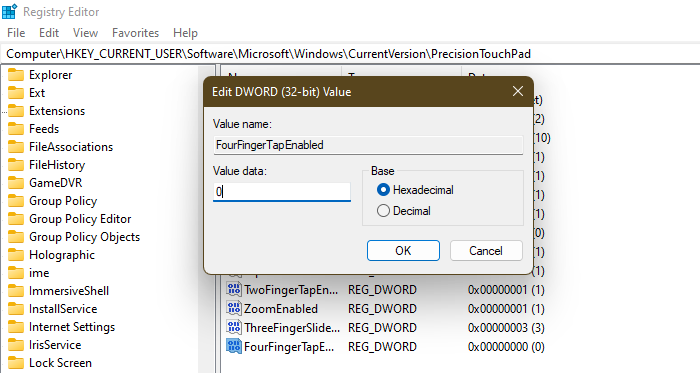
Next up, let us configure a registry called FourFingerTapEnabled using the Registry Editor. But before that, you need to create a backup before going forward. This is for the time if something goes wrong. You can restore the backup in that case. That is why it is important to create a backup. Once you have created the backup, open Registry Editor and go to the following location.
Computer\HKEY_CURRENT_USER\Software\Microsoft\Windows\CurrentVersion\PrecisionTouchPad
Look for FourFingerTapEnabled. If there is no FourFingerTapEnabled, we need to create it, for that, right-click on PrecisionTouchPad and select New > DWORD (32-bit) Value. Now, name the newly created value FourFingerTapEnabled. Right-click on it and set the Value data to any of the following options.
- 00000000 for Nothing
- 00000001 for Open search
- 00000002 for Notification center, Play/pause
- 00000003 for Middle mouse button
After configuring the registry, close the Registry Editor and the feature will be enabled.
Read: How to change Three-finger Swipe Gestures in Windows 11
3] Via Advanced Gestures
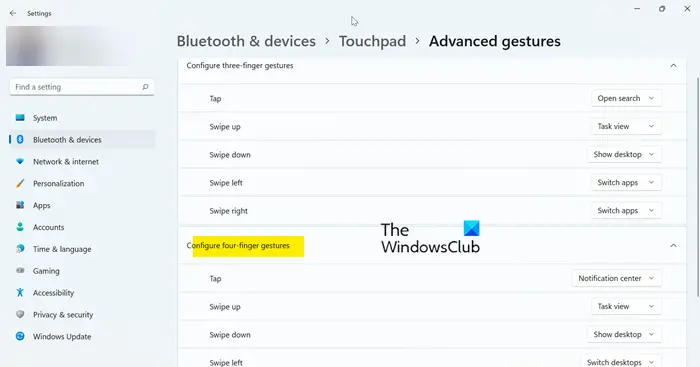
If the above method feels a bit difficult and you don’t understand how to configure the Four-finger gesture, no problem! Windows Settings offers a different method you can use instead.
Follow these steps to do the same.
- Open Settings by Win + I.
- Go to Bluetooth & devices.
- Click on Touchpad and then go to Advanced gestures.
- Go to Four-finger Swipe Gesture and make the changes from the window.
Hopefully, you now know every method to configure the Four-finger Swipe Gesture.
Read: Enable, configure & use Precision Touchpad settings in Windows
How do I turn off 4 finger gestures in Windows 11?
To turn off 4-finger or Four-finger gestures, you need to set it to Nothing. Follow the steps above to configure the option. When you are on the drop-down menu, make sure to select Nothing. In case you are using Registry Editor, change the value of FourFingerTapEnabled to 00000000. Hopefully, this will do the job for you.
Read: TouchPad not working on Windows 11
How do I change my touchpad shortcuts?
There are a lot of Touchpad shortcuts that can be changed on your Windows computer. You need to go to Settings > Bluetooth & devices > Touchpad on your Windows 11 system and Settings > Devices > Mouse & touchpad on your Windows computer. From there, configure any of the shortcuts.
Also read: List of Touch Screen and Touchpad Gestures in Windows 11.
