
Although Google Sheets and Excel Online are two of the best free online spreadsheet editing apps, you may not like certain features of them. For example, the date format. In case you do not want to use the predefined date or time format, you can change it in Google Sheets and Excel Online. For your information, you do not need to use an add-on or any other third-party service to get it done.
There is no limit on what you can write or insert in an Excel spreadsheet. From writing simple text to an image to a date and time, you can add almost anything to your Excel file. When you add a date, it uses a predefined format. Even though you need a format like 08/02/2026, Excel Online and Google Sheets may use a different format, such as 08-02-2026. At times, you might not like such a change due to unfamiliarity. In such situations, you can follow this guide to use a custom or different date or time format in Google Sheets and Excel Online.
How to change Date Format in Google Sheets
To change the date format in Google Sheets, follow these steps:
- Open Google Sheets on your browser.
- Click on the date/time cell.
- Go to Format > Number.
- Select the Custom date and time option.
- Select a date/time format.
- Click the Apply button.
To learn more about these steps, continue reading.
First, open the Google Sheet in your browser. Then click the cell that displays the date and time.
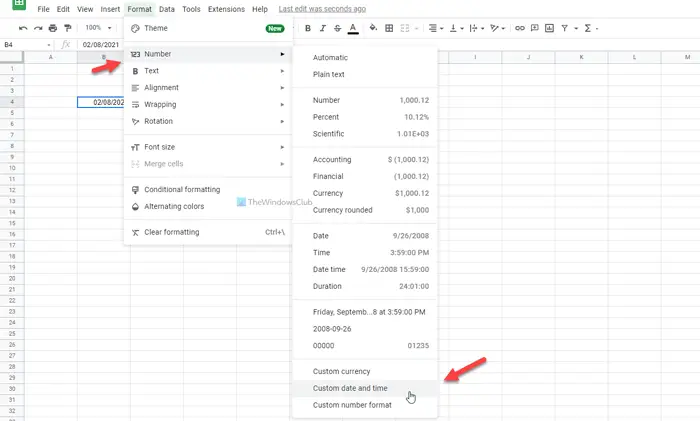
After that, click on the Format menu on the top menu bar, and select the Number option. Then, select the Custom date and time option.
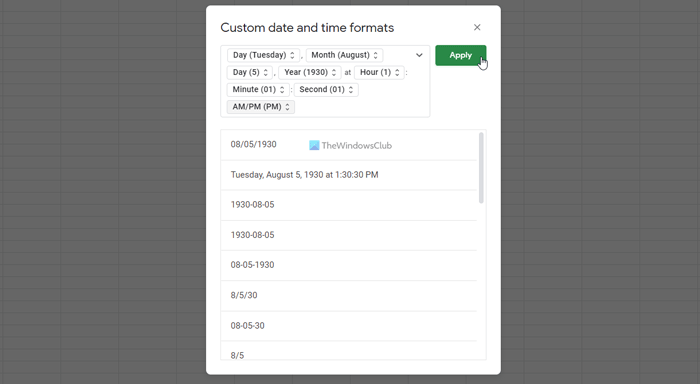
Here you can find a list of various formats for date and time. You can select an option that you like and click the Apply button.
Once done, you can find the new format.
The steps above help you change the date or time format for a specific cell. However, if you want to apply the same change across all cells, you need to select the entire spreadsheet first. After that, you can follow the same method as above.
How to change Date Format in Excel Online
To change the date format in Excel Online, follow these steps:
- Open Excel Online on your computer.
- Right-click on the date/time cell.
- Select the Number Format option.
- Switch to the Date tab.
- Select a date format you like.
- Click the OK button.
Let’s check out these steps in detail.
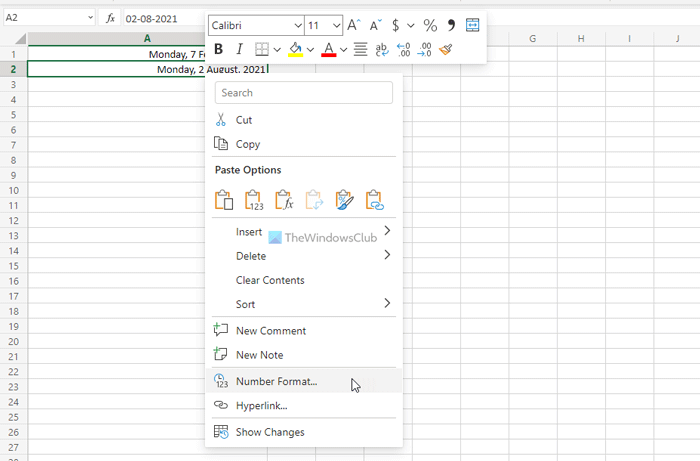
To get started, you need to open a spreadsheet in Excel Online. Then, right-click on the date/time cell and select the Number Format option from the context menu.
Once the window is opened, switch to the Date tab. Here you can find numerous options for dates. You can choose one as per your requirements.
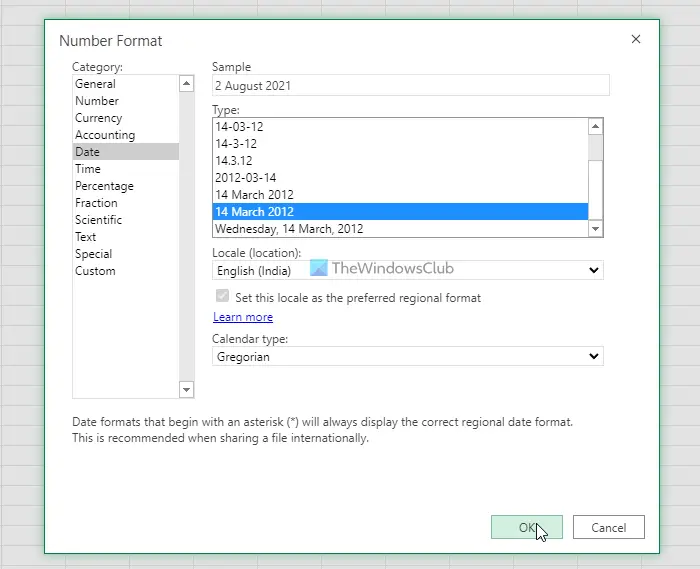
Then, click the OK button to save the change.
For your information, you can visit the Time tab to set a custom format to time as well. Also, like Google Sheets, you can change the format of date and time for all cells at once if you select the entire spreadsheet first.
That’s all! Hope it helped.
Can I change the date format in Google Sheets?
Yes, you can change the date format in Google Sheets. To do that, select the cell first. Then, go to Format > Number and select the Custom date and time option. After that, choose a format you like and click the Apply button. If you want to apply the change for the entire spreadsheet, you need to select it first.
How do I change the date format in Excel 365?
To change the date format in Excel 365, select the cell in your spreadsheet and go to Format > Format Cells. You can find this option in the Home tab. Then switch to the Date tab and select a format of your choice. Finally, click OK to save the change.
Read: How to stop Excel from rounding numbers.
