
In this post, we are going to show how to change the BPM or tempo of a song in Windows 11/10. BMP stands for Beats Per Minute and is the value that is used to determine the tempo of a song. As the name suggests, it measures the number of beats per minute in a song. For example, 60 BPM means one beat per second. If the BPM is 120, it mines that there are two beats per second. And so on! In musical notation, the beat relates to the time signature.
The higher the BPM, the faster the song. It matters in film scoring, setting up a metronome, changing a song’s mood and feel, and more. If you want to change the BPM of a song in Windows 11/10 and can’t find a solution, here is a guide. In this article, I’ll cover free software and web services that let you change a song’s BPM (tempo) on your Windows 11/10 PC. Let’s check out the solutions now!

Can you change the BPM of a song?
Yes, you can change a song’s BPM and its pace. In this post, we’ll show you how to change a song’s BPM using free software or a web service. So, keep on reading!
Is Tempo the same as BPM?
Yes, tempo is the same as BPM. Tempo is basically the speed or pace of a song, measured in Beats Per Minute (BPM).
How to Change BPM or Tempo of a Song in Windows 11
Here are two different ways to change a song’s BPM or tempo in Windows 11/10:
- Use a free software to change the BPM or tempo of an audio file.
- Change the song BPM or tempo using a free online service.
Let’s elaborate on these methods now!
1] Use a free software to change the BPM or tempo of an audio file
Here are the free software that you can use to change the BPM or tempo of a song on Windows 11/10 PC:
- Audacity
- BPMinus
- Audiodope
- Naturpic Audio Editor
Now, let’s have a look at how these freeware enable you to customize a song’s BPM or tempo.
1] Audacity
Audacity needs no introduction. It is one of the most popular audio editors amongst users. It is completely free and open source. Along with several audio editing tools, it also provides you a feature to change the BPM of a song. So, if you use Audacity, simply use it to change
How to change the BPM or tempo of a song in Audacity:
Here are the steps to change the BPM of an audio file in Audacity:
- Download and install Audacity.
- Open Audacity.
- Import a song file.
- Select a part of a song or the whole song.
- Go to the Effect menu and click the Change Tempo option.
- Change the BPM as per your requirement.
- Preview the edited song and save the audio with changed BPM.
Let us discuss these steps in detail!
Firstly, if you don’t already have Audacity, download and install it on your Windows 11/10 PC. It is also available for Mac and Linux.
Now, launch the Audacity software and open an audio file using the File > Import > Audio option. It supports a wide number of audio file formats to edit including MIDI, MP3, OGG, FLAC, AC3, WAV, WMA, etc.
Select the audio from the timeline for which you want to change the BPM. You can select the entire song or a part of it.
Next, you need to go to the Effect menu. Here, you will see various effects options; simply click on the Change Tempo option.

A dialog box will open where you can change the song’s BPM to your liking. Drag the slider to adjust how much you want to change the song’s tempo.
You can also enter the Beats per minute manually to change the song’s tempo. Additionally, you can enable or disable the Use high quality stretching option accordingly.

When you change the BPM, you can preview the edited song right from the dialog window. Simply tap on the Preview button and listen to the audio with changed BPM. Press the OK button to apply changes.
Finally, you can save the song with edited BPM or tempo, go to the File > Export option, and select the audio format to save the output.
So, this is how you easily change tempo, pitch, speed, and much more using Audacity.
See: Remove Background Noise using Audacity.
2] BPMinus

BPMinus is a dedicated freeware to change the BPM or tempo and pitch of a song on Windows 11/10. You can simply open an audio file and change its tempo. It is primarily used to detect the BPM of a song.
You can see the tempo of a song on its main interface as you load files to it. Now, let us see how you can use it for changing the tempo of an audio file:
- Download and install BPMinus.
- Open it and load audio files to it.
- Go to the Tempo slider and change it.
- Preview the edited audio file in real-time.
- Select the audio file and use the Save as feature to export it.
Just download and install BPMinus on your system and launch it. Then, go to the File menu and click on the Add Files to Playlist option to import one or more songs. It supports MP3, WAV, OGG, WMA, FLAC, and more formats.
Now, select an audio file from the playlist section and then change Tempo from the right panel. You can adjust the Tempo slider and preview the song in real-time.
If everything looks good, select the audio file and click the File > Save as option to export the edited audio file in the format of WAV, MP3, and AAC formats.
Liked it? You can download it from bpminus.com.
Read: How to adjust Audio Quality or change Bitrate on Discord.
3] Audiodope

Audiodope is another freeware to change the BPM of a song on Windows 11/10. It is a featured audio editor that comes with a tempo changer tool. It is very simple and easy to use. Here are the steps to change the BPM of a song using it:
- Download and install Audiodope.
- Launch Audiodope.
- Open an audio song.
- Select the whole song or a specific part.
- Go to the Process > Tempo option.
- Change the tempo.
- Preview and then export the song.
Download and install this handy utility called Audiodope on your system. Open the software’s main interface.
Go to the File menu and click Open to import a song. You will see the audio song on its timeline editor. Next, what you have to do is select a part or full audio for which you want to change BPM.
After that, go to the Process menu and select the Tempo option. A small prompt window will open up where you can drag the slider to change the tempo of a song. You can also preview the edited version of the song by clicking the Preview button. If you don’t like the changes, click on the Reset button. Finally, press the OK button to apply the tempo change.
You can simply save the edited audio file by going to the File > Save as option. It supports many common audio file formats such as MP3, OGG, FLAC, WMA, WAV, APE, etc.
It is a handy audio editor that can change a song’s BPM. You can also customize Normalize, Invert, Pitch, Volume, Echo, Filters, Reverb, Resample, and more audio parameters.
See: Free DJ Mixing Software for Windows 11.
4] Naturpic Audio Editor
Naturpic Audio Editor is an audio editor you can use to change a song’s BPM or tempo in Windows 11/10. It lets you change BPM and apply several other effects, including changing pitch, reverb, adding noise, reversing, normalizing, and more. Now, let us find out how to use it to customize a song’s tempo.
Download and install Naturpic Audio Editor and then open it. Import an audio file for which you want to change BPM.
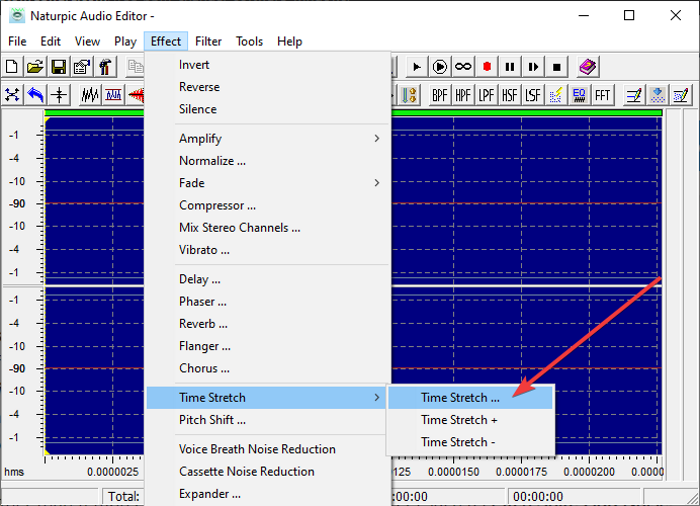
Next, go to the Effect menu and from several options, click on the Time Stretch > Time Stretch option.
A dialog window will open where you can adjust the song’s tempo using the slider. Or, you can also use predefined tempo changer presets to change the BPM of a song, like Slow Tempo 50%, Slow Tempo 90%, SpeedUp Tempo 120 %, SpeedUp Tempo 150%, and so on.
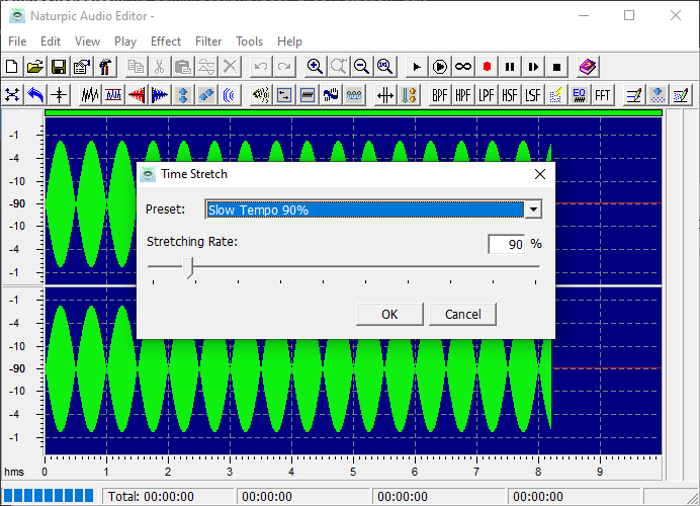
After that, click on the OK button. To preview change in the input song, click on the Play button from the toolbar. If all looks good, go to the File menu and use the Save as option to export the edited version of the song.
This audio editor plus BMP changer lets you import and export audio files in MP3, MP2, WAV, OGG, WMA, and more audio formats.
2] Change the song BPM or tempo using a free online service
These are the online services using which you can customize the BPM or tempo of a song:
- audioalter.com
- x-minus.pro
- Audio Speed Changer.
Let us discuss these online BPM or changer services in detail!
1] audioalter.com
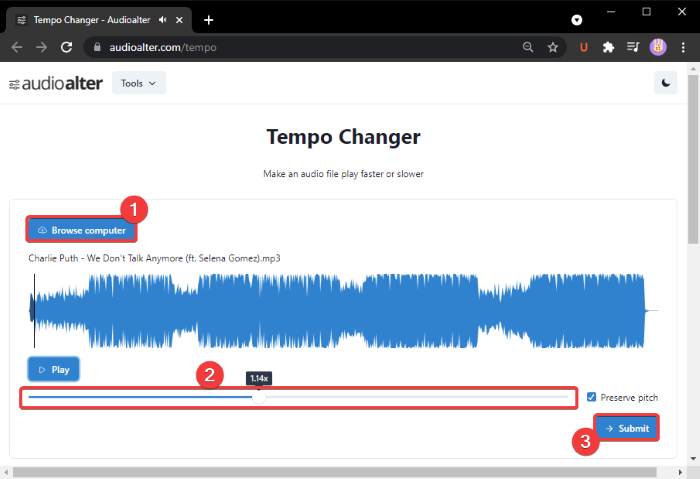
audioalter.com is a free web service that provides various audio editing tools including a BPM/Tempo changer. Using this tool, you can quickly change the BPM of a song right in a web browser. Let’s check out how!
To use it, open a web browser and visit the website. On the Tempo Changer page, browse and import an audio file. It supports MP3, WAV, OGG, and FLAC. Also, the maximum audio file size is 50 MB.
Now, drag the BPM changer slider (highlighted in the screenshot above) to your desired value. To preserve the original pitch of the song, enable the Preserve Pitch option.
You can click on the Play button to preview the edited audio. When you are satisfied with the BPM of the song, click on the Submit button. It will process the audio file, which you can then download directly from its server.
Its other tools that you may find handy include Pitch Changer, Bass Booster, Noise Reducer, Reverb, Vocal Remover, and more.
2] x-minus.pro

x-minus.pro is is a free online tempo changer service. It lets you change both the tempo and pitch of a song. You can easily use it.
Simply open this website in your web browser and select an audio file that you want to process. It will then open up Pitch and Tempo sliders. Use the Tempo slider to change the song’s tempo. You can also use the Faster or Slower button to quickly change tempo. Use the Play button to preview the changes right after adjusting the tempo.
After that, select an audio codec (MP3, WAV), bitrate, etc., and then click on the Download button to save the edited audio with changed BPM.
3] Audio Speed Changer
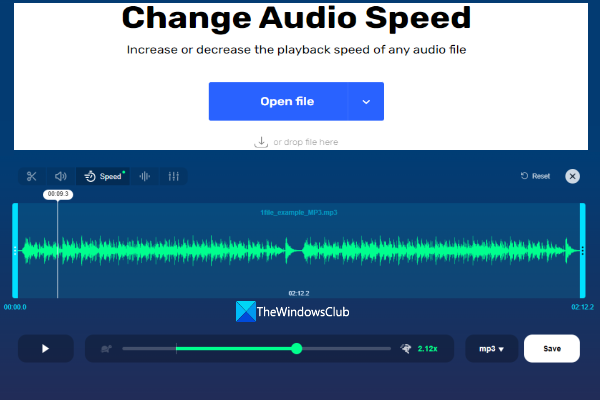
Audio Speed Changer comes with a beautiful and user-friendly interface to change the tempo of an audio file. It supports common audio formats like FLAC, AIFF, WAV, MP3, etc. Multiple platforms (PC, online file using file URL, Dropbox, and Google Drive) are supported to upload the input audio.
In its free plan, you can add only one audio file to change the tempo. Also, the free plan supports up to 10 GB file size and up to 35 files can be processed per day which is more than sufficient.
To use this online audio tempo changer, open its homepage from mp3cut.net. Use the Open file button to add an audio file from your computer. Or else, use the drop-down menu to add an input file from another supported platform.
After adding the file, you can increase or decrease the audio speed with a slider and play the audio. This helps you check whether the output is as good as expected. You can also trim the audio, change the pitch (if needed), or adjust the tempo.
Once you are done, use the drop-down menu to select the output audio format. Supported audio formats are WAV, M4R, MP3, FLAC, and M4A. Finally, click Save to download the output audio.
Hope this article helps you find a suitable tool to change a song’s BPM or tempo in Windows 11/10.
Now read:
