
By default, Trello uses a single-color background, which may look dull to you. If so, and you want to customize your Trello board with a new background wallpaper, here is how. It is possible to change the background on Trello using these simple steps. Once you do that on one device, it will be synchronized across all the devices.
How to change background on Trello
To change Trello background, follow these steps:
- Open the Trello board.
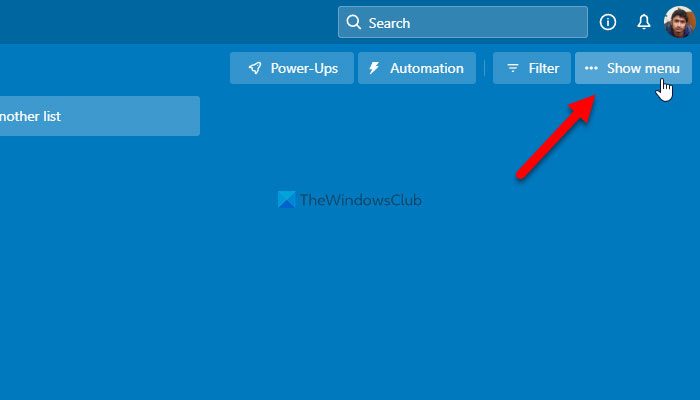
- Click the Show menu button.
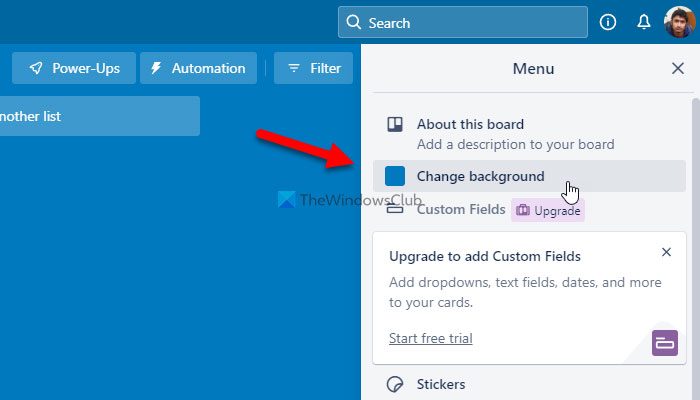
- Click on the Change background
- Select the Photos or Colors option.
- Click on a color or image to set it as the background.
Let’s learn more about these steps.
First, you need to open the Trello website and log in to your account. Then, open the desired Trello board on the website and click on the Show menu button visible in the top-right corner.
Here you can find an option called Change background.
You need to click on this option and choose either Photos or Colors.
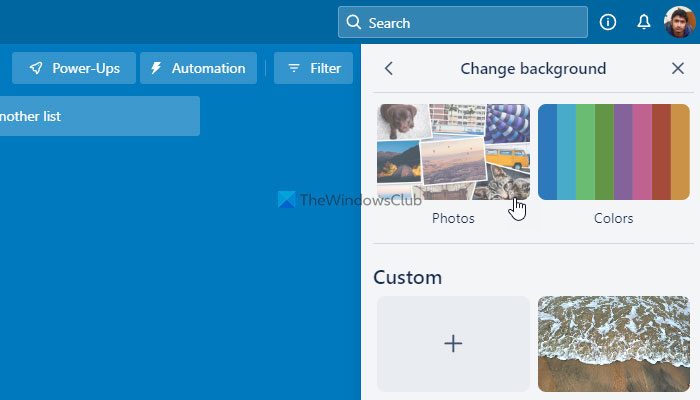
In other words, if you want to set an image as the background, select the Photos option. However, if you want to set a solid color as the background, choose the second option. Similarly, if you want to use a custom image, you need to choose the Custom option and click on the respective plus sign.
If you select the Colors option, you’ll see a palette. If you select the Photos option, you’ll see a few images on your screen.
For your information, Trello uses Unsplash to allow users to choose an image. It is one of the best websites to download royal-free images.
Once you have an image you want, click it to set it as the background.
After that, you can see the change immediately.
How to change Trello background on mobile app
To change the background on the Trello mobile app, follow these steps:
- Open the board on Trello app.
- Tap on the three-dotted icon to open the menu.
- Tap the three-dotted icon to open the settings panel.
- Tap on the Background option.
- Choose an image or color.
To know more about these steps, keep reading.
To get started, open the Trello app on your mobile and open the respective board. Then, tap on the three-dotted icon to open the menu. You can find this button in the top-right corner.
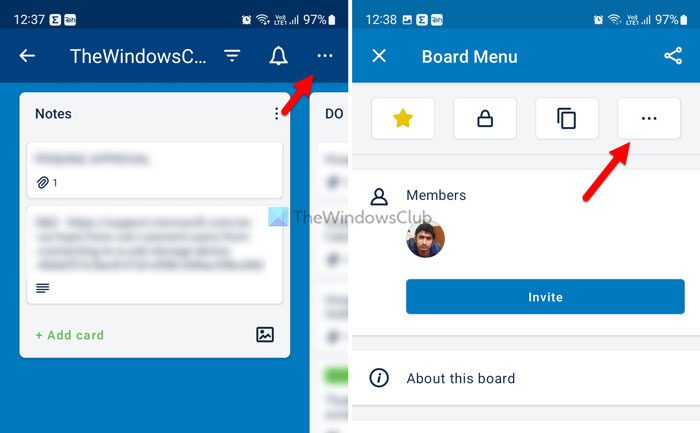
Following that, again tap on the three-dotted icon to open the board settings panel. Here you can find an option called Background. You need to tap on this option.
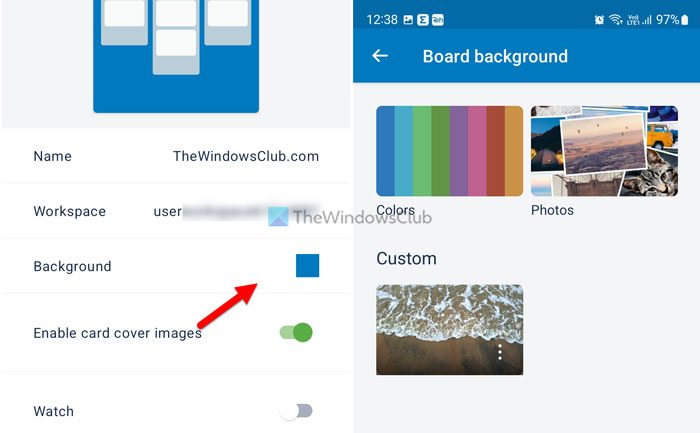
Next, choose the Colors or Photos option as per your requirements. Alternatively, you can tap on the plus icon to upload an image from your mobile’s local storage.
Once you select an option, you can choose the photo or color accordingly. Like the web version, you can set the background by tapping on it.
That’s it.
Read: How to connect and sync Trello to Google Calendar
Can I upload my own background in Trello?
Yes, you can upload your own background in Tello and set it as the background wallpaper for your board. However, you must use a high-resolution image when choosing the wallpaper for your Trello board. You can follow the same method as above to upload your own background on Trello.
Does changing the Trello background apply only to me?
No, once you change the Trello background, it will be reflected to all the members at the same time. Right now, there is no option to set a custom background only for you or a specific user. To change the Trello background, follow the steps above.
