
The Power-Ups or add-ins make Trello even better. If you are new to Trello, you must check out these Trello Power-Ups that will improve your productivity for you. It connects various apps and services so that you can synchronize your data and get things done on demand.

Best Trello Power-Ups to improve productivity
Some of the best Trello Power-Ups are:
- Calendar Power-Up
- Card Aging
- Card Repeater
- Google Drive/OneDrive
- Read Me
- 3T – Time Tracker
- Print Board
- io
- Bulk Actions
- Amazing Fields
- Copy & Link
- File Manager
Let’s check out more about these Power-Ups.
1] Calendar Power-Up
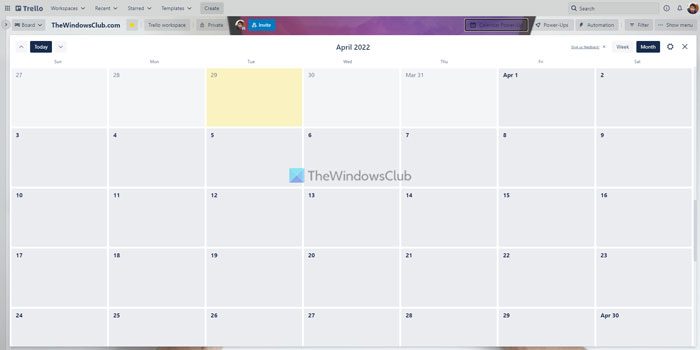
By default, Trello displays cards in a column view. However, if you want to display them in a calendar view, you can do that with the help of this Power-Up. It is possible to view the cards on a board for weeks and months. Whether you have one or 100 cards, you can organize them by date in the calendar view. Download from Trello.com.
2] Card Aging
Let’s assume some team members are repeatedly delaying their tasks, and you cannot find the exact pending cards. In such situations, you can use this Power-Up to get the job done. This add-in helps you dim inactive cards so you can quickly find pending tasks. Download from Trello.com.
3] Card Repeater
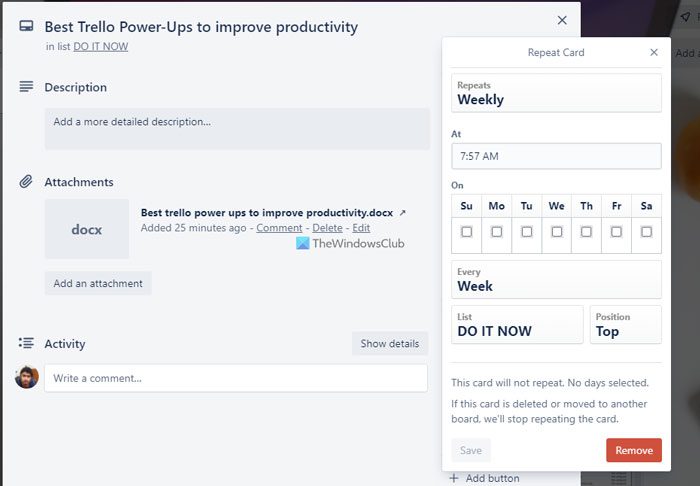
At times, you might need to create a duplicate card for different purposes. If so, you can use this Power-Up to get it done. Instead of creating the entire card from scratch or copying data from one card to another, you can install and use this Trello Power-Up. Whether you need to import the due date, content, attachment, or anything else, you can copy everything. Download from Trello.com.
4] Google Drive/OneDrive
If your team uploads all the important files to Google Drive or OneDrive so that others can manage them in a better way, you can install these Power-Ups. After connecting them to your Trello board, you can access and manage cloud storage files easily. Whether you need to upload an attachment or link something to a card, you can do both. Download from Trello.com.
5] Read Me
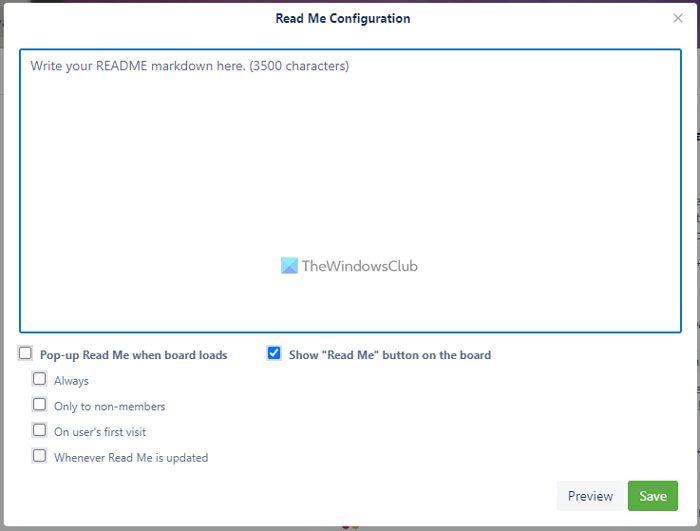
Let’s say that you often add people to your Trello board, and you need to clarify rules, notes, instructions, etc., to them. Instead of doing that manually, you can use this Power-Up to create a note so that new assignees can read them before getting started with the board. It is possible to write one or multiple notes. Download from Trello.com.
Note: You can find all these aforementioned Power-Ups in the Made by Trello section.
6] 3T- Time Tracker
Whether you use Trello for personal reasons or for your team, you can track time spent on a task or card using this Power-Up. In other words, it lets you check how much time you or your team members have spent finishing a task. You can simply click on the Start and Stop buttons to start and stop the timer. Download from Trello.com.
For your information, there is more other time tracking Power-Ups available in the repository. However, this one comes with minimal features and gets things done swiftly.
7] Print Board
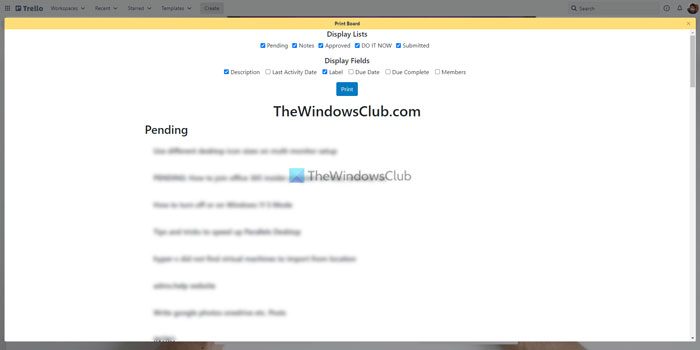
At times, you might want to print all the notes, cards, tasks, etc., so that you can get a physical copy of pending things. If so, you have two options – press the Ctrl+P or use this Power-Up. If you use this Power-Up, you can customize the page, which is not possible with the previous method. You can show or hide the list name, card name, card description, labels, members, due date, etc. if you use this Power-Up. Download from Trello.com.
8] Automate.io
Automate.io is an alternative to IFTTT and Zapier. You can use this Power-Up to connect Automate.io applets to automate tasks. Whether you need to create a calendar based on new cards or upload Trello attachments to Google Drive, you can do everything with the help of this Power-Up. However, you must create the applet first in order to use this Power-Up. Download from Trello.com.
9] Bulk Actions
Sometimes, you might want to move multiple cards from one list to another, add due dates for multiple cards, etc. You can open each card and set things up accordingly. However, if all the cards require the same changes, you can use this Power-Up. You do not need to open one card at a time to make those changes. Instead, you can select multiple cards and edit them as per your requirements. Download from Trello.com.
10] Amazing Fields
Often, you might seek a feature that is not available in Trello. For example, an additional text field or drop-down list. If so, you can use the Amazing Fields Power-Up to get them all. For your information, this Power-Up allows you to add a text field, numbers, checkbox, format dates, progress bar, etc. Download from Trello.com.
11] Copy & Link
Let’s say you need to create some sub-tasks on a board and link them all so other people can understand the entire process. If so, you can install and use this Power-Up. It links the sub-task automatically when you move a card from one list to another. However, it requires some setup to work as per your requirements. Download from Trello.com.
12] File Manager
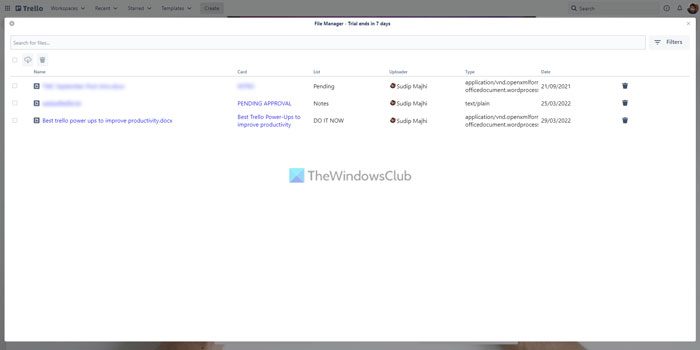
Trello allows users to upload files to their cards to improve workflow. However, if you upload many files, organizing them becomes problematic. If you suffer from the same problem, you can use this Power-Up called File Manager. Whether you upload images, documents, videos, or anything else, you can find them all under one roof. After that, you can open, manage, or delete them as needed. Download from Trello.com.
How to install Trello Power-Ups
To install Trello Power-Ups, follow these steps:
- Open a Trello board.
- Click on the Power-Ups
- Click the Add Power-Ups
- Find the Power-Up you want to install.
- Click the Add
- Click the Add button for confirmation.
To learn more about these steps, continue reading.
First, you need to open a Trello board on your browser and click on the Power-Ups button visible on the top menu bar. Then, click the Add Power-Ups option.
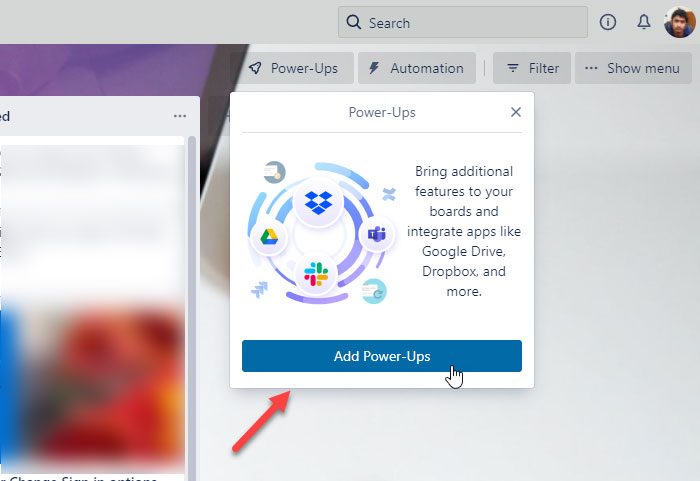
It opens the Power-Ups gallery. From here, choose a Power-Up to install and click the Add button twice.
That’s it! It will be installed. Then, you can set things up as per the requirements of the chosen Power-Up.
Read: Best Free Trello alternatives for Project Management
How many free Power-Ups do you get in Trello?
There is no limit to the number of Power-Ups you can install in Trello. According to the official website, you can install unlimited Power-Ups even if you have a free account. That being said, there is also no limit for paid account holders.
Are Power-Ups in Trello free?
Yes, all the Trello Power-Ups are available for free. You can install any Power-Up from the official repository at no cost. However, if the third-party service requires a paid subscription, you must have one to use it with Trello.
Are Trello Power-Ups secure?
Yes, you can install and use Trello Power-Ups securely. However, if a third-party service is attacked, Trello won’t be held accountable. Other than that, there is no harm in using Trello Power-Ups.
