
If you want to add text to photos or images, here are some of the best online tools you can use to get it done free. Whether you need to add a simple text or customize it with different fonts, colors, etc., you can do everything with the help of these tools. You can use these web tools to create a watermark on your image.
How to add Text to Image online free
Some of the best tools to add text to images online free are:
- Watermarkly
- Text2Photo
- Fotor
- Kapwing
- Canva
- Picfont
- LunaPic
To learn more about these tools, continue reading.
1] Watermarkly
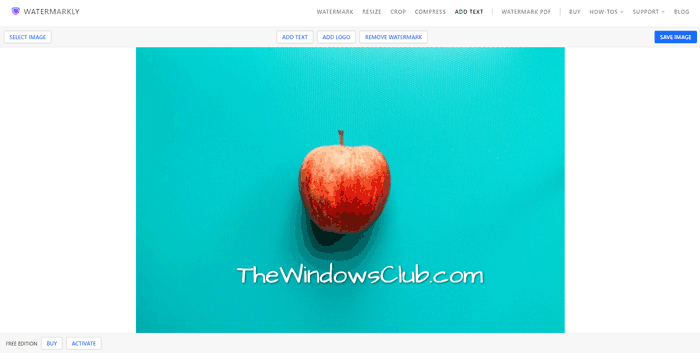
Watermarkly is one of the best in this business at adding a watermark to your image. Whether you have a small or large image to watermark, you can use this tool to get it done. The best thing is that you can save the image in one click by clicking the SAVE IMAGE button. Whether you want to add transparent text or a logo, both are possible. Even if you want to upload images from Google Drive or Google Photos, you can do that as well. Visit the official website at watermarkly.com.
2] Text2Photo
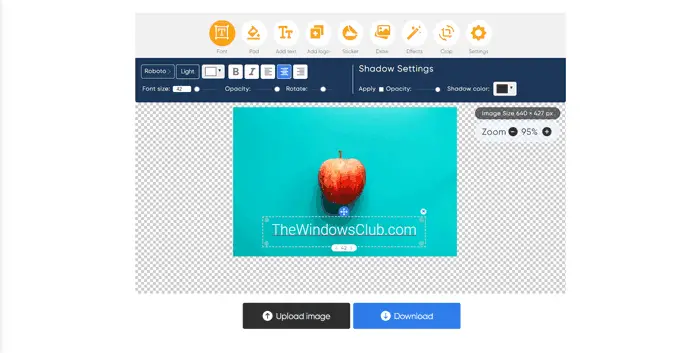
Text2Photo is yet another free online tool to add transparent text to the image. Not only just transparent text, but also you can do more editing with the help of this online photo editing app. For example, you can add a logo watermark, add a sticker, draw on the image, apply various effects, crop the image, etc. The most important thing about this tool is that you can download the uploaded image in the same resolution as the original. Visit the official website at text2photo.com.
3] Fotor
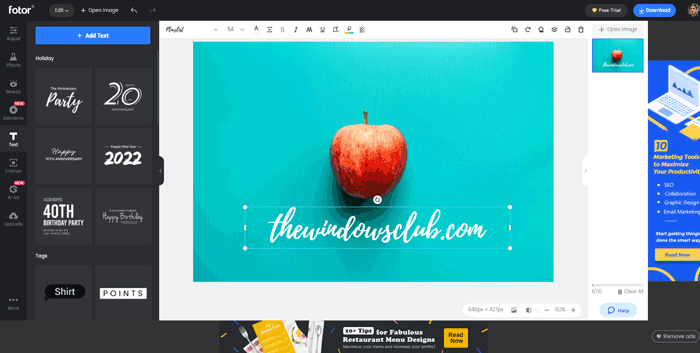
Fotor is a great online photo editing app that comes with almost all the essential options that a professional photo editor needs. From adding transparent text to customizing the font, adding a frame to the image, to applying effects, everything is possible with the help of this tool. Although the free version comes with some advertisements on the editing panel, you can do your job without any issue. However, the only drawback is that you must have an account to download the end result. Visit the official website at fotor.com.
4] Kapwing
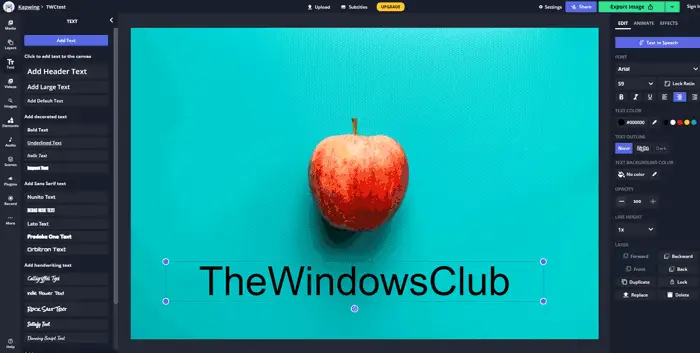
At times, you might not want to use the regular fonts on all the images. If so, you can use Kapwing, which offers tons of fonts for free, and you can use all of them without any restrictions. Whether you need to add a header, sub-header, or regular text, you can do everything with the help of this tool. Unlike Fotor, you do not need to create an account to download the watermarked image from this web tool. Visit the official website at kapwing.com.
5] Canva
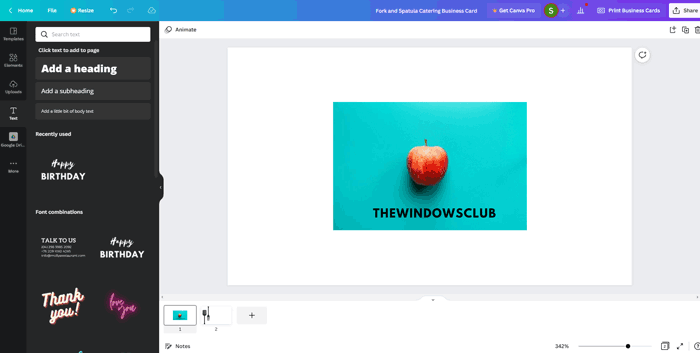
Canava is a handy photo editing tool for almost every kind of person. Whether you want to remove the image background, download the transparent image or anything else, you can do everything using Canva. You can use the same tool to add transparent text to the image and download it at the same resolution as the original. Like Kapwing, you can add a heading, subheading, and regular text using this app. However, Canva offers more preset designs, so you can choose one from the showcase. Visit the official website at canva.com.
6] Picfont
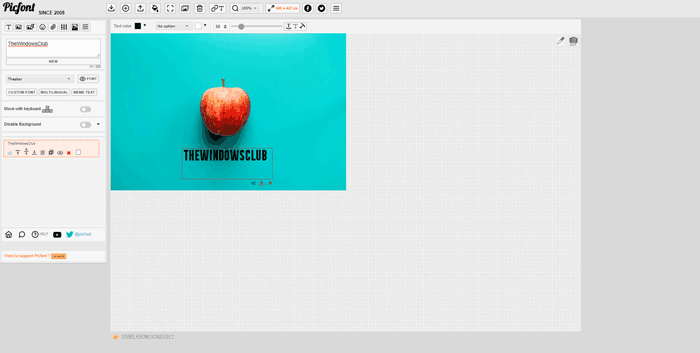
If you do not want to design your text with various fonts, colors or anything else, you can use Picfont. Although this tool includes all the aforementioned options, the main intention of this app is to add text to the image without any clutter. Having said that, the UI is pretty neat and clean, so that you can use this app for as many images as you want. Regarding options, you can use various fonts, sizes and colors as per your requirements. Visit the official website at picfont.com.
7] LunaPic
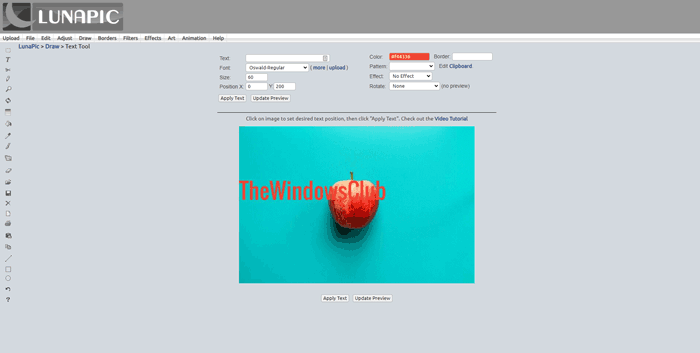
LunaPic comes with all the essential options, but you need to take a different path to use them all. All the aforementioned tools display the preview as you edit them. However, you need to click on the Update Preview button to view the preview. Regarding features, you can use various fonts, sizes, colors, patterns and effects. The only problem with this tool is that you cannot use your mouse to adjust the text’s position. You need to set the X and Y axis to change the position of the text. Visit the official website at lunapic.com.
That’s all! Hope these tools helped.
How can I add text to an image online?
There are countless tools available in the market to add text to an image online. For your convenience, we have mentioned some of the best tools in this article, and you can use any of them to get the job done. Whether you need to add transparent text or a background, you can do both using these tools.
How do I add text overlay to an image?
To add text overlay to an image, you can use the above-mentioned tools. Kapwing, Canva, Fotor, etc., are some of the best tools for adding text overlays to a picture. It is possible to add transparent text and a background using these tools.
Read: Batch edit Photos using these free software for Windows.
