
In this post, we will show you how to hide your name and profile picture in the Start menu on a Windows 11 PC. By default, when you open the Start menu in Windows 11, your account name and profile picture are visible in the bottom-left area. Now, the KB5120998 update introduced a native feature in Windows 11 to hide your account name and profile picture for a little privacy and to make the Start menu more personal.
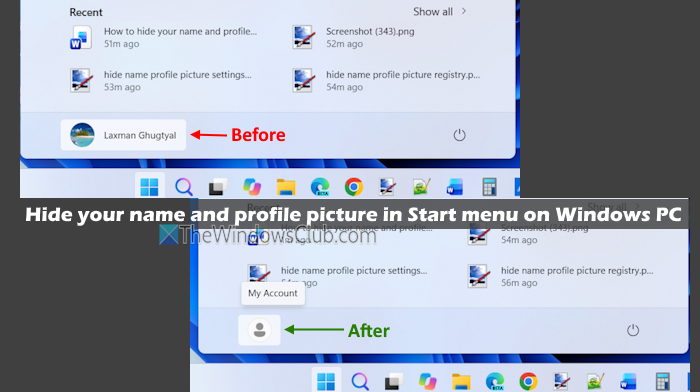
How to hide your Name and Profile Picture in Start Menu on Windows 11
There are two ways to hide your account name and profile picture in the Start menu on Windows 11:
- Using the Settings app
- Using the Registry Editor.
Let’s check both options.
1] Using the Settings app
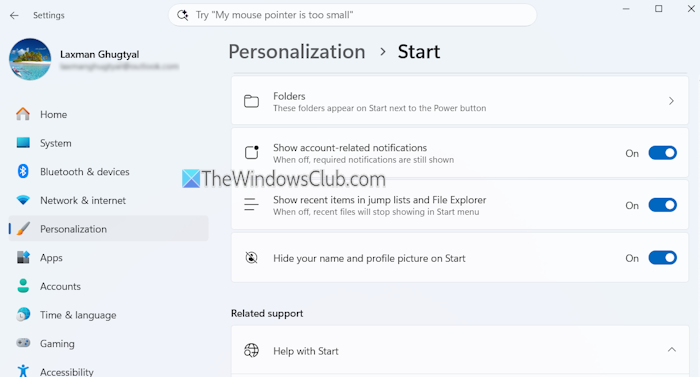
Follow these steps to hide your account name and profile picture in the Start menu using the Settings app in Windows 11:
- Use the Win+I hotkey to open the Windows 11 Settings app
- Select Personalization
- Access the Start page
- Scroll down to access the Other section
- Turn on the Hide your name and profile picture on Start option.
When you open the Start menu, there won’t be a profile picture or account name. Placing the cursor on the picture icon will show a My Account text and not your actual account name.
Related: Show or hide Lock option from the User Account Profile picture in Start Menu
2] Using the Registry Editor
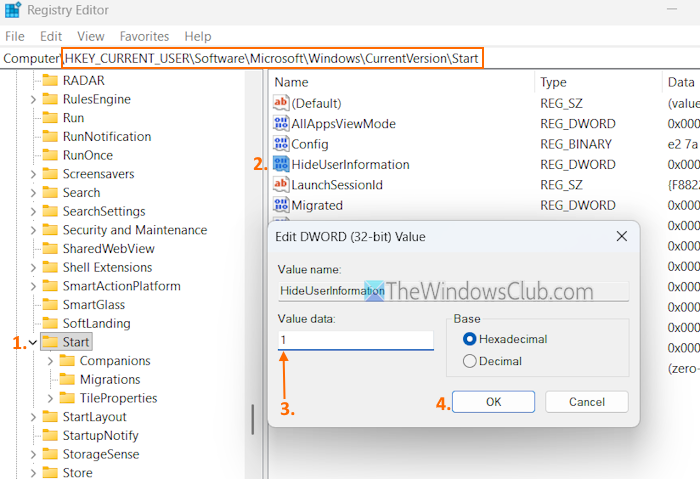
First, take a backup of the Registry Editor. After this, use these steps to hide your profile picture and account name in the Start menu using the Registry Editor:
- Type regedit in the Search box and hit Enter
- Access the Start Registry key. Here is the path:
HKEY_CURRENT_USER\Software\Microsoft\Windows\CurrentVersion\Start
- Double-click on the HideUserInformation DWORD (32-bit) Value. Its edit box will open
- Add 1 in the Value data field
- Press OK.
To display your account name and profile picture in the Start menu, open the HideUserInformation value. Add 0 in the Value data field and press OK.
Now read: How to Backup, Restore, Reset Start Menu layout in Windows PC
How to hide Start menu in Windows 11?
The option to completely hide the Start menu is not available in Windows 11. However, you can customize the Start menu and remove the Pinned section, Recent section, hide the list of all installed apps, etc., using the Settings app. In the Settings app, navigate to Personalization > Start, and use the options as per your needs.
Read: Show or hide Lock option from the User Account Profile picture in Start Menu
How to make an icon name invisible?
To create a folder without any name or icon, right-click on the folder and select Rename. Press and hold the Alt key and type 0160. Release the Alt key. This will create a blank folder name on your Windows 11 PC.
Read next: Start Menu keeps popping up or opens randomly on a Windows PC.
