
At times, you may want to preserve your Start Menu layout or maintain the same layout across your Windows 11 or Windows 10 devices. In such a case, it might be a good idea to back up your Start Menu layout so that you can restore it. This post will show you how to Back up and Restore the Start Menu layout, and even how to Reset the Start Menu to the default manually or using a free tool called Backup Start Menu Layout in Windows 11/10.
To begin, you need to do the following first – Enable the super built-in Administrator account in Windows. So, if you are running a different account, we suggest you sign out from that account and sign in with the Administrator account you just enabled moments ago. Next, you need to make File Explorer show Hidden & System files and folders.
Backup Start Menu layout in Windows 11/10
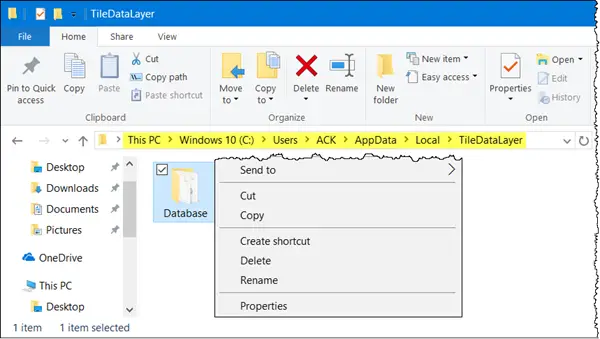
Having done the initial basic things, navigate to the following address:
C:\Users\<username>\AppData\Local\TileDataLayer
Remember to replace the <user name> portion with the name of the user whose Start Menu layout you need to backup.
Click open TileDataLayer folder and you will see a folder with the name – Database. This folder stores all the required information about the Tiles displayed and the Start Menu layout for the selected user account.
To create a backup of the Start menu layout in Windows, make a copy of this Database folder and save it elsewhere in a safe place, and sign out from the Administrator account. Do not forget to disable the built-in Administrator account.
Restore Start Menu settings in Windows 11/10
Now, if ever you need to restore your Start Menu layout, enable the built-in Administrator account, and make File Explorer show hidden files and folders. and then delete the following folder:
C:\Users\<username>\AppData\Local\TileDataLayer\Database
Now copy-paste the folder that you had earlier, in this TileDataLayout folder location, and restart your computer.
Related: How to Restart Start Menu in Windows 11/0
Reset Windows Start Menu settings
If you wish to reset Start Menu settings to default, simply rename the Database folder to say – Database-Bak. On restart you will see the default Start Menu layout.
Before you exit, remember to disable the built-in Administrator account and change back the Show Hidden files & folder setting.
Use Backup Start Menu Layout tool for Windows 11/10
You can also free tool called Backup Start Menu Layout to do this easily. It is a free portable software that can backup, restore, rollback & reset your Windows 10 as well as Windows 11 Start Menu layout with a click.
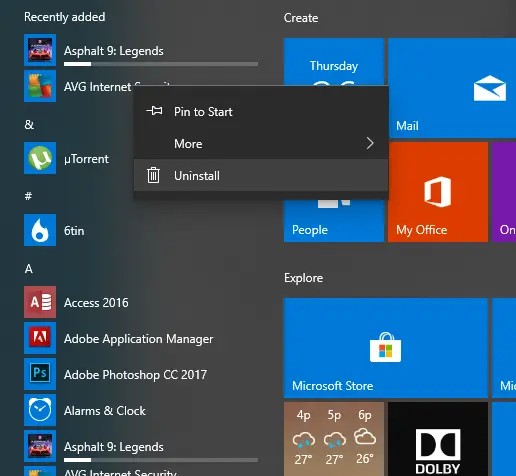
If you are someone like me, who is highly conscious of how their Start Menu layout looks and helps them in accessing applications faster, Backup Start Menu Layout is sure to interest you.
Once you have downloaded this file and extracted its contents, click on the exe app file to open it.
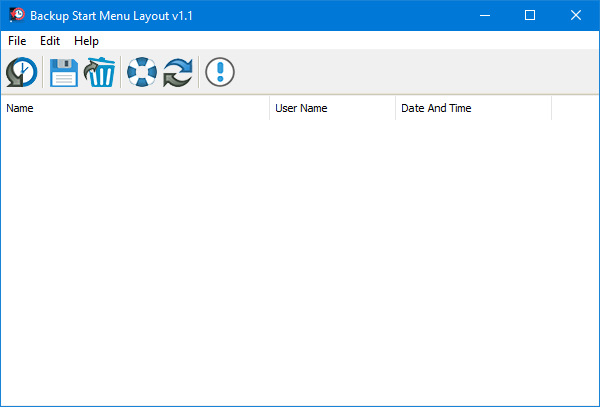
To create a backup of your Start Menu tile layout, click the second icon from the left on the menu ribbon. It looks like a floppy disk or the Save button.
As soon as you click on it, a new backup will be created, and an entry will appear in the list.
Now, you can simply double-click on that entry to restore the layout at any time. Or just right click on it and click on Restore Backup.
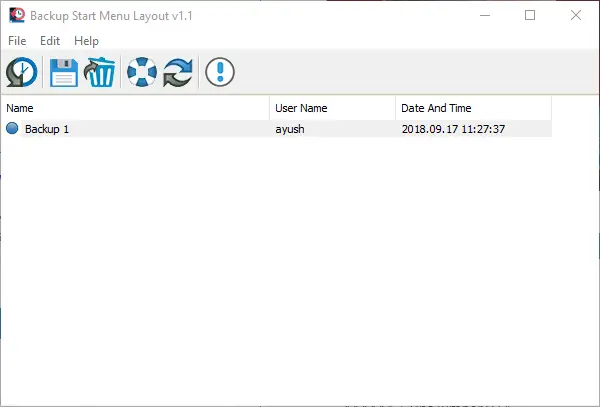
You can select it and press the Delete key on your computer to delete it or else press F2 to rename it. And all this can also be done by right-clicking on a specific entry.
You can also click on the fourth icon in the icon ribbon from the left, which looks like a floating icon, to reset the layout.
This option is useful when your Start Menu layout is overly cluttered or a mess, and you want to reset it to the default layout.
As soon as you click the Reset button, a prompt will appear, stating that your layout has been reset.
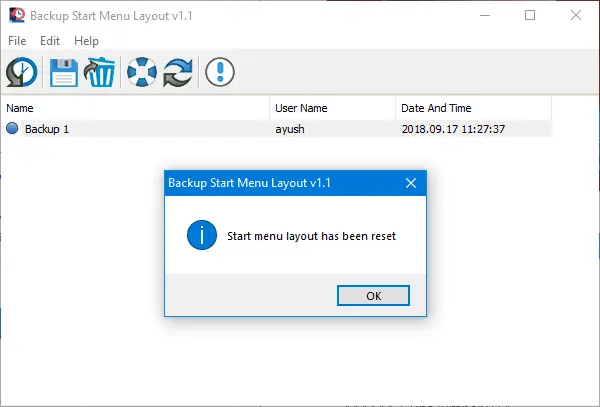
Now you can start building your Start Menu layout from scratch.
Additionally, you can also use the features of this freeware using the command line.
You can learn more about it by clicking on File > Command Line Info.
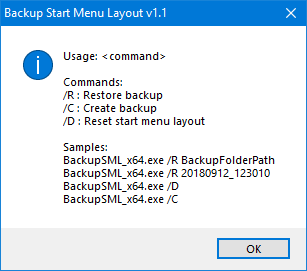
A new pop-up window will appear with information about using commands in the command line.
You can download Backup Start Menu Layout from here.
This is how you can backup, restore and even reset Start Menu layout in Windows 11/10.
TIP: This post will show you how to Import, Export the Start Menu layout in XML file format using PowerShell.
